# Understanding constraints
> Flutter's model for widget constraints, sizing, positioning, and how they interact.
 :::note
If you are experiencing specific layout errors,
you might check out [Common Flutter errors][].
:::
[Common Flutter errors]: /testing/common-errors
When someone learning Flutter asks you why some widget
with `width: 100` isn't 100 pixels wide,
the default answer is to tell them to put that widget
inside of a `Center`, right?
**Don't do that.**
If you do, they'll come back again and again,
asking why some `FittedBox` isn't working,
why that `Column` is overflowing, or what
`IntrinsicWidth` is supposed to be doing.
Instead, first tell them that Flutter layout is very different
from HTML layout (which is probably where they're coming from),
and then make them memorize the following rule:
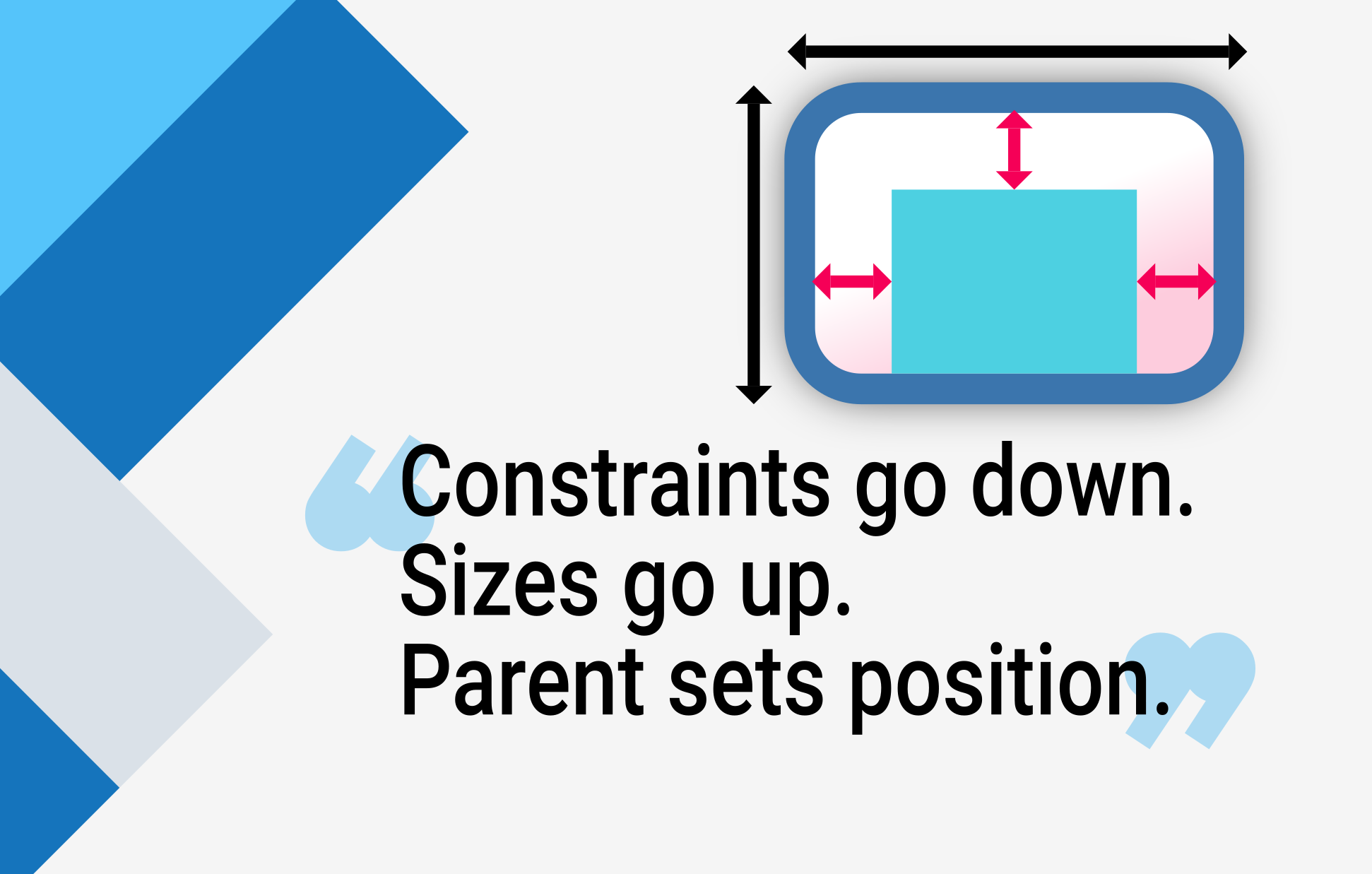
Constraints go down. Sizes go up. Parent sets position.
Flutter layout can't really be understood without knowing
this rule, so Flutter developers should learn it early on.
In more detail:
* A widget gets its own **constraints** from its **parent**.
A _constraint_ is just a set of 4 doubles:
a minimum and maximum width, and a minimum and maximum height.
* Then the widget goes through its own list of **children**.
One by one, the widget tells its children what their
**constraints** are (which can be different for each child),
and then asks each child what size it wants to be.
* Then, the widget positions its **children**
(horizontally in the `x` axis, and vertically in the `y` axis),
one by one.
* And, finally, the widget tells its parent about its own **size**
(within the original constraints, of course).
For example, if a composed widget contains a column
with some padding, and wants to lay out its two children
as follows:
:::note
If you are experiencing specific layout errors,
you might check out [Common Flutter errors][].
:::
[Common Flutter errors]: /testing/common-errors
When someone learning Flutter asks you why some widget
with `width: 100` isn't 100 pixels wide,
the default answer is to tell them to put that widget
inside of a `Center`, right?
**Don't do that.**
If you do, they'll come back again and again,
asking why some `FittedBox` isn't working,
why that `Column` is overflowing, or what
`IntrinsicWidth` is supposed to be doing.
Instead, first tell them that Flutter layout is very different
from HTML layout (which is probably where they're coming from),
and then make them memorize the following rule:
Constraints go down. Sizes go up. Parent sets position.
Flutter layout can't really be understood without knowing
this rule, so Flutter developers should learn it early on.
In more detail:
* A widget gets its own **constraints** from its **parent**.
A _constraint_ is just a set of 4 doubles:
a minimum and maximum width, and a minimum and maximum height.
* Then the widget goes through its own list of **children**.
One by one, the widget tells its children what their
**constraints** are (which can be different for each child),
and then asks each child what size it wants to be.
* Then, the widget positions its **children**
(horizontally in the `x` axis, and vertically in the `y` axis),
one by one.
* And, finally, the widget tells its parent about its own **size**
(within the original constraints, of course).
For example, if a composed widget contains a column
with some padding, and wants to lay out its two children
as follows:
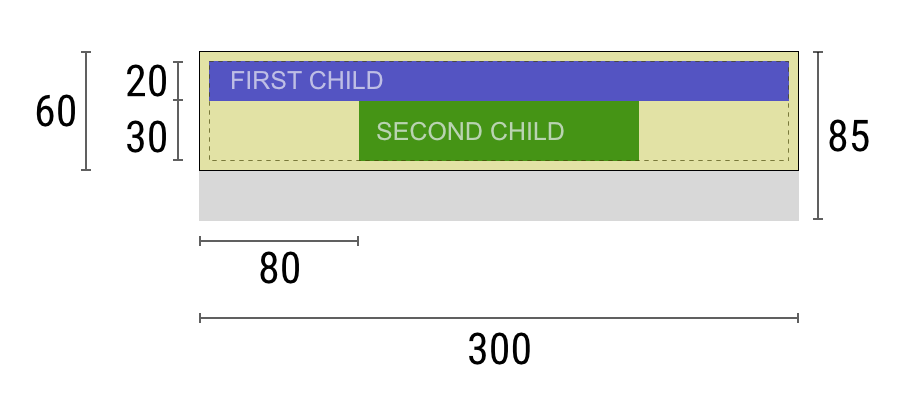 The negotiation goes something like this:
**Widget**: "Hey parent, what are my constraints?"
**Parent**: "You must be from `0` to `300` pixels wide,
and `0` to `85` tall."
**Widget**: "Hmmm, since I want to have `5` pixels of padding,
then my children can have at most `290` pixels of width
and `75` pixels of height."
**Widget**: "Hey first child, You must be from `0` to `290`
pixels wide, and `0` to `75` tall."
**First child**: "OK, then I wish to be `290` pixels wide,
and `20` pixels tall."
**Widget**: "Hmmm, since I want to put my second child below the
first one, this leaves only `55` pixels of height for
my second child."
**Widget**: "Hey second child, You must be from `0` to `290` wide,
and `0` to `55` tall."
**Second child**: "OK, I wish to be `140` pixels wide,
and `30` pixels tall."
**Widget**: "Very well. My first child has position `x: 5` and `y: 5`,
and my second child has `x: 80` and `y: 25`."
**Widget**: "Hey parent, I've decided that my size is going to be `300`
pixels wide, and `60` pixels tall."
## Limitations
Flutter's layout engine is designed to be a one-pass process.
This means that Flutter lays out its widgets very efficiently,
but does result in a few limitations:
* A widget can decide its own size only within the
constraints given to it by its parent.
This means a widget usually
**can't have any size it wants**.
* A widget **can't know and doesn't decide its own position
in the screen**, since it's the widget's parent who decides
the position of the widget.
* Since the parent's size and position, in its turn,
also depends on its own parent, it's impossible to
precisely define the size and position of any widget
without taking into consideration the tree as a whole.
* If a child wants a different size from its parent and
the parent doesn't have enough information to align it,
then the child's size might be ignored.
**Be specific when defining alignment.**
In Flutter, widgets are rendered by their underlying
[`RenderBox`][] objects. Many boxes in Flutter,
especially those that just take a single child,
pass their constraint on to their children.
Generally, there are three kinds of boxes,
in terms of how they handle their constraints:
* Those that try to be as big as possible.
For example, the boxes used by [`Center`][] and
[`ListView`][].
* Those that try to be the same size as their children.
For example, the boxes used by [`Transform`][] and
[`Opacity`][].
* Those that try to be a particular size.
For example, the boxes used by [`Image`][] and
[`Text`][].
Some widgets, for example [`Container`][],
vary from type to type based on their constructor arguments.
The [`Container`][] constructor defaults
to trying to be as big as possible, but if you give it a `width`,
for instance, it tries to honor that and be that particular size.
Others, for example [`Row`][] and [`Column`][] (flex boxes)
vary based on the constraints they are given,
as described in the [Flex](#flex) section.
[`Center`]: https://api.flutter.dev/flutter/widgets/Center-class.html
[`Column`]: https://api.flutter.dev/flutter/widgets/Column-class.html
[`Container`]: https://api.flutter.dev/flutter/widgets/Container-class.html
[`Image`]: https://api.flutter.dev/flutter/dart-ui/Image-class.html
[`ListView`]: https://api.flutter.dev/flutter/widgets/ListView-class.html
[`Opacity`]: https://api.flutter.dev/flutter/widgets/Opacity-class.html
[`Row`]: https://api.flutter.dev/flutter/widgets/Row-class.html
[`Text`]: https://api.flutter.dev/flutter/widgets/Text-class.html
[`Transform`]: https://api.flutter.dev/flutter/widgets/Transform-class.html
## Examples
For an interactive experience, use the following DartPad.
Use the numbered horizontal scrolling bar to switch between
29 different examples.
```dartpad title="Constraints DartPad hands-on example" run="true"
import 'package:flutter/material.dart';
void main() => runApp(const HomePage());
const Color red = Colors.red;
const Color green = Colors.green;
const Color blue = Colors.blue;
const TextStyle big = TextStyle(fontSize: 30);
//////////////////////////////////////////////////
class HomePage extends StatelessWidget {
const HomePage({super.key});
@override
Widget build(BuildContext context) {
return const FlutterLayoutArticle([
Example1(),
Example2(),
Example3(),
Example4(),
Example5(),
Example6(),
Example7(),
Example8(),
Example9(),
Example10(),
Example11(),
Example12(),
Example13(),
Example14(),
Example15(),
Example16(),
Example17(),
Example18(),
Example19(),
Example20(),
Example21(),
Example22(),
Example23(),
Example24(),
Example25(),
Example26(),
Example27(),
Example28(),
Example29(),
]);
}
}
//////////////////////////////////////////////////
abstract class Example extends StatelessWidget {
const Example({super.key});
String get code;
String get explanation;
}
//////////////////////////////////////////////////
class FlutterLayoutArticle extends StatefulWidget {
const FlutterLayoutArticle(this.examples, {super.key});
final List examples;
@override
State createState() => _FlutterLayoutArticleState();
}
//////////////////////////////////////////////////
class _FlutterLayoutArticleState extends State {
late int count;
late Widget example;
late String code;
late String explanation;
@override
void initState() {
count = 1;
code = const Example1().code;
explanation = const Example1().explanation;
super.initState();
}
@override
void didUpdateWidget(FlutterLayoutArticle oldWidget) {
super.didUpdateWidget(oldWidget);
var example = widget.examples[count - 1];
code = example.code;
explanation = example.explanation;
}
@override
Widget build(BuildContext context) {
return MaterialApp(
debugShowCheckedModeBanner: false,
title: 'Flutter Layout Article',
home: SafeArea(
child: Material(
color: Colors.black,
child: FittedBox(
child: Container(
width: 400,
height: 670,
color: const Color(0xFFCCCCCC),
child: Column(
crossAxisAlignment: CrossAxisAlignment.center,
children: [
Expanded(
child: ConstrainedBox(
constraints: const BoxConstraints.tightFor(
width: double.infinity,
height: double.infinity,
),
child: widget.examples[count - 1],
),
),
Container(
height: 50,
width: double.infinity,
color: Colors.black,
child: SingleChildScrollView(
scrollDirection: Axis.horizontal,
child: Row(
mainAxisSize: MainAxisSize.min,
children: [
for (int i = 0; i < widget.examples.length; i++)
Container(
width: 58,
padding: const EdgeInsets.only(left: 4, right: 4),
child: button(i + 1),
),
],
),
),
),
Container(
height: 273,
color: Colors.grey[50],
child: Scrollbar(
child: SingleChildScrollView(
key: ValueKey(count),
child: Padding(
padding: const EdgeInsets.all(10),
child: Column(
children: [
Center(child: Text(code)),
const SizedBox(height: 15),
Text(
explanation,
style: TextStyle(
color: Colors.blue[900],
fontStyle: FontStyle.italic,
),
),
],
),
),
),
),
),
],
),
),
),
),
),
);
}
Widget button(int exampleNumber) {
return Button(
key: ValueKey('button$exampleNumber'),
isSelected: count == exampleNumber,
exampleNumber: exampleNumber,
onPressed: () {
showExample(
exampleNumber,
widget.examples[exampleNumber - 1].code,
widget.examples[exampleNumber - 1].explanation,
);
},
);
}
void showExample(int exampleNumber, String code, String explanation) {
setState(() {
count = exampleNumber;
this.code = code;
this.explanation = explanation;
});
}
}
//////////////////////////////////////////////////
class Button extends StatelessWidget {
final bool isSelected;
final int exampleNumber;
final VoidCallback onPressed;
const Button({
super.key,
required this.isSelected,
required this.exampleNumber,
required this.onPressed,
});
@override
Widget build(BuildContext context) {
return TextButton(
style: TextButton.styleFrom(
foregroundColor: Colors.white,
backgroundColor: isSelected ? Colors.grey : Colors.grey[800],
),
child: Text(exampleNumber.toString()),
onPressed: () {
Scrollable.ensureVisible(
context,
duration: const Duration(milliseconds: 350),
curve: Curves.easeOut,
alignment: 0.5,
);
onPressed();
},
);
}
}
//////////////////////////////////////////////////
class Example1 extends Example {
const Example1({super.key});
@override
final code = 'Container(color: red)';
@override
final explanation =
'The screen is the parent of the Container, '
'and it forces the Container to be exactly the same size as the screen.'
'\n\n'
'So the Container fills the screen and paints it red.';
@override
Widget build(BuildContext context) {
return Container(color: red);
}
}
//////////////////////////////////////////////////
class Example2 extends Example {
const Example2({super.key});
@override
final code = 'Container(width: 100, height: 100, color: red)';
@override
final String explanation =
'The red Container wants to be 100x100, but it can\'t, '
'because the screen forces it to be exactly the same size as the screen.'
'\n\n'
'So the Container fills the screen.';
@override
Widget build(BuildContext context) {
return Container(width: 100, height: 100, color: red);
}
}
//////////////////////////////////////////////////
class Example3 extends Example {
const Example3({super.key});
@override
final code =
'Center(\n'
' child: Container(width: 100, height: 100, color: red))';
@override
final String explanation =
'The screen forces the Center to be exactly the same size as the screen, '
'so the Center fills the screen.'
'\n\n'
'The Center tells the Container that it can be any size it wants, but not bigger than the screen.'
'Now the Container can indeed be 100x100.';
@override
Widget build(BuildContext context) {
return Center(child: Container(width: 100, height: 100, color: red));
}
}
//////////////////////////////////////////////////
class Example4 extends Example {
const Example4({super.key});
@override
final code =
'Align(\n'
' alignment: Alignment.bottomRight,\n'
' child: Container(width: 100, height: 100, color: red))';
@override
final String explanation =
'This is different from the previous example in that it uses Align instead of Center.'
'\n\n'
'Align also tells the Container that it can be any size it wants, but if there is empty space it won\'t center the Container. '
'Instead, it aligns the Container to the bottom-right of the available space.';
@override
Widget build(BuildContext context) {
return Align(
alignment: Alignment.bottomRight,
child: Container(width: 100, height: 100, color: red),
);
}
}
//////////////////////////////////////////////////
class Example5 extends Example {
const Example5({super.key});
@override
final code =
'Center(\n'
' child: Container(\n'
' color: red,\n'
' width: double.infinity,\n'
' height: double.infinity))';
@override
final String explanation =
'The screen forces the Center to be exactly the same size as the screen, '
'so the Center fills the screen.'
'\n\n'
'The Center tells the Container that it can be any size it wants, but not bigger than the screen.'
'The Container wants to be of infinite size, but since it can\'t be bigger than the screen, it just fills the screen.';
@override
Widget build(BuildContext context) {
return Center(
child: Container(
width: double.infinity,
height: double.infinity,
color: red,
),
);
}
}
//////////////////////////////////////////////////
class Example6 extends Example {
const Example6({super.key});
@override
final code = 'Center(child: Container(color: red))';
@override
final String explanation =
'The screen forces the Center to be exactly the same size as the screen, '
'so the Center fills the screen.'
'\n\n'
'The Center tells the Container that it can be any size it wants, but not bigger than the screen.'
'\n\n'
'Since the Container has no child and no fixed size, it decides it wants to be as big as possible, so it fills the whole screen.'
'\n\n'
'But why does the Container decide that? '
'Simply because that\'s a design decision by those who created the Container widget. '
'It could have been created differently, and you have to read the Container documentation to understand how it behaves, depending on the circumstances. ';
@override
Widget build(BuildContext context) {
return Center(child: Container(color: red));
}
}
//////////////////////////////////////////////////
class Example7 extends Example {
const Example7({super.key});
@override
final code =
'Center(\n'
' child: Container(color: red\n'
' child: Container(color: green, width: 30, height: 30)))';
@override
final String explanation =
'The screen forces the Center to be exactly the same size as the screen, '
'so the Center fills the screen.'
'\n\n'
'The Center tells the red Container that it can be any size it wants, but not bigger than the screen.'
'Since the red Container has no size but has a child, it decides it wants to be the same size as its child.'
'\n\n'
'The red Container tells its child that it can be any size it wants, but not bigger than the screen.'
'\n\n'
'The child is a green Container that wants to be 30x30.'
'\n\n'
'Since the red `Container` has no size but has a child, it decides it wants to be the same size as its child. '
'The red color isn\'t visible, since the green Container entirely covers all of the red Container.';
@override
Widget build(BuildContext context) {
return Center(
child: Container(
color: red,
child: Container(color: green, width: 30, height: 30),
),
);
}
}
//////////////////////////////////////////////////
class Example8 extends Example {
const Example8({super.key});
@override
final code =
'Center(\n'
' child: Container(color: red\n'
' padding: const EdgeInsets.all(20),\n'
' child: Container(color: green, width: 30, height: 30)))';
@override
final String explanation =
'The red Container sizes itself to its children size, but it takes its own padding into consideration. '
'So it is also 30x30 plus padding. '
'The red color is visible because of the padding, and the green Container has the same size as in the previous example.';
@override
Widget build(BuildContext context) {
return Center(
child: Container(
padding: const EdgeInsets.all(20),
color: red,
child: Container(color: green, width: 30, height: 30),
),
);
}
}
//////////////////////////////////////////////////
class Example9 extends Example {
const Example9({super.key});
@override
final code =
'ConstrainedBox(\n'
' constraints: BoxConstraints(\n'
' minWidth: 70, minHeight: 70,\n'
' maxWidth: 150, maxHeight: 150),\n'
' child: Container(color: red, width: 10, height: 10)))';
@override
final String explanation =
'You might guess that the Container has to be between 70 and 150 pixels, but you would be wrong. '
'The ConstrainedBox only imposes ADDITIONAL constraints from those it receives from its parent.'
'\n\n'
'Here, the screen forces the ConstrainedBox to be exactly the same size as the screen, '
'so it tells its child Container to also assume the size of the screen, '
'thus ignoring its \'constraints\' parameter.';
@override
Widget build(BuildContext context) {
return ConstrainedBox(
constraints: const BoxConstraints(
minWidth: 70,
minHeight: 70,
maxWidth: 150,
maxHeight: 150,
),
child: Container(color: red, width: 10, height: 10),
);
}
}
//////////////////////////////////////////////////
class Example10 extends Example {
const Example10({super.key});
@override
final code =
'Center(\n'
' child: ConstrainedBox(\n'
' constraints: BoxConstraints(\n'
' minWidth: 70, minHeight: 70,\n'
' maxWidth: 150, maxHeight: 150),\n'
' child: Container(color: red, width: 10, height: 10))))';
@override
final String explanation =
'Now, Center allows ConstrainedBox to be any size up to the screen size.'
'\n\n'
'The ConstrainedBox imposes ADDITIONAL constraints from its \'constraints\' parameter onto its child.'
'\n\n'
'The Container must be between 70 and 150 pixels. It wants to have 10 pixels, so it will end up having 70 (the MINIMUM).';
@override
Widget build(BuildContext context) {
return Center(
child: ConstrainedBox(
constraints: const BoxConstraints(
minWidth: 70,
minHeight: 70,
maxWidth: 150,
maxHeight: 150,
),
child: Container(color: red, width: 10, height: 10),
),
);
}
}
//////////////////////////////////////////////////
class Example11 extends Example {
const Example11({super.key});
@override
final code =
'Center(\n'
' child: ConstrainedBox(\n'
' constraints: BoxConstraints(\n'
' minWidth: 70, minHeight: 70,\n'
' maxWidth: 150, maxHeight: 150),\n'
' child: Container(color: red, width: 1000, height: 1000))))';
@override
final String explanation =
'Center allows ConstrainedBox to be any size up to the screen size.'
'The ConstrainedBox imposes ADDITIONAL constraints from its \'constraints\' parameter onto its child'
'\n\n'
'The Container must be between 70 and 150 pixels. It wants to have 1000 pixels, so it ends up having 150 (the MAXIMUM).';
@override
Widget build(BuildContext context) {
return Center(
child: ConstrainedBox(
constraints: const BoxConstraints(
minWidth: 70,
minHeight: 70,
maxWidth: 150,
maxHeight: 150,
),
child: Container(color: red, width: 1000, height: 1000),
),
);
}
}
//////////////////////////////////////////////////
class Example12 extends Example {
const Example12({super.key});
@override
final code =
'Center(\n'
' child: ConstrainedBox(\n'
' constraints: BoxConstraints(\n'
' minWidth: 70, minHeight: 70,\n'
' maxWidth: 150, maxHeight: 150),\n'
' child: Container(color: red, width: 100, height: 100))))';
@override
final String explanation =
'Center allows ConstrainedBox to be any size up to the screen size.'
'ConstrainedBox imposes ADDITIONAL constraints from its \'constraints\' parameter onto its child.'
'\n\n'
'The Container must be between 70 and 150 pixels. It wants to have 100 pixels, and that\'s the size it has, since that\'s between 70 and 150.';
@override
Widget build(BuildContext context) {
return Center(
child: ConstrainedBox(
constraints: const BoxConstraints(
minWidth: 70,
minHeight: 70,
maxWidth: 150,
maxHeight: 150,
),
child: Container(color: red, width: 100, height: 100),
),
);
}
}
//////////////////////////////////////////////////
class Example13 extends Example {
const Example13({super.key});
@override
final code =
'UnconstrainedBox(\n'
' child: Container(color: red, width: 20, height: 50));';
@override
final String explanation =
'The screen forces the UnconstrainedBox to be exactly the same size as the screen.'
'However, the UnconstrainedBox lets its child Container be any size it wants.';
@override
Widget build(BuildContext context) {
return UnconstrainedBox(
child: Container(color: red, width: 20, height: 50),
);
}
}
//////////////////////////////////////////////////
class Example14 extends Example {
const Example14({super.key});
@override
final code =
'UnconstrainedBox(\n'
' child: Container(color: red, width: 4000, height: 50));';
@override
final String explanation =
'The screen forces the UnconstrainedBox to be exactly the same size as the screen, '
'and UnconstrainedBox lets its child Container be any size it wants.'
'\n\n'
'Unfortunately, in this case the Container has 4000 pixels of width and is too big to fit in the UnconstrainedBox, '
'so the UnconstrainedBox displays the much dreaded "overflow warning".';
@override
Widget build(BuildContext context) {
return UnconstrainedBox(
child: Container(color: red, width: 4000, height: 50),
);
}
}
//////////////////////////////////////////////////
class Example15 extends Example {
const Example15({super.key});
@override
final code =
'OverflowBox(\n'
' minWidth: 0,'
' minHeight: 0,'
' maxWidth: double.infinity,'
' maxHeight: double.infinity,'
' child: Container(color: red, width: 4000, height: 50));';
@override
final String explanation =
'The screen forces the OverflowBox to be exactly the same size as the screen, '
'and OverflowBox lets its child Container be any size it wants.'
'\n\n'
'OverflowBox is similar to UnconstrainedBox, and the difference is that it won\'t display any warnings if the child doesn\'t fit the space.'
'\n\n'
'In this case the Container is 4000 pixels wide, and is too big to fit in the OverflowBox, '
'but the OverflowBox simply shows as much as it can, with no warnings given.';
@override
Widget build(BuildContext context) {
return OverflowBox(
minWidth: 0,
minHeight: 0,
maxWidth: double.infinity,
maxHeight: double.infinity,
child: Container(color: red, width: 4000, height: 50),
);
}
}
//////////////////////////////////////////////////
class Example16 extends Example {
const Example16({super.key});
@override
final code =
'UnconstrainedBox(\n'
' child: Container(color: Colors.red, width: double.infinity, height: 100));';
@override
final String explanation =
'This won\'t render anything, and you\'ll see an error in the console.'
'\n\n'
'The UnconstrainedBox lets its child be any size it wants, '
'however its child is a Container with infinite size.'
'\n\n'
'Flutter can\'t render infinite sizes, so it throws an error with the following message: '
'"BoxConstraints forces an infinite width."';
@override
Widget build(BuildContext context) {
return UnconstrainedBox(
child: Container(color: Colors.red, width: double.infinity, height: 100),
);
}
}
//////////////////////////////////////////////////
class Example17 extends Example {
const Example17({super.key});
@override
final code =
'UnconstrainedBox(\n'
' child: LimitedBox(maxWidth: 100,\n'
' child: Container(color: Colors.red,\n'
' width: double.infinity, height: 100));';
@override
final String explanation =
'Here you won\'t get an error anymore, '
'because when the LimitedBox is given an infinite size by the UnconstrainedBox, '
'it passes a maximum width of 100 down to its child.'
'\n\n'
'If you swap the UnconstrainedBox for a Center widget, '
'the LimitedBox won\'t apply its limit anymore (since its limit is only applied when it gets infinite constraints), '
'and the width of the Container is allowed to grow past 100.'
'\n\n'
'This explains the difference between a LimitedBox and a ConstrainedBox.';
@override
Widget build(BuildContext context) {
return UnconstrainedBox(
child: LimitedBox(
maxWidth: 100,
child: Container(
color: Colors.red,
width: double.infinity,
height: 100,
),
),
);
}
}
//////////////////////////////////////////////////
class Example18 extends Example {
const Example18({super.key});
@override
final code =
'FittedBox(\n'
' child: Text(\'Some Example Text.\'));';
@override
final String explanation =
'The screen forces the FittedBox to be exactly the same size as the screen.'
'The Text has some natural width (also called its intrinsic width) that depends on the amount of text, its font size, and so on.'
'\n\n'
'The FittedBox lets the Text be any size it wants, '
'but after the Text tells its size to the FittedBox, '
'the FittedBox scales the Text until it fills all of the available width.';
@override
Widget build(BuildContext context) {
return const FittedBox(child: Text('Some Example Text.'));
}
}
//////////////////////////////////////////////////
class Example19 extends Example {
const Example19({super.key});
@override
final code =
'Center(\n'
' child: FittedBox(\n'
' child: Text(\'Some Example Text.\')));';
@override
final String explanation =
'But what happens if you put the FittedBox inside of a Center widget? '
'The Center lets the FittedBox be any size it wants, up to the screen size.'
'\n\n'
'The FittedBox then sizes itself to the Text, and lets the Text be any size it wants.'
'\n\n'
'Since both FittedBox and the Text have the same size, no scaling happens.';
@override
Widget build(BuildContext context) {
return const Center(child: FittedBox(child: Text('Some Example Text.')));
}
}
////////////////////////////////////////////////////
class Example20 extends Example {
const Example20({super.key});
@override
final code =
'Center(\n'
' child: FittedBox(\n'
' child: Text(\'…\')));';
@override
final String explanation =
'However, what happens if FittedBox is inside of a Center widget, but the Text is too large to fit the screen?'
'\n\n'
'FittedBox tries to size itself to the Text, but it can\'t be bigger than the screen. '
'It then assumes the screen size, and resizes Text so that it fits the screen, too.';
@override
Widget build(BuildContext context) {
return const Center(
child: FittedBox(
child: Text(
'This is some very very very large text that is too big to fit a regular screen in a single line.',
),
),
);
}
}
//////////////////////////////////////////////////
class Example21 extends Example {
const Example21({super.key});
@override
final code =
'Center(\n'
' child: Text(\'…\'));';
@override
final String explanation =
'If, however, you remove the FittedBox, '
'the Text gets its maximum width from the screen, '
'and breaks the line so that it fits the screen.';
@override
Widget build(BuildContext context) {
return const Center(
child: Text(
'This is some very very very large text that is too big to fit a regular screen in a single line.',
),
);
}
}
//////////////////////////////////////////////////
class Example22 extends Example {
const Example22({super.key});
@override
final code =
'FittedBox(\n'
' child: Container(\n'
' height: 20, width: double.infinity));';
@override
final String explanation =
'FittedBox can only scale a widget that is BOUNDED (has non-infinite width and height).'
'Otherwise, it won\'t render anything, and you\'ll see an error in the console.';
@override
Widget build(BuildContext context) {
return FittedBox(
child: Container(height: 20, width: double.infinity, color: Colors.red),
);
}
}
//////////////////////////////////////////////////
class Example23 extends Example {
const Example23({super.key});
@override
final code =
'Row(children:[\n'
' Container(color: red, child: Text(\'Hello!\'))\n'
' Container(color: green, child: Text(\'Goodbye!\'))]';
@override
final String explanation =
'The screen forces the Row to be exactly the same size as the screen.'
'\n\n'
'Just like an UnconstrainedBox, the Row won\'t impose any constraints onto its children, '
'and instead lets them be any size they want.'
'\n\n'
'The Row then puts them side-by-side, and any extra space remains empty.';
@override
Widget build(BuildContext context) {
return Row(
children: [
Container(
color: red,
child: const Text('Hello!', style: big),
),
Container(
color: green,
child: const Text('Goodbye!', style: big),
),
],
);
}
}
//////////////////////////////////////////////////
class Example24 extends Example {
const Example24({super.key});
@override
final code =
'Row(children:[\n'
' Container(color: red, child: Text(\'…\'))\n'
' Container(color: green, child: Text(\'Goodbye!\'))]';
@override
final String explanation =
'Since the Row won\'t impose any constraints onto its children, '
'it\'s quite possible that the children might be too big to fit the available width of the Row.'
'In this case, just like an UnconstrainedBox, the Row displays the "overflow warning".';
@override
Widget build(BuildContext context) {
return Row(
children: [
Container(
color: red,
child: const Text(
'This is a very long text that '
'won\'t fit the line.',
style: big,
),
),
Container(
color: green,
child: const Text('Goodbye!', style: big),
),
],
);
}
}
//////////////////////////////////////////////////
class Example25 extends Example {
const Example25({super.key});
@override
final code =
'Row(children:[\n'
' Expanded(\n'
' child: Container(color: red, child: Text(\'…\')))\n'
' Container(color: green, child: Text(\'Goodbye!\'))]';
@override
final String explanation =
'When a Row\'s child is wrapped in an Expanded widget, the Row won\'t let this child define its own width anymore.'
'\n\n'
'Instead, it defines the Expanded width according to the other children, and only then the Expanded widget forces the original child to have the Expanded\'s width.'
'\n\n'
'In other words, once you use Expanded, the original child\'s width becomes irrelevant, and is ignored.';
@override
Widget build(BuildContext context) {
return Row(
children: [
Expanded(
child: Center(
child: Container(
color: red,
child: const Text(
'This is a very long text that won\'t fit the line.',
style: big,
),
),
),
),
Container(
color: green,
child: const Text('Goodbye!', style: big),
),
],
);
}
}
//////////////////////////////////////////////////
class Example26 extends Example {
const Example26({super.key});
@override
final code =
'Row(children:[\n'
' Expanded(\n'
' child: Container(color: red, child: Text(\'…\')))\n'
' Expanded(\n'
' child: Container(color: green, child: Text(\'Goodbye!\'))]';
@override
final String explanation =
'If all of Row\'s children are wrapped in Expanded widgets, each Expanded has a size proportional to its flex parameter, '
'and only then each Expanded widget forces its child to have the Expanded\'s width.'
'\n\n'
'In other words, Expanded ignores the preferred width of its children.';
@override
Widget build(BuildContext context) {
return Row(
children: [
Expanded(
child: Container(
color: red,
child: const Text(
'This is a very long text that won\'t fit the line.',
style: big,
),
),
),
Expanded(
child: Container(
color: green,
child: const Text('Goodbye!', style: big),
),
),
],
);
}
}
//////////////////////////////////////////////////
class Example27 extends Example {
const Example27({super.key});
@override
final code =
'Row(children:[\n'
' Flexible(\n'
' child: Container(color: red, child: Text(\'…\')))\n'
' Flexible(\n'
' child: Container(color: green, child: Text(\'Goodbye!\'))]';
@override
final String explanation =
'The only difference if you use Flexible instead of Expanded, '
'is that Flexible lets its child be SMALLER than the Flexible width, '
'while Expanded forces its child to have the same width of the Expanded.'
'\n\n'
'But both Expanded and Flexible ignore their children\'s width when sizing themselves.'
'\n\n'
'This means that it\'s IMPOSSIBLE to expand Row children proportionally to their sizes. '
'The Row either uses the exact child\'s width, or ignores it completely when you use Expanded or Flexible.';
@override
Widget build(BuildContext context) {
return Row(
children: [
Flexible(
child: Container(
color: red,
child: const Text(
'This is a very long text that won\'t fit the line.',
style: big,
),
),
),
Flexible(
child: Container(
color: green,
child: const Text('Goodbye!', style: big),
),
),
],
);
}
}
//////////////////////////////////////////////////
class Example28 extends Example {
const Example28({super.key});
@override
final code =
'Scaffold(\n'
' body: Container(color: blue,\n'
' child: Column(\n'
' children: [\n'
' Text(\'Hello!\'),\n'
' Text(\'Goodbye!\')])))';
@override
final String explanation =
'The screen forces the Scaffold to be exactly the same size as the screen, '
'so the Scaffold fills the screen.'
'\n\n'
'The Scaffold tells the Container that it can be any size it wants, but not bigger than the screen.'
'\n\n'
'When a widget tells its child that it can be smaller than a certain size, '
'we say the widget supplies "loose" constraints to its child. More on that later.';
@override
Widget build(BuildContext context) {
return Scaffold(
body: Container(
color: blue,
child: const Column(children: [Text('Hello!'), Text('Goodbye!')]),
),
);
}
}
//////////////////////////////////////////////////
class Example29 extends Example {
const Example29({super.key});
@override
final code =
'Scaffold(\n'
' body: Container(color: blue,\n'
' child: SizedBox.expand(\n'
' child: Column(\n'
' children: [\n'
' Text(\'Hello!\'),\n'
' Text(\'Goodbye!\')]))))';
@override
final String explanation =
'If you want the Scaffold\'s child to be exactly the same size as the Scaffold itself, '
'you can wrap its child with SizedBox.expand.'
'\n\n'
'When a widget tells its child that it must be of a certain size, '
'we say the widget supplies "tight" constraints to its child. More on that later.';
@override
Widget build(BuildContext context) {
return Scaffold(
body: SizedBox.expand(
child: Container(
color: blue,
child: const Column(children: [Text('Hello!'), Text('Goodbye!')]),
),
),
);
}
}
//////////////////////////////////////////////////
```
If you prefer, you can grab the code from
[this GitHub repo][].
The examples are explained in the following sections.
[this GitHub repo]: https://github.com/marcglasberg/flutter_layout_article
### Example 1
The negotiation goes something like this:
**Widget**: "Hey parent, what are my constraints?"
**Parent**: "You must be from `0` to `300` pixels wide,
and `0` to `85` tall."
**Widget**: "Hmmm, since I want to have `5` pixels of padding,
then my children can have at most `290` pixels of width
and `75` pixels of height."
**Widget**: "Hey first child, You must be from `0` to `290`
pixels wide, and `0` to `75` tall."
**First child**: "OK, then I wish to be `290` pixels wide,
and `20` pixels tall."
**Widget**: "Hmmm, since I want to put my second child below the
first one, this leaves only `55` pixels of height for
my second child."
**Widget**: "Hey second child, You must be from `0` to `290` wide,
and `0` to `55` tall."
**Second child**: "OK, I wish to be `140` pixels wide,
and `30` pixels tall."
**Widget**: "Very well. My first child has position `x: 5` and `y: 5`,
and my second child has `x: 80` and `y: 25`."
**Widget**: "Hey parent, I've decided that my size is going to be `300`
pixels wide, and `60` pixels tall."
## Limitations
Flutter's layout engine is designed to be a one-pass process.
This means that Flutter lays out its widgets very efficiently,
but does result in a few limitations:
* A widget can decide its own size only within the
constraints given to it by its parent.
This means a widget usually
**can't have any size it wants**.
* A widget **can't know and doesn't decide its own position
in the screen**, since it's the widget's parent who decides
the position of the widget.
* Since the parent's size and position, in its turn,
also depends on its own parent, it's impossible to
precisely define the size and position of any widget
without taking into consideration the tree as a whole.
* If a child wants a different size from its parent and
the parent doesn't have enough information to align it,
then the child's size might be ignored.
**Be specific when defining alignment.**
In Flutter, widgets are rendered by their underlying
[`RenderBox`][] objects. Many boxes in Flutter,
especially those that just take a single child,
pass their constraint on to their children.
Generally, there are three kinds of boxes,
in terms of how they handle their constraints:
* Those that try to be as big as possible.
For example, the boxes used by [`Center`][] and
[`ListView`][].
* Those that try to be the same size as their children.
For example, the boxes used by [`Transform`][] and
[`Opacity`][].
* Those that try to be a particular size.
For example, the boxes used by [`Image`][] and
[`Text`][].
Some widgets, for example [`Container`][],
vary from type to type based on their constructor arguments.
The [`Container`][] constructor defaults
to trying to be as big as possible, but if you give it a `width`,
for instance, it tries to honor that and be that particular size.
Others, for example [`Row`][] and [`Column`][] (flex boxes)
vary based on the constraints they are given,
as described in the [Flex](#flex) section.
[`Center`]: https://api.flutter.dev/flutter/widgets/Center-class.html
[`Column`]: https://api.flutter.dev/flutter/widgets/Column-class.html
[`Container`]: https://api.flutter.dev/flutter/widgets/Container-class.html
[`Image`]: https://api.flutter.dev/flutter/dart-ui/Image-class.html
[`ListView`]: https://api.flutter.dev/flutter/widgets/ListView-class.html
[`Opacity`]: https://api.flutter.dev/flutter/widgets/Opacity-class.html
[`Row`]: https://api.flutter.dev/flutter/widgets/Row-class.html
[`Text`]: https://api.flutter.dev/flutter/widgets/Text-class.html
[`Transform`]: https://api.flutter.dev/flutter/widgets/Transform-class.html
## Examples
For an interactive experience, use the following DartPad.
Use the numbered horizontal scrolling bar to switch between
29 different examples.
```dartpad title="Constraints DartPad hands-on example" run="true"
import 'package:flutter/material.dart';
void main() => runApp(const HomePage());
const Color red = Colors.red;
const Color green = Colors.green;
const Color blue = Colors.blue;
const TextStyle big = TextStyle(fontSize: 30);
//////////////////////////////////////////////////
class HomePage extends StatelessWidget {
const HomePage({super.key});
@override
Widget build(BuildContext context) {
return const FlutterLayoutArticle([
Example1(),
Example2(),
Example3(),
Example4(),
Example5(),
Example6(),
Example7(),
Example8(),
Example9(),
Example10(),
Example11(),
Example12(),
Example13(),
Example14(),
Example15(),
Example16(),
Example17(),
Example18(),
Example19(),
Example20(),
Example21(),
Example22(),
Example23(),
Example24(),
Example25(),
Example26(),
Example27(),
Example28(),
Example29(),
]);
}
}
//////////////////////////////////////////////////
abstract class Example extends StatelessWidget {
const Example({super.key});
String get code;
String get explanation;
}
//////////////////////////////////////////////////
class FlutterLayoutArticle extends StatefulWidget {
const FlutterLayoutArticle(this.examples, {super.key});
final List examples;
@override
State createState() => _FlutterLayoutArticleState();
}
//////////////////////////////////////////////////
class _FlutterLayoutArticleState extends State {
late int count;
late Widget example;
late String code;
late String explanation;
@override
void initState() {
count = 1;
code = const Example1().code;
explanation = const Example1().explanation;
super.initState();
}
@override
void didUpdateWidget(FlutterLayoutArticle oldWidget) {
super.didUpdateWidget(oldWidget);
var example = widget.examples[count - 1];
code = example.code;
explanation = example.explanation;
}
@override
Widget build(BuildContext context) {
return MaterialApp(
debugShowCheckedModeBanner: false,
title: 'Flutter Layout Article',
home: SafeArea(
child: Material(
color: Colors.black,
child: FittedBox(
child: Container(
width: 400,
height: 670,
color: const Color(0xFFCCCCCC),
child: Column(
crossAxisAlignment: CrossAxisAlignment.center,
children: [
Expanded(
child: ConstrainedBox(
constraints: const BoxConstraints.tightFor(
width: double.infinity,
height: double.infinity,
),
child: widget.examples[count - 1],
),
),
Container(
height: 50,
width: double.infinity,
color: Colors.black,
child: SingleChildScrollView(
scrollDirection: Axis.horizontal,
child: Row(
mainAxisSize: MainAxisSize.min,
children: [
for (int i = 0; i < widget.examples.length; i++)
Container(
width: 58,
padding: const EdgeInsets.only(left: 4, right: 4),
child: button(i + 1),
),
],
),
),
),
Container(
height: 273,
color: Colors.grey[50],
child: Scrollbar(
child: SingleChildScrollView(
key: ValueKey(count),
child: Padding(
padding: const EdgeInsets.all(10),
child: Column(
children: [
Center(child: Text(code)),
const SizedBox(height: 15),
Text(
explanation,
style: TextStyle(
color: Colors.blue[900],
fontStyle: FontStyle.italic,
),
),
],
),
),
),
),
),
],
),
),
),
),
),
);
}
Widget button(int exampleNumber) {
return Button(
key: ValueKey('button$exampleNumber'),
isSelected: count == exampleNumber,
exampleNumber: exampleNumber,
onPressed: () {
showExample(
exampleNumber,
widget.examples[exampleNumber - 1].code,
widget.examples[exampleNumber - 1].explanation,
);
},
);
}
void showExample(int exampleNumber, String code, String explanation) {
setState(() {
count = exampleNumber;
this.code = code;
this.explanation = explanation;
});
}
}
//////////////////////////////////////////////////
class Button extends StatelessWidget {
final bool isSelected;
final int exampleNumber;
final VoidCallback onPressed;
const Button({
super.key,
required this.isSelected,
required this.exampleNumber,
required this.onPressed,
});
@override
Widget build(BuildContext context) {
return TextButton(
style: TextButton.styleFrom(
foregroundColor: Colors.white,
backgroundColor: isSelected ? Colors.grey : Colors.grey[800],
),
child: Text(exampleNumber.toString()),
onPressed: () {
Scrollable.ensureVisible(
context,
duration: const Duration(milliseconds: 350),
curve: Curves.easeOut,
alignment: 0.5,
);
onPressed();
},
);
}
}
//////////////////////////////////////////////////
class Example1 extends Example {
const Example1({super.key});
@override
final code = 'Container(color: red)';
@override
final explanation =
'The screen is the parent of the Container, '
'and it forces the Container to be exactly the same size as the screen.'
'\n\n'
'So the Container fills the screen and paints it red.';
@override
Widget build(BuildContext context) {
return Container(color: red);
}
}
//////////////////////////////////////////////////
class Example2 extends Example {
const Example2({super.key});
@override
final code = 'Container(width: 100, height: 100, color: red)';
@override
final String explanation =
'The red Container wants to be 100x100, but it can\'t, '
'because the screen forces it to be exactly the same size as the screen.'
'\n\n'
'So the Container fills the screen.';
@override
Widget build(BuildContext context) {
return Container(width: 100, height: 100, color: red);
}
}
//////////////////////////////////////////////////
class Example3 extends Example {
const Example3({super.key});
@override
final code =
'Center(\n'
' child: Container(width: 100, height: 100, color: red))';
@override
final String explanation =
'The screen forces the Center to be exactly the same size as the screen, '
'so the Center fills the screen.'
'\n\n'
'The Center tells the Container that it can be any size it wants, but not bigger than the screen.'
'Now the Container can indeed be 100x100.';
@override
Widget build(BuildContext context) {
return Center(child: Container(width: 100, height: 100, color: red));
}
}
//////////////////////////////////////////////////
class Example4 extends Example {
const Example4({super.key});
@override
final code =
'Align(\n'
' alignment: Alignment.bottomRight,\n'
' child: Container(width: 100, height: 100, color: red))';
@override
final String explanation =
'This is different from the previous example in that it uses Align instead of Center.'
'\n\n'
'Align also tells the Container that it can be any size it wants, but if there is empty space it won\'t center the Container. '
'Instead, it aligns the Container to the bottom-right of the available space.';
@override
Widget build(BuildContext context) {
return Align(
alignment: Alignment.bottomRight,
child: Container(width: 100, height: 100, color: red),
);
}
}
//////////////////////////////////////////////////
class Example5 extends Example {
const Example5({super.key});
@override
final code =
'Center(\n'
' child: Container(\n'
' color: red,\n'
' width: double.infinity,\n'
' height: double.infinity))';
@override
final String explanation =
'The screen forces the Center to be exactly the same size as the screen, '
'so the Center fills the screen.'
'\n\n'
'The Center tells the Container that it can be any size it wants, but not bigger than the screen.'
'The Container wants to be of infinite size, but since it can\'t be bigger than the screen, it just fills the screen.';
@override
Widget build(BuildContext context) {
return Center(
child: Container(
width: double.infinity,
height: double.infinity,
color: red,
),
);
}
}
//////////////////////////////////////////////////
class Example6 extends Example {
const Example6({super.key});
@override
final code = 'Center(child: Container(color: red))';
@override
final String explanation =
'The screen forces the Center to be exactly the same size as the screen, '
'so the Center fills the screen.'
'\n\n'
'The Center tells the Container that it can be any size it wants, but not bigger than the screen.'
'\n\n'
'Since the Container has no child and no fixed size, it decides it wants to be as big as possible, so it fills the whole screen.'
'\n\n'
'But why does the Container decide that? '
'Simply because that\'s a design decision by those who created the Container widget. '
'It could have been created differently, and you have to read the Container documentation to understand how it behaves, depending on the circumstances. ';
@override
Widget build(BuildContext context) {
return Center(child: Container(color: red));
}
}
//////////////////////////////////////////////////
class Example7 extends Example {
const Example7({super.key});
@override
final code =
'Center(\n'
' child: Container(color: red\n'
' child: Container(color: green, width: 30, height: 30)))';
@override
final String explanation =
'The screen forces the Center to be exactly the same size as the screen, '
'so the Center fills the screen.'
'\n\n'
'The Center tells the red Container that it can be any size it wants, but not bigger than the screen.'
'Since the red Container has no size but has a child, it decides it wants to be the same size as its child.'
'\n\n'
'The red Container tells its child that it can be any size it wants, but not bigger than the screen.'
'\n\n'
'The child is a green Container that wants to be 30x30.'
'\n\n'
'Since the red `Container` has no size but has a child, it decides it wants to be the same size as its child. '
'The red color isn\'t visible, since the green Container entirely covers all of the red Container.';
@override
Widget build(BuildContext context) {
return Center(
child: Container(
color: red,
child: Container(color: green, width: 30, height: 30),
),
);
}
}
//////////////////////////////////////////////////
class Example8 extends Example {
const Example8({super.key});
@override
final code =
'Center(\n'
' child: Container(color: red\n'
' padding: const EdgeInsets.all(20),\n'
' child: Container(color: green, width: 30, height: 30)))';
@override
final String explanation =
'The red Container sizes itself to its children size, but it takes its own padding into consideration. '
'So it is also 30x30 plus padding. '
'The red color is visible because of the padding, and the green Container has the same size as in the previous example.';
@override
Widget build(BuildContext context) {
return Center(
child: Container(
padding: const EdgeInsets.all(20),
color: red,
child: Container(color: green, width: 30, height: 30),
),
);
}
}
//////////////////////////////////////////////////
class Example9 extends Example {
const Example9({super.key});
@override
final code =
'ConstrainedBox(\n'
' constraints: BoxConstraints(\n'
' minWidth: 70, minHeight: 70,\n'
' maxWidth: 150, maxHeight: 150),\n'
' child: Container(color: red, width: 10, height: 10)))';
@override
final String explanation =
'You might guess that the Container has to be between 70 and 150 pixels, but you would be wrong. '
'The ConstrainedBox only imposes ADDITIONAL constraints from those it receives from its parent.'
'\n\n'
'Here, the screen forces the ConstrainedBox to be exactly the same size as the screen, '
'so it tells its child Container to also assume the size of the screen, '
'thus ignoring its \'constraints\' parameter.';
@override
Widget build(BuildContext context) {
return ConstrainedBox(
constraints: const BoxConstraints(
minWidth: 70,
minHeight: 70,
maxWidth: 150,
maxHeight: 150,
),
child: Container(color: red, width: 10, height: 10),
);
}
}
//////////////////////////////////////////////////
class Example10 extends Example {
const Example10({super.key});
@override
final code =
'Center(\n'
' child: ConstrainedBox(\n'
' constraints: BoxConstraints(\n'
' minWidth: 70, minHeight: 70,\n'
' maxWidth: 150, maxHeight: 150),\n'
' child: Container(color: red, width: 10, height: 10))))';
@override
final String explanation =
'Now, Center allows ConstrainedBox to be any size up to the screen size.'
'\n\n'
'The ConstrainedBox imposes ADDITIONAL constraints from its \'constraints\' parameter onto its child.'
'\n\n'
'The Container must be between 70 and 150 pixels. It wants to have 10 pixels, so it will end up having 70 (the MINIMUM).';
@override
Widget build(BuildContext context) {
return Center(
child: ConstrainedBox(
constraints: const BoxConstraints(
minWidth: 70,
minHeight: 70,
maxWidth: 150,
maxHeight: 150,
),
child: Container(color: red, width: 10, height: 10),
),
);
}
}
//////////////////////////////////////////////////
class Example11 extends Example {
const Example11({super.key});
@override
final code =
'Center(\n'
' child: ConstrainedBox(\n'
' constraints: BoxConstraints(\n'
' minWidth: 70, minHeight: 70,\n'
' maxWidth: 150, maxHeight: 150),\n'
' child: Container(color: red, width: 1000, height: 1000))))';
@override
final String explanation =
'Center allows ConstrainedBox to be any size up to the screen size.'
'The ConstrainedBox imposes ADDITIONAL constraints from its \'constraints\' parameter onto its child'
'\n\n'
'The Container must be between 70 and 150 pixels. It wants to have 1000 pixels, so it ends up having 150 (the MAXIMUM).';
@override
Widget build(BuildContext context) {
return Center(
child: ConstrainedBox(
constraints: const BoxConstraints(
minWidth: 70,
minHeight: 70,
maxWidth: 150,
maxHeight: 150,
),
child: Container(color: red, width: 1000, height: 1000),
),
);
}
}
//////////////////////////////////////////////////
class Example12 extends Example {
const Example12({super.key});
@override
final code =
'Center(\n'
' child: ConstrainedBox(\n'
' constraints: BoxConstraints(\n'
' minWidth: 70, minHeight: 70,\n'
' maxWidth: 150, maxHeight: 150),\n'
' child: Container(color: red, width: 100, height: 100))))';
@override
final String explanation =
'Center allows ConstrainedBox to be any size up to the screen size.'
'ConstrainedBox imposes ADDITIONAL constraints from its \'constraints\' parameter onto its child.'
'\n\n'
'The Container must be between 70 and 150 pixels. It wants to have 100 pixels, and that\'s the size it has, since that\'s between 70 and 150.';
@override
Widget build(BuildContext context) {
return Center(
child: ConstrainedBox(
constraints: const BoxConstraints(
minWidth: 70,
minHeight: 70,
maxWidth: 150,
maxHeight: 150,
),
child: Container(color: red, width: 100, height: 100),
),
);
}
}
//////////////////////////////////////////////////
class Example13 extends Example {
const Example13({super.key});
@override
final code =
'UnconstrainedBox(\n'
' child: Container(color: red, width: 20, height: 50));';
@override
final String explanation =
'The screen forces the UnconstrainedBox to be exactly the same size as the screen.'
'However, the UnconstrainedBox lets its child Container be any size it wants.';
@override
Widget build(BuildContext context) {
return UnconstrainedBox(
child: Container(color: red, width: 20, height: 50),
);
}
}
//////////////////////////////////////////////////
class Example14 extends Example {
const Example14({super.key});
@override
final code =
'UnconstrainedBox(\n'
' child: Container(color: red, width: 4000, height: 50));';
@override
final String explanation =
'The screen forces the UnconstrainedBox to be exactly the same size as the screen, '
'and UnconstrainedBox lets its child Container be any size it wants.'
'\n\n'
'Unfortunately, in this case the Container has 4000 pixels of width and is too big to fit in the UnconstrainedBox, '
'so the UnconstrainedBox displays the much dreaded "overflow warning".';
@override
Widget build(BuildContext context) {
return UnconstrainedBox(
child: Container(color: red, width: 4000, height: 50),
);
}
}
//////////////////////////////////////////////////
class Example15 extends Example {
const Example15({super.key});
@override
final code =
'OverflowBox(\n'
' minWidth: 0,'
' minHeight: 0,'
' maxWidth: double.infinity,'
' maxHeight: double.infinity,'
' child: Container(color: red, width: 4000, height: 50));';
@override
final String explanation =
'The screen forces the OverflowBox to be exactly the same size as the screen, '
'and OverflowBox lets its child Container be any size it wants.'
'\n\n'
'OverflowBox is similar to UnconstrainedBox, and the difference is that it won\'t display any warnings if the child doesn\'t fit the space.'
'\n\n'
'In this case the Container is 4000 pixels wide, and is too big to fit in the OverflowBox, '
'but the OverflowBox simply shows as much as it can, with no warnings given.';
@override
Widget build(BuildContext context) {
return OverflowBox(
minWidth: 0,
minHeight: 0,
maxWidth: double.infinity,
maxHeight: double.infinity,
child: Container(color: red, width: 4000, height: 50),
);
}
}
//////////////////////////////////////////////////
class Example16 extends Example {
const Example16({super.key});
@override
final code =
'UnconstrainedBox(\n'
' child: Container(color: Colors.red, width: double.infinity, height: 100));';
@override
final String explanation =
'This won\'t render anything, and you\'ll see an error in the console.'
'\n\n'
'The UnconstrainedBox lets its child be any size it wants, '
'however its child is a Container with infinite size.'
'\n\n'
'Flutter can\'t render infinite sizes, so it throws an error with the following message: '
'"BoxConstraints forces an infinite width."';
@override
Widget build(BuildContext context) {
return UnconstrainedBox(
child: Container(color: Colors.red, width: double.infinity, height: 100),
);
}
}
//////////////////////////////////////////////////
class Example17 extends Example {
const Example17({super.key});
@override
final code =
'UnconstrainedBox(\n'
' child: LimitedBox(maxWidth: 100,\n'
' child: Container(color: Colors.red,\n'
' width: double.infinity, height: 100));';
@override
final String explanation =
'Here you won\'t get an error anymore, '
'because when the LimitedBox is given an infinite size by the UnconstrainedBox, '
'it passes a maximum width of 100 down to its child.'
'\n\n'
'If you swap the UnconstrainedBox for a Center widget, '
'the LimitedBox won\'t apply its limit anymore (since its limit is only applied when it gets infinite constraints), '
'and the width of the Container is allowed to grow past 100.'
'\n\n'
'This explains the difference between a LimitedBox and a ConstrainedBox.';
@override
Widget build(BuildContext context) {
return UnconstrainedBox(
child: LimitedBox(
maxWidth: 100,
child: Container(
color: Colors.red,
width: double.infinity,
height: 100,
),
),
);
}
}
//////////////////////////////////////////////////
class Example18 extends Example {
const Example18({super.key});
@override
final code =
'FittedBox(\n'
' child: Text(\'Some Example Text.\'));';
@override
final String explanation =
'The screen forces the FittedBox to be exactly the same size as the screen.'
'The Text has some natural width (also called its intrinsic width) that depends on the amount of text, its font size, and so on.'
'\n\n'
'The FittedBox lets the Text be any size it wants, '
'but after the Text tells its size to the FittedBox, '
'the FittedBox scales the Text until it fills all of the available width.';
@override
Widget build(BuildContext context) {
return const FittedBox(child: Text('Some Example Text.'));
}
}
//////////////////////////////////////////////////
class Example19 extends Example {
const Example19({super.key});
@override
final code =
'Center(\n'
' child: FittedBox(\n'
' child: Text(\'Some Example Text.\')));';
@override
final String explanation =
'But what happens if you put the FittedBox inside of a Center widget? '
'The Center lets the FittedBox be any size it wants, up to the screen size.'
'\n\n'
'The FittedBox then sizes itself to the Text, and lets the Text be any size it wants.'
'\n\n'
'Since both FittedBox and the Text have the same size, no scaling happens.';
@override
Widget build(BuildContext context) {
return const Center(child: FittedBox(child: Text('Some Example Text.')));
}
}
////////////////////////////////////////////////////
class Example20 extends Example {
const Example20({super.key});
@override
final code =
'Center(\n'
' child: FittedBox(\n'
' child: Text(\'…\')));';
@override
final String explanation =
'However, what happens if FittedBox is inside of a Center widget, but the Text is too large to fit the screen?'
'\n\n'
'FittedBox tries to size itself to the Text, but it can\'t be bigger than the screen. '
'It then assumes the screen size, and resizes Text so that it fits the screen, too.';
@override
Widget build(BuildContext context) {
return const Center(
child: FittedBox(
child: Text(
'This is some very very very large text that is too big to fit a regular screen in a single line.',
),
),
);
}
}
//////////////////////////////////////////////////
class Example21 extends Example {
const Example21({super.key});
@override
final code =
'Center(\n'
' child: Text(\'…\'));';
@override
final String explanation =
'If, however, you remove the FittedBox, '
'the Text gets its maximum width from the screen, '
'and breaks the line so that it fits the screen.';
@override
Widget build(BuildContext context) {
return const Center(
child: Text(
'This is some very very very large text that is too big to fit a regular screen in a single line.',
),
);
}
}
//////////////////////////////////////////////////
class Example22 extends Example {
const Example22({super.key});
@override
final code =
'FittedBox(\n'
' child: Container(\n'
' height: 20, width: double.infinity));';
@override
final String explanation =
'FittedBox can only scale a widget that is BOUNDED (has non-infinite width and height).'
'Otherwise, it won\'t render anything, and you\'ll see an error in the console.';
@override
Widget build(BuildContext context) {
return FittedBox(
child: Container(height: 20, width: double.infinity, color: Colors.red),
);
}
}
//////////////////////////////////////////////////
class Example23 extends Example {
const Example23({super.key});
@override
final code =
'Row(children:[\n'
' Container(color: red, child: Text(\'Hello!\'))\n'
' Container(color: green, child: Text(\'Goodbye!\'))]';
@override
final String explanation =
'The screen forces the Row to be exactly the same size as the screen.'
'\n\n'
'Just like an UnconstrainedBox, the Row won\'t impose any constraints onto its children, '
'and instead lets them be any size they want.'
'\n\n'
'The Row then puts them side-by-side, and any extra space remains empty.';
@override
Widget build(BuildContext context) {
return Row(
children: [
Container(
color: red,
child: const Text('Hello!', style: big),
),
Container(
color: green,
child: const Text('Goodbye!', style: big),
),
],
);
}
}
//////////////////////////////////////////////////
class Example24 extends Example {
const Example24({super.key});
@override
final code =
'Row(children:[\n'
' Container(color: red, child: Text(\'…\'))\n'
' Container(color: green, child: Text(\'Goodbye!\'))]';
@override
final String explanation =
'Since the Row won\'t impose any constraints onto its children, '
'it\'s quite possible that the children might be too big to fit the available width of the Row.'
'In this case, just like an UnconstrainedBox, the Row displays the "overflow warning".';
@override
Widget build(BuildContext context) {
return Row(
children: [
Container(
color: red,
child: const Text(
'This is a very long text that '
'won\'t fit the line.',
style: big,
),
),
Container(
color: green,
child: const Text('Goodbye!', style: big),
),
],
);
}
}
//////////////////////////////////////////////////
class Example25 extends Example {
const Example25({super.key});
@override
final code =
'Row(children:[\n'
' Expanded(\n'
' child: Container(color: red, child: Text(\'…\')))\n'
' Container(color: green, child: Text(\'Goodbye!\'))]';
@override
final String explanation =
'When a Row\'s child is wrapped in an Expanded widget, the Row won\'t let this child define its own width anymore.'
'\n\n'
'Instead, it defines the Expanded width according to the other children, and only then the Expanded widget forces the original child to have the Expanded\'s width.'
'\n\n'
'In other words, once you use Expanded, the original child\'s width becomes irrelevant, and is ignored.';
@override
Widget build(BuildContext context) {
return Row(
children: [
Expanded(
child: Center(
child: Container(
color: red,
child: const Text(
'This is a very long text that won\'t fit the line.',
style: big,
),
),
),
),
Container(
color: green,
child: const Text('Goodbye!', style: big),
),
],
);
}
}
//////////////////////////////////////////////////
class Example26 extends Example {
const Example26({super.key});
@override
final code =
'Row(children:[\n'
' Expanded(\n'
' child: Container(color: red, child: Text(\'…\')))\n'
' Expanded(\n'
' child: Container(color: green, child: Text(\'Goodbye!\'))]';
@override
final String explanation =
'If all of Row\'s children are wrapped in Expanded widgets, each Expanded has a size proportional to its flex parameter, '
'and only then each Expanded widget forces its child to have the Expanded\'s width.'
'\n\n'
'In other words, Expanded ignores the preferred width of its children.';
@override
Widget build(BuildContext context) {
return Row(
children: [
Expanded(
child: Container(
color: red,
child: const Text(
'This is a very long text that won\'t fit the line.',
style: big,
),
),
),
Expanded(
child: Container(
color: green,
child: const Text('Goodbye!', style: big),
),
),
],
);
}
}
//////////////////////////////////////////////////
class Example27 extends Example {
const Example27({super.key});
@override
final code =
'Row(children:[\n'
' Flexible(\n'
' child: Container(color: red, child: Text(\'…\')))\n'
' Flexible(\n'
' child: Container(color: green, child: Text(\'Goodbye!\'))]';
@override
final String explanation =
'The only difference if you use Flexible instead of Expanded, '
'is that Flexible lets its child be SMALLER than the Flexible width, '
'while Expanded forces its child to have the same width of the Expanded.'
'\n\n'
'But both Expanded and Flexible ignore their children\'s width when sizing themselves.'
'\n\n'
'This means that it\'s IMPOSSIBLE to expand Row children proportionally to their sizes. '
'The Row either uses the exact child\'s width, or ignores it completely when you use Expanded or Flexible.';
@override
Widget build(BuildContext context) {
return Row(
children: [
Flexible(
child: Container(
color: red,
child: const Text(
'This is a very long text that won\'t fit the line.',
style: big,
),
),
),
Flexible(
child: Container(
color: green,
child: const Text('Goodbye!', style: big),
),
),
],
);
}
}
//////////////////////////////////////////////////
class Example28 extends Example {
const Example28({super.key});
@override
final code =
'Scaffold(\n'
' body: Container(color: blue,\n'
' child: Column(\n'
' children: [\n'
' Text(\'Hello!\'),\n'
' Text(\'Goodbye!\')])))';
@override
final String explanation =
'The screen forces the Scaffold to be exactly the same size as the screen, '
'so the Scaffold fills the screen.'
'\n\n'
'The Scaffold tells the Container that it can be any size it wants, but not bigger than the screen.'
'\n\n'
'When a widget tells its child that it can be smaller than a certain size, '
'we say the widget supplies "loose" constraints to its child. More on that later.';
@override
Widget build(BuildContext context) {
return Scaffold(
body: Container(
color: blue,
child: const Column(children: [Text('Hello!'), Text('Goodbye!')]),
),
);
}
}
//////////////////////////////////////////////////
class Example29 extends Example {
const Example29({super.key});
@override
final code =
'Scaffold(\n'
' body: Container(color: blue,\n'
' child: SizedBox.expand(\n'
' child: Column(\n'
' children: [\n'
' Text(\'Hello!\'),\n'
' Text(\'Goodbye!\')]))))';
@override
final String explanation =
'If you want the Scaffold\'s child to be exactly the same size as the Scaffold itself, '
'you can wrap its child with SizedBox.expand.'
'\n\n'
'When a widget tells its child that it must be of a certain size, '
'we say the widget supplies "tight" constraints to its child. More on that later.';
@override
Widget build(BuildContext context) {
return Scaffold(
body: SizedBox.expand(
child: Container(
color: blue,
child: const Column(children: [Text('Hello!'), Text('Goodbye!')]),
),
),
);
}
}
//////////////////////////////////////////////////
```
If you prefer, you can grab the code from
[this GitHub repo][].
The examples are explained in the following sections.
[this GitHub repo]: https://github.com/marcglasberg/flutter_layout_article
### Example 1
 ```dart
Container(color: red)
```
The screen is the parent of the `Container`, and it
forces the `Container` to be exactly the same size as the screen.
So the `Container` fills the screen and paints it red.
### Example 2
```dart
Container(color: red)
```
The screen is the parent of the `Container`, and it
forces the `Container` to be exactly the same size as the screen.
So the `Container` fills the screen and paints it red.
### Example 2
 ```dart
Container(width: 100, height: 100, color: red)
```
The red `Container` wants to be 100 × 100,
but it can't, because the screen forces it to be
exactly the same size as the screen.
So the `Container` fills the screen.
### Example 3
```dart
Container(width: 100, height: 100, color: red)
```
The red `Container` wants to be 100 × 100,
but it can't, because the screen forces it to be
exactly the same size as the screen.
So the `Container` fills the screen.
### Example 3
 ```dart
Center(child: Container(width: 100, height: 100, color: red))
```
The screen forces the `Center` to be exactly the same size
as the screen, so the `Center` fills the screen.
The `Center` tells the `Container` that it can be any size it
wants, but not bigger than the screen. Now the `Container`
can indeed be 100 × 100.
### Example 4
```dart
Center(child: Container(width: 100, height: 100, color: red))
```
The screen forces the `Center` to be exactly the same size
as the screen, so the `Center` fills the screen.
The `Center` tells the `Container` that it can be any size it
wants, but not bigger than the screen. Now the `Container`
can indeed be 100 × 100.
### Example 4
 ```dart
Align(
alignment: Alignment.bottomRight,
child: Container(width: 100, height: 100, color: red),
)
```
This is different from the previous example in that it uses
`Align` instead of `Center`.
`Align` also tells the `Container` that it can be any size it
wants, but if there is empty space it won't center the `Container`.
Instead, it aligns the container to the bottom-right of the
available space.
### Example 5
```dart
Align(
alignment: Alignment.bottomRight,
child: Container(width: 100, height: 100, color: red),
)
```
This is different from the previous example in that it uses
`Align` instead of `Center`.
`Align` also tells the `Container` that it can be any size it
wants, but if there is empty space it won't center the `Container`.
Instead, it aligns the container to the bottom-right of the
available space.
### Example 5
 ```dart
Center(
child: Container(
width: double.infinity,
height: double.infinity,
color: red,
),
)
```
The screen forces the `Center` to be exactly the
same size as the screen, so the `Center` fills the screen.
The `Center` tells the `Container` that it can be any size it wants,
but not bigger than the screen. The `Container` wants to be
of infinite size, but since it can't be bigger than the screen,
it just fills the screen.
### Example 6
```dart
Center(
child: Container(
width: double.infinity,
height: double.infinity,
color: red,
),
)
```
The screen forces the `Center` to be exactly the
same size as the screen, so the `Center` fills the screen.
The `Center` tells the `Container` that it can be any size it wants,
but not bigger than the screen. The `Container` wants to be
of infinite size, but since it can't be bigger than the screen,
it just fills the screen.
### Example 6
 ```dart
Center(child: Container(color: red))
```
The screen forces the `Center` to be exactly the
same size as the screen, so the `Center` fills the screen.
The `Center` tells the `Container` that it can be any
size it wants, but not bigger than the screen.
Since the `Container` has no child and no fixed size,
it decides it wants to be as big as possible,
so it fills the whole screen.
But why does the `Container` decide that?
Simply because that's a design decision by those who
created the `Container` widget. It could have been
created differently, and you have to read the
[`Container`][] API documentation to understand
how it behaves, depending on the circumstances.
### Example 7
```dart
Center(child: Container(color: red))
```
The screen forces the `Center` to be exactly the
same size as the screen, so the `Center` fills the screen.
The `Center` tells the `Container` that it can be any
size it wants, but not bigger than the screen.
Since the `Container` has no child and no fixed size,
it decides it wants to be as big as possible,
so it fills the whole screen.
But why does the `Container` decide that?
Simply because that's a design decision by those who
created the `Container` widget. It could have been
created differently, and you have to read the
[`Container`][] API documentation to understand
how it behaves, depending on the circumstances.
### Example 7
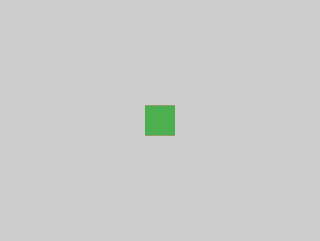 ```dart
Center(
child: Container(
color: red,
child: Container(color: green, width: 30, height: 30),
),
)
```
The screen forces the `Center` to be exactly the same
size as the screen, so the `Center` fills the screen.
The `Center` tells the red `Container` that it can be any size
it wants, but not bigger than the screen. Since the red
`Container` has no size but has a child,
it decides it wants to be the same size as its child.
The red `Container` tells its child that it can be any size
it wants, but not bigger than the screen.
The child is a green `Container` that wants to
be 30 × 30. Given that the red `Container` sizes itself to
the size of its child, it is also 30 × 30.
The red color isn't visible because the green `Container`
entirely covers the red `Container`.
### Example 8
```dart
Center(
child: Container(
color: red,
child: Container(color: green, width: 30, height: 30),
),
)
```
The screen forces the `Center` to be exactly the same
size as the screen, so the `Center` fills the screen.
The `Center` tells the red `Container` that it can be any size
it wants, but not bigger than the screen. Since the red
`Container` has no size but has a child,
it decides it wants to be the same size as its child.
The red `Container` tells its child that it can be any size
it wants, but not bigger than the screen.
The child is a green `Container` that wants to
be 30 × 30. Given that the red `Container` sizes itself to
the size of its child, it is also 30 × 30.
The red color isn't visible because the green `Container`
entirely covers the red `Container`.
### Example 8
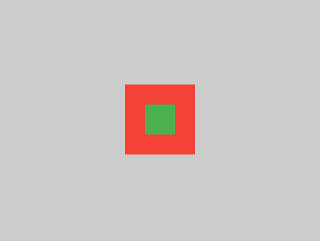 ```dart
Center(
child: Container(
padding: const EdgeInsets.all(20),
color: red,
child: Container(color: green, width: 30, height: 30),
),
)
```
The red `Container` sizes itself to its children's size,
but it takes its own padding into consideration.
So it is also 30 × 30 plus padding.
The red color is visible because of the padding,
and the green `Container` has the same size as
in the previous example.
### Example 9
```dart
Center(
child: Container(
padding: const EdgeInsets.all(20),
color: red,
child: Container(color: green, width: 30, height: 30),
),
)
```
The red `Container` sizes itself to its children's size,
but it takes its own padding into consideration.
So it is also 30 × 30 plus padding.
The red color is visible because of the padding,
and the green `Container` has the same size as
in the previous example.
### Example 9
 ```dart
ConstrainedBox(
constraints: const BoxConstraints(
minWidth: 70,
minHeight: 70,
maxWidth: 150,
maxHeight: 150,
),
child: Container(color: red, width: 10, height: 10),
)
```
You might guess that the `Container` has to be
between 70 and 150 pixels, but you would be wrong.
The `ConstrainedBox` only imposes **additional** constraints
from those it receives from its parent.
Here, the screen forces the `ConstrainedBox` to be exactly
the same size as the screen, so it tells its child `Container`
to also assume the size of the screen, thus ignoring its
`constraints` parameter.
### Example 10
```dart
ConstrainedBox(
constraints: const BoxConstraints(
minWidth: 70,
minHeight: 70,
maxWidth: 150,
maxHeight: 150,
),
child: Container(color: red, width: 10, height: 10),
)
```
You might guess that the `Container` has to be
between 70 and 150 pixels, but you would be wrong.
The `ConstrainedBox` only imposes **additional** constraints
from those it receives from its parent.
Here, the screen forces the `ConstrainedBox` to be exactly
the same size as the screen, so it tells its child `Container`
to also assume the size of the screen, thus ignoring its
`constraints` parameter.
### Example 10
 ```dart
Center(
child: ConstrainedBox(
constraints: const BoxConstraints(
minWidth: 70,
minHeight: 70,
maxWidth: 150,
maxHeight: 150,
),
child: Container(color: red, width: 10, height: 10),
),
)
```
Now, `Center` allows `ConstrainedBox` to be any size up to
the screen size. The `ConstrainedBox` imposes **additional**
constraints from its `constraints` parameter onto its child.
The Container must be between 70 and 150 pixels.
It wants to have 10 pixels,
so it ends up having 70 (the minimum).
### Example 11
```dart
Center(
child: ConstrainedBox(
constraints: const BoxConstraints(
minWidth: 70,
minHeight: 70,
maxWidth: 150,
maxHeight: 150,
),
child: Container(color: red, width: 10, height: 10),
),
)
```
Now, `Center` allows `ConstrainedBox` to be any size up to
the screen size. The `ConstrainedBox` imposes **additional**
constraints from its `constraints` parameter onto its child.
The Container must be between 70 and 150 pixels.
It wants to have 10 pixels,
so it ends up having 70 (the minimum).
### Example 11
 ```dart
Center(
child: ConstrainedBox(
constraints: const BoxConstraints(
minWidth: 70,
minHeight: 70,
maxWidth: 150,
maxHeight: 150,
),
child: Container(color: red, width: 1000, height: 1000),
),
)
```
`Center` allows `ConstrainedBox` to be any size up to the
screen size. The `ConstrainedBox` imposes **additional**
constraints from its `constraints` parameter onto its child.
The `Container` must be between 70 and 150 pixels.
It wants to have 1000 pixels,
so it ends up having 150 (the maximum).
### Example 12
```dart
Center(
child: ConstrainedBox(
constraints: const BoxConstraints(
minWidth: 70,
minHeight: 70,
maxWidth: 150,
maxHeight: 150,
),
child: Container(color: red, width: 1000, height: 1000),
),
)
```
`Center` allows `ConstrainedBox` to be any size up to the
screen size. The `ConstrainedBox` imposes **additional**
constraints from its `constraints` parameter onto its child.
The `Container` must be between 70 and 150 pixels.
It wants to have 1000 pixels,
so it ends up having 150 (the maximum).
### Example 12
 ```dart
Center(
child: ConstrainedBox(
constraints: const BoxConstraints(
minWidth: 70,
minHeight: 70,
maxWidth: 150,
maxHeight: 150,
),
child: Container(color: red, width: 100, height: 100),
),
)
```
`Center` allows `ConstrainedBox` to be any size up to the
screen size. The `ConstrainedBox` imposes **additional**
constraints from its `constraints` parameter onto its child.
The `Container` must be between 70 and 150 pixels.
It wants to have 100 pixels, and that's the size it has,
since that's between 70 and 150.
### Example 13
```dart
Center(
child: ConstrainedBox(
constraints: const BoxConstraints(
minWidth: 70,
minHeight: 70,
maxWidth: 150,
maxHeight: 150,
),
child: Container(color: red, width: 100, height: 100),
),
)
```
`Center` allows `ConstrainedBox` to be any size up to the
screen size. The `ConstrainedBox` imposes **additional**
constraints from its `constraints` parameter onto its child.
The `Container` must be between 70 and 150 pixels.
It wants to have 100 pixels, and that's the size it has,
since that's between 70 and 150.
### Example 13
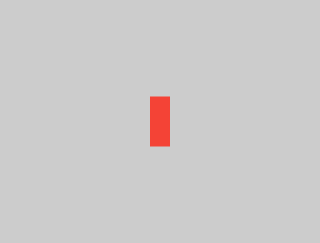 ```dart
UnconstrainedBox(
child: Container(color: red, width: 20, height: 50),
)
```
The screen forces the `UnconstrainedBox` to be exactly
the same size as the screen. However, the `UnconstrainedBox`
lets its child `Container` be any size it wants.
### Example 14
```dart
UnconstrainedBox(
child: Container(color: red, width: 20, height: 50),
)
```
The screen forces the `UnconstrainedBox` to be exactly
the same size as the screen. However, the `UnconstrainedBox`
lets its child `Container` be any size it wants.
### Example 14
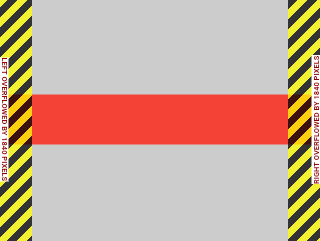 ```dart
UnconstrainedBox(
child: Container(color: red, width: 4000, height: 50),
)
```
The screen forces the `UnconstrainedBox` to be exactly
the same size as the screen, and `UnconstrainedBox`
lets its child `Container` be any size it wants.
Unfortunately, in this case the `Container` is
4000 pixels wide and is too big to fit in
the `UnconstrainedBox`, so the `UnconstrainedBox` displays
the much dreaded "overflow warning".
### Example 15
```dart
UnconstrainedBox(
child: Container(color: red, width: 4000, height: 50),
)
```
The screen forces the `UnconstrainedBox` to be exactly
the same size as the screen, and `UnconstrainedBox`
lets its child `Container` be any size it wants.
Unfortunately, in this case the `Container` is
4000 pixels wide and is too big to fit in
the `UnconstrainedBox`, so the `UnconstrainedBox` displays
the much dreaded "overflow warning".
### Example 15
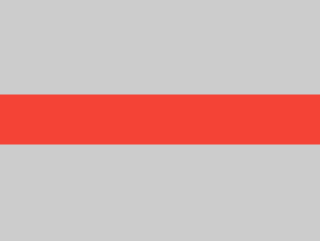 ```dart
OverflowBox(
minWidth: 0,
minHeight: 0,
maxWidth: double.infinity,
maxHeight: double.infinity,
child: Container(color: red, width: 4000, height: 50),
)
```
The screen forces the `OverflowBox` to be exactly the same
size as the screen, and `OverflowBox` lets its child `Container`
be any size it wants.
`OverflowBox` is similar to `UnconstrainedBox`;
the difference is that it won't display any warnings
if the child doesn't fit the space.
In this case, the `Container` has 4000 pixels of width,
and is too big to fit in the `OverflowBox`,
but the `OverflowBox` simply shows as much as it can,
with no warnings given.
### Example 16
```dart
OverflowBox(
minWidth: 0,
minHeight: 0,
maxWidth: double.infinity,
maxHeight: double.infinity,
child: Container(color: red, width: 4000, height: 50),
)
```
The screen forces the `OverflowBox` to be exactly the same
size as the screen, and `OverflowBox` lets its child `Container`
be any size it wants.
`OverflowBox` is similar to `UnconstrainedBox`;
the difference is that it won't display any warnings
if the child doesn't fit the space.
In this case, the `Container` has 4000 pixels of width,
and is too big to fit in the `OverflowBox`,
but the `OverflowBox` simply shows as much as it can,
with no warnings given.
### Example 16
 ```dart
UnconstrainedBox(
child: Container(color: Colors.red, width: double.infinity, height: 100),
)
```
This won't render anything, and you'll see an error in the console.
The `UnconstrainedBox` lets its child be any size it wants,
however its child is a `Container` with infinite size.
Flutter can't render infinite sizes, so it throws an error with
the following message: `BoxConstraints forces an infinite width.`
### Example 17
```dart
UnconstrainedBox(
child: Container(color: Colors.red, width: double.infinity, height: 100),
)
```
This won't render anything, and you'll see an error in the console.
The `UnconstrainedBox` lets its child be any size it wants,
however its child is a `Container` with infinite size.
Flutter can't render infinite sizes, so it throws an error with
the following message: `BoxConstraints forces an infinite width.`
### Example 17
 ```dart
UnconstrainedBox(
child: LimitedBox(
maxWidth: 100,
child: Container(
color: Colors.red,
width: double.infinity,
height: 100,
),
),
)
```
Here you won't get an error anymore,
because when the `LimitedBox` is given an
infinite size by the `UnconstrainedBox`;
it passes a maximum width of 100 down to its child.
If you swap the `UnconstrainedBox` for a `Center` widget,
the `LimitedBox` won't apply its limit anymore
(since its limit is only applied when it gets infinite
constraints), and the width of the `Container`
is allowed to grow past 100.
This explains the difference between a `LimitedBox`
and a `ConstrainedBox`.
### Example 18
```dart
UnconstrainedBox(
child: LimitedBox(
maxWidth: 100,
child: Container(
color: Colors.red,
width: double.infinity,
height: 100,
),
),
)
```
Here you won't get an error anymore,
because when the `LimitedBox` is given an
infinite size by the `UnconstrainedBox`;
it passes a maximum width of 100 down to its child.
If you swap the `UnconstrainedBox` for a `Center` widget,
the `LimitedBox` won't apply its limit anymore
(since its limit is only applied when it gets infinite
constraints), and the width of the `Container`
is allowed to grow past 100.
This explains the difference between a `LimitedBox`
and a `ConstrainedBox`.
### Example 18
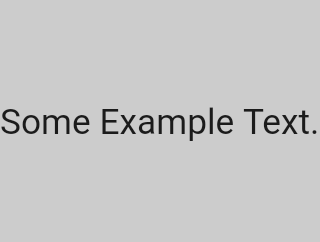 ```dart
const FittedBox(child: Text('Some Example Text.'))
```
The screen forces the `FittedBox` to be exactly the same
size as the screen. The `Text` has some natural width
(also called its intrinsic width) that depends on the
amount of text, its font size, and so on.
The `FittedBox` lets the `Text` be any size it wants,
but after the `Text` tells its size to the `FittedBox`,
the `FittedBox` scales the Text until it fills all of
the available width.
### Example 19
```dart
const FittedBox(child: Text('Some Example Text.'))
```
The screen forces the `FittedBox` to be exactly the same
size as the screen. The `Text` has some natural width
(also called its intrinsic width) that depends on the
amount of text, its font size, and so on.
The `FittedBox` lets the `Text` be any size it wants,
but after the `Text` tells its size to the `FittedBox`,
the `FittedBox` scales the Text until it fills all of
the available width.
### Example 19
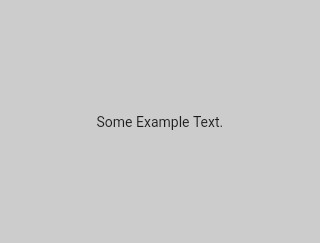 ```dart
const Center(child: FittedBox(child: Text('Some Example Text.')))
```
But what happens if you put the `FittedBox` inside of a
`Center` widget? The `Center` lets the `FittedBox`
be any size it wants, up to the screen size.
The `FittedBox` then sizes itself to the `Text`,
and lets the `Text` be any size it wants.
Since both `FittedBox` and the `Text` have the same size,
no scaling happens.
### Example 20
```dart
const Center(child: FittedBox(child: Text('Some Example Text.')))
```
But what happens if you put the `FittedBox` inside of a
`Center` widget? The `Center` lets the `FittedBox`
be any size it wants, up to the screen size.
The `FittedBox` then sizes itself to the `Text`,
and lets the `Text` be any size it wants.
Since both `FittedBox` and the `Text` have the same size,
no scaling happens.
### Example 20
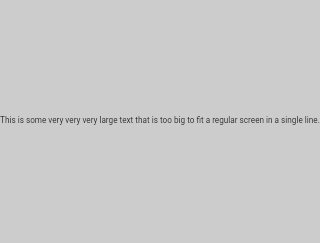 ```dart
const Center(
child: FittedBox(
child: Text(
'This is some very very very large text that is too big to fit a regular screen in a single line.',
),
),
)
```
However, what happens if `FittedBox` is inside of a `Center`
widget, but the `Text` is too large to fit the screen?
`FittedBox` tries to size itself to the `Text`,
but it can't be bigger than the screen.
It then assumes the screen size,
and resizes `Text` so that it fits the screen, too.
### Example 21
```dart
const Center(
child: FittedBox(
child: Text(
'This is some very very very large text that is too big to fit a regular screen in a single line.',
),
),
)
```
However, what happens if `FittedBox` is inside of a `Center`
widget, but the `Text` is too large to fit the screen?
`FittedBox` tries to size itself to the `Text`,
but it can't be bigger than the screen.
It then assumes the screen size,
and resizes `Text` so that it fits the screen, too.
### Example 21
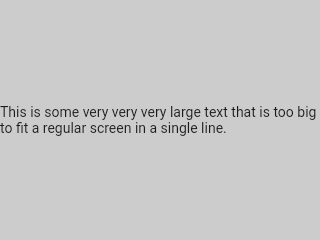 ```dart
const Center(
child: Text(
'This is some very very very large text that is too big to fit a regular screen in a single line.',
),
)
```
If, however, you remove the `FittedBox`, the `Text`
gets its maximum width from the screen,
and breaks the line so that it fits the screen.
### Example 22
```dart
const Center(
child: Text(
'This is some very very very large text that is too big to fit a regular screen in a single line.',
),
)
```
If, however, you remove the `FittedBox`, the `Text`
gets its maximum width from the screen,
and breaks the line so that it fits the screen.
### Example 22
 ```dart
FittedBox(
child: Container(height: 20, width: double.infinity, color: Colors.red),
)
```
`FittedBox` can only scale a widget that is bounded
(has non-infinite width and height). Otherwise,
it won't render anything,
and you'll see an error in the console.
### Example 23
```dart
FittedBox(
child: Container(height: 20, width: double.infinity, color: Colors.red),
)
```
`FittedBox` can only scale a widget that is bounded
(has non-infinite width and height). Otherwise,
it won't render anything,
and you'll see an error in the console.
### Example 23
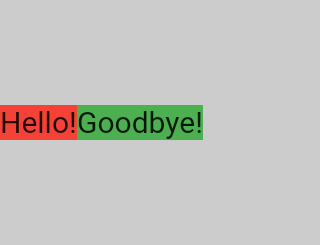 ```dart
Row(
children: [
Container(
color: red,
child: const Text('Hello!', style: big),
),
Container(
color: green,
child: const Text('Goodbye!', style: big),
),
],
)
```
The screen forces the `Row` to be exactly the same size
as the screen.
Just like an `UnconstrainedBox`, the `Row` won't
impose any constraints onto its children,
and instead lets them be any size they want.
The `Row` then puts them side-by-side,
and any extra space remains empty.
### Example 24
```dart
Row(
children: [
Container(
color: red,
child: const Text('Hello!', style: big),
),
Container(
color: green,
child: const Text('Goodbye!', style: big),
),
],
)
```
The screen forces the `Row` to be exactly the same size
as the screen.
Just like an `UnconstrainedBox`, the `Row` won't
impose any constraints onto its children,
and instead lets them be any size they want.
The `Row` then puts them side-by-side,
and any extra space remains empty.
### Example 24
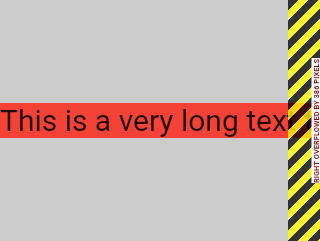 ```dart
Row(
children: [
Container(
color: red,
child: const Text(
'This is a very long text that '
'won\'t fit the line.',
style: big,
),
),
Container(
color: green,
child: const Text('Goodbye!', style: big),
),
],
)
```
Since `Row` won't impose any constraints onto its children,
it's quite possible that the children might be too big to fit
the available width of the `Row`. In this case, just like an
`UnconstrainedBox`, the `Row` displays the "overflow warning".
### Example 25
```dart
Row(
children: [
Container(
color: red,
child: const Text(
'This is a very long text that '
'won\'t fit the line.',
style: big,
),
),
Container(
color: green,
child: const Text('Goodbye!', style: big),
),
],
)
```
Since `Row` won't impose any constraints onto its children,
it's quite possible that the children might be too big to fit
the available width of the `Row`. In this case, just like an
`UnconstrainedBox`, the `Row` displays the "overflow warning".
### Example 25
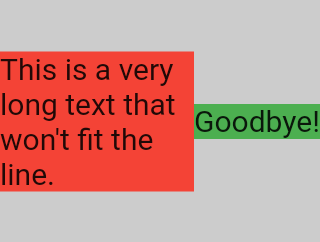 ```dart
Row(
children: [
Expanded(
child: Center(
child: Container(
color: red,
child: const Text(
'This is a very long text that won\'t fit the line.',
style: big,
),
),
),
),
Container(
color: green,
child: const Text('Goodbye!', style: big),
),
],
)
```
When a `Row`'s child is wrapped in an `Expanded` widget,
the `Row` won't let this child define its own width anymore.
Instead, it defines the `Expanded` width according to the
other children, and only then the `Expanded` widget forces
the original child to have the `Expanded`'s width.
In other words, once you use `Expanded`,
the original child's width becomes irrelevant, and is ignored.
### Example 26
```dart
Row(
children: [
Expanded(
child: Center(
child: Container(
color: red,
child: const Text(
'This is a very long text that won\'t fit the line.',
style: big,
),
),
),
),
Container(
color: green,
child: const Text('Goodbye!', style: big),
),
],
)
```
When a `Row`'s child is wrapped in an `Expanded` widget,
the `Row` won't let this child define its own width anymore.
Instead, it defines the `Expanded` width according to the
other children, and only then the `Expanded` widget forces
the original child to have the `Expanded`'s width.
In other words, once you use `Expanded`,
the original child's width becomes irrelevant, and is ignored.
### Example 26
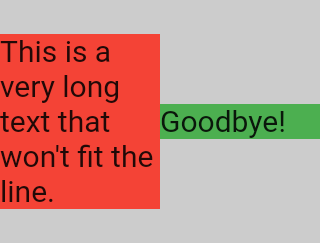 ```dart
Row(
children: [
Expanded(
child: Container(
color: red,
child: const Text(
'This is a very long text that won\'t fit the line.',
style: big,
),
),
),
Expanded(
child: Container(
color: green,
child: const Text('Goodbye!', style: big),
),
),
],
)
```
If all of `Row`'s children are wrapped in `Expanded` widgets,
each `Expanded` has a size proportional to its flex parameter,
and only then each `Expanded` widget forces its child to have
the `Expanded`'s width.
In other words, `Expanded` ignores the preferred width of
its children.
### Example 27
```dart
Row(
children: [
Expanded(
child: Container(
color: red,
child: const Text(
'This is a very long text that won\'t fit the line.',
style: big,
),
),
),
Expanded(
child: Container(
color: green,
child: const Text('Goodbye!', style: big),
),
),
],
)
```
If all of `Row`'s children are wrapped in `Expanded` widgets,
each `Expanded` has a size proportional to its flex parameter,
and only then each `Expanded` widget forces its child to have
the `Expanded`'s width.
In other words, `Expanded` ignores the preferred width of
its children.
### Example 27
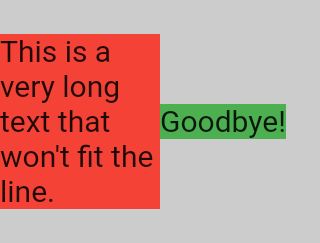 ```dart
Row(
children: [
Flexible(
child: Container(
color: red,
child: const Text(
'This is a very long text that won\'t fit the line.',
style: big,
),
),
),
Flexible(
child: Container(
color: green,
child: const Text('Goodbye!', style: big),
),
),
],
)
```
The only difference if you use `Flexible` instead of `Expanded`,
is that `Flexible` lets its child have the same or smaller
width than the `Flexible` itself, while `Expanded` forces
its child to have the exact same width of the `Expanded`.
But both `Expanded` and `Flexible` ignore their children's width
when sizing themselves.
:::note
This means that it's impossible to expand `Row` children
proportionally to their sizes. The `Row` either uses
the exact child's width, or ignores it completely
when you use `Expanded` or `Flexible`.
:::
### Example 28
```dart
Row(
children: [
Flexible(
child: Container(
color: red,
child: const Text(
'This is a very long text that won\'t fit the line.',
style: big,
),
),
),
Flexible(
child: Container(
color: green,
child: const Text('Goodbye!', style: big),
),
),
],
)
```
The only difference if you use `Flexible` instead of `Expanded`,
is that `Flexible` lets its child have the same or smaller
width than the `Flexible` itself, while `Expanded` forces
its child to have the exact same width of the `Expanded`.
But both `Expanded` and `Flexible` ignore their children's width
when sizing themselves.
:::note
This means that it's impossible to expand `Row` children
proportionally to their sizes. The `Row` either uses
the exact child's width, or ignores it completely
when you use `Expanded` or `Flexible`.
:::
### Example 28
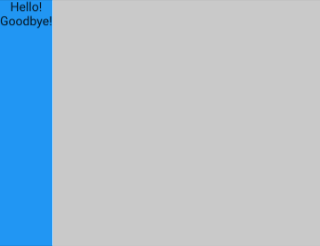 ```dart
Scaffold(
body: Container(
color: blue,
child: const Column(children: [Text('Hello!'), Text('Goodbye!')]),
),
)
```
The screen forces the `Scaffold` to be exactly the same size
as the screen, so the `Scaffold` fills the screen.
The `Scaffold` tells the `Container` that it can be any size it wants,
but not bigger than the screen.
:::note
When a widget tells its child that it can be smaller than a
certain size, we say the widget supplies _loose_ constraints
to its child. More on that later.
:::
### Example 29
```dart
Scaffold(
body: Container(
color: blue,
child: const Column(children: [Text('Hello!'), Text('Goodbye!')]),
),
)
```
The screen forces the `Scaffold` to be exactly the same size
as the screen, so the `Scaffold` fills the screen.
The `Scaffold` tells the `Container` that it can be any size it wants,
but not bigger than the screen.
:::note
When a widget tells its child that it can be smaller than a
certain size, we say the widget supplies _loose_ constraints
to its child. More on that later.
:::
### Example 29
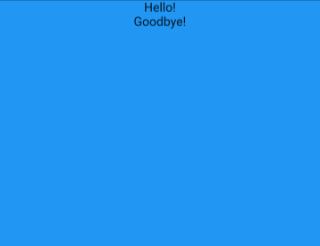 ```dart
Scaffold(
body: SizedBox.expand(
child: Container(
color: blue,
child: const Column(children: [Text('Hello!'), Text('Goodbye!')]),
),
),
)
```
If you want the `Scaffold`'s child to be exactly the same size
as the `Scaffold` itself, you can wrap its child with
`SizedBox.expand`.
## Tight vs loose constraints
It's very common to hear that some constraint is
"tight" or "loose", so what does that mean?
### Tight constraints
A _tight_ constraint offers a single possibility,
an exact size. In other words, a tight constraint
has its maximum width equal to its minimum width;
and has its maximum height equal to its minimum height.
An example of this is the `App` widget,
which is contained by the [`RenderView`][] class:
the box used by the child returned by the
application's [`build`][] function is given a constraint
that forces it to exactly fill the application's content area
(typically, the entire screen).
Another example: if you nest a bunch of boxes inside
each other at the root of your application's render tree,
they'll all exactly fit in each other,
forced by the box's tight constraints.
If you go to Flutter's `box.dart` file and search for
the `BoxConstraints` constructors,
you'll find the following:
```dart
BoxConstraints.tight(Size size)
: minWidth = size.width,
maxWidth = size.width,
minHeight = size.height,
maxHeight = size.height;
```
If you revisit [Example 2](#example-2),
the screen forces the red `Container` to be
exactly the same size as the screen.
The screen achieves that, of course, by passing tight
constraints to the `Container`.
### Loose constraints
A _loose_ constraint is one that has a minimum
of zero and a maximum non-zero.
Some boxes _loosen_ the incoming constraints,
meaning the maximum is maintained but the
minimum is removed, so the widget can have
a **minimum** width and height both equal to **zero**.
Ultimately, `Center`'s purpose is to transform
the tight constraints it received from its parent
(the screen) to loose constraints for its child
(the `Container`).
If you revisit [Example 3](#example-3),
the `Center` allows the red `Container` to be smaller,
but not bigger than the screen.
[`build`]: https://api.flutter.dev/flutter/widgets/State/build.html
[`RenderView`]: https://api.flutter.dev/flutter/rendering/RenderView-class.html
## Unbounded constraints
:::note
You might be directed here if the framework
detects a problem involving box constraints.
The `Flex` section below might also apply.
:::
In certain situations,
a box's constraint is _unbounded_, or infinite.
This means that either the maximum width or
the maximum height is set to [`double.infinity`][].
A box that tries to be as big as possible won't
function usefully when given an unbounded constraint and,
in debug mode, throws an exception.
The most common case where a render box ends up
with an unbounded constraint is within a flex box
([`Row`][] or [`Column`][]),
and **within a scrollable region**
(such as [`ListView`][] and other [`ScrollView`][] subclasses).
[`ListView`][], for example,
tries to expand to fit the space available
in its cross-direction
(perhaps it's a vertically-scrolling block and
tries to be as wide as its parent).
If you nest a vertically scrolling [`ListView`][]
inside a horizontally scrolling `ListView`,
the inner list tries to be as wide as possible,
which is infinitely wide,
since the outer one is scrollable in that direction.
The next section describes the error you might
encounter with unbounded constraints in a `Flex` widget.
## Flex
A flex box ([`Row`][] and [`Column`][]) behaves
differently depending on whether its
constraint is bounded or unbounded in
its primary direction.
A flex box with a bounded constraint in its
primary direction tries to be as big as possible.
A flex box with an unbounded constraint
in its primary direction tries to fit its children
in that space. Each child's `flex` value must be
set to zero, meaning that you can't use
[`Expanded`][] when the flex box is inside
another flex box or a scrollable;
otherwise it throws an exception.
The _cross_ direction
(width for [`Column`][] or height for [`Row`][]),
must _never_ be unbounded,
or it can't reasonably align its children.
[`double.infinity`]: https://api.flutter.dev/flutter/dart-core/double/infinity-constant.html
[`Expanded`]: https://api.flutter.dev/flutter/widgets/Expanded-class.html
[`RenderBox`]: https://api.flutter.dev/flutter/rendering/RenderBox-class.html
[`ScrollView`]: https://api.flutter.dev/flutter/widgets/ScrollView-class.html
## Learning the layout rules for specific widgets
Knowing the general layout rule is necessary, but it's not enough.
Each widget has a lot of freedom when applying the general rule,
so there is no way of knowing how it behaves by just reading
the widget's name.
If you try to guess, you'll probably guess wrong.
You can't know exactly how a widget behaves unless
you've read its documentation, or studied its source-code.
The layout source-code is usually complex,
so it's probably better to just read the documentation.
However, if you decide to study the layout source-code,
you can easily find it by using the navigating capabilities
of your IDE.
Here's an example:
* Find a `Column` in your code and navigate to its
source code. To do this, use `command+B` (macOS)
or `control+B` (Windows/Linux) in Android Studio or IntelliJ.
You'll be taken to the `basic.dart` file.
Since `Column` extends `Flex`, navigate to the `Flex`
source code (also in `basic.dart`).
* Scroll down until you find a method called
`createRenderObject()`. As you can see,
this method returns a `RenderFlex`.
This is the render-object for the `Column`.
Now navigate to the source-code of `RenderFlex`,
which takes you to the `flex.dart` file.
* Scroll down until you find a method called
`performLayout()`. This is the method that does
the layout for the `Column`.
```dart
Scaffold(
body: SizedBox.expand(
child: Container(
color: blue,
child: const Column(children: [Text('Hello!'), Text('Goodbye!')]),
),
),
)
```
If you want the `Scaffold`'s child to be exactly the same size
as the `Scaffold` itself, you can wrap its child with
`SizedBox.expand`.
## Tight vs loose constraints
It's very common to hear that some constraint is
"tight" or "loose", so what does that mean?
### Tight constraints
A _tight_ constraint offers a single possibility,
an exact size. In other words, a tight constraint
has its maximum width equal to its minimum width;
and has its maximum height equal to its minimum height.
An example of this is the `App` widget,
which is contained by the [`RenderView`][] class:
the box used by the child returned by the
application's [`build`][] function is given a constraint
that forces it to exactly fill the application's content area
(typically, the entire screen).
Another example: if you nest a bunch of boxes inside
each other at the root of your application's render tree,
they'll all exactly fit in each other,
forced by the box's tight constraints.
If you go to Flutter's `box.dart` file and search for
the `BoxConstraints` constructors,
you'll find the following:
```dart
BoxConstraints.tight(Size size)
: minWidth = size.width,
maxWidth = size.width,
minHeight = size.height,
maxHeight = size.height;
```
If you revisit [Example 2](#example-2),
the screen forces the red `Container` to be
exactly the same size as the screen.
The screen achieves that, of course, by passing tight
constraints to the `Container`.
### Loose constraints
A _loose_ constraint is one that has a minimum
of zero and a maximum non-zero.
Some boxes _loosen_ the incoming constraints,
meaning the maximum is maintained but the
minimum is removed, so the widget can have
a **minimum** width and height both equal to **zero**.
Ultimately, `Center`'s purpose is to transform
the tight constraints it received from its parent
(the screen) to loose constraints for its child
(the `Container`).
If you revisit [Example 3](#example-3),
the `Center` allows the red `Container` to be smaller,
but not bigger than the screen.
[`build`]: https://api.flutter.dev/flutter/widgets/State/build.html
[`RenderView`]: https://api.flutter.dev/flutter/rendering/RenderView-class.html
## Unbounded constraints
:::note
You might be directed here if the framework
detects a problem involving box constraints.
The `Flex` section below might also apply.
:::
In certain situations,
a box's constraint is _unbounded_, or infinite.
This means that either the maximum width or
the maximum height is set to [`double.infinity`][].
A box that tries to be as big as possible won't
function usefully when given an unbounded constraint and,
in debug mode, throws an exception.
The most common case where a render box ends up
with an unbounded constraint is within a flex box
([`Row`][] or [`Column`][]),
and **within a scrollable region**
(such as [`ListView`][] and other [`ScrollView`][] subclasses).
[`ListView`][], for example,
tries to expand to fit the space available
in its cross-direction
(perhaps it's a vertically-scrolling block and
tries to be as wide as its parent).
If you nest a vertically scrolling [`ListView`][]
inside a horizontally scrolling `ListView`,
the inner list tries to be as wide as possible,
which is infinitely wide,
since the outer one is scrollable in that direction.
The next section describes the error you might
encounter with unbounded constraints in a `Flex` widget.
## Flex
A flex box ([`Row`][] and [`Column`][]) behaves
differently depending on whether its
constraint is bounded or unbounded in
its primary direction.
A flex box with a bounded constraint in its
primary direction tries to be as big as possible.
A flex box with an unbounded constraint
in its primary direction tries to fit its children
in that space. Each child's `flex` value must be
set to zero, meaning that you can't use
[`Expanded`][] when the flex box is inside
another flex box or a scrollable;
otherwise it throws an exception.
The _cross_ direction
(width for [`Column`][] or height for [`Row`][]),
must _never_ be unbounded,
or it can't reasonably align its children.
[`double.infinity`]: https://api.flutter.dev/flutter/dart-core/double/infinity-constant.html
[`Expanded`]: https://api.flutter.dev/flutter/widgets/Expanded-class.html
[`RenderBox`]: https://api.flutter.dev/flutter/rendering/RenderBox-class.html
[`ScrollView`]: https://api.flutter.dev/flutter/widgets/ScrollView-class.html
## Learning the layout rules for specific widgets
Knowing the general layout rule is necessary, but it's not enough.
Each widget has a lot of freedom when applying the general rule,
so there is no way of knowing how it behaves by just reading
the widget's name.
If you try to guess, you'll probably guess wrong.
You can't know exactly how a widget behaves unless
you've read its documentation, or studied its source-code.
The layout source-code is usually complex,
so it's probably better to just read the documentation.
However, if you decide to study the layout source-code,
you can easily find it by using the navigating capabilities
of your IDE.
Here's an example:
* Find a `Column` in your code and navigate to its
source code. To do this, use `command+B` (macOS)
or `control+B` (Windows/Linux) in Android Studio or IntelliJ.
You'll be taken to the `basic.dart` file.
Since `Column` extends `Flex`, navigate to the `Flex`
source code (also in `basic.dart`).
* Scroll down until you find a method called
`createRenderObject()`. As you can see,
this method returns a `RenderFlex`.
This is the render-object for the `Column`.
Now navigate to the source-code of `RenderFlex`,
which takes you to the `flex.dart` file.
* Scroll down until you find a method called
`performLayout()`. This is the method that does
the layout for the `Column`.
 ---
Original article by Marcelo Glasberg
Marcelo originally published this content as
[Flutter: The Advanced Layout Rule Even Beginners Must Know][article]
on Medium. We loved it and asked that he allow us to publish
in on docs.flutter.dev, to which he graciously agreed. Thanks, Marcelo!
You can find Marcelo on [GitHub][] and [pub.dev][].
Also, thanks to [Simon Lightfoot][] for creating the
header image at the top of the article.
[article]: https://medium.com/flutter-community/flutter-the-advanced-layout-rule-even-beginners-must-know-edc9516d1a2
[GitHub]: https://github.com/marcglasberg
[pub.dev]: https://pub.dev/publishers/glasberg.dev/packages
[Simon Lightfoot]: https://github.com/slightfoot
:::note
To better understand how Flutter implements layout
constraints, check out the following 5-minute video:
:::
---
Original article by Marcelo Glasberg
Marcelo originally published this content as
[Flutter: The Advanced Layout Rule Even Beginners Must Know][article]
on Medium. We loved it and asked that he allow us to publish
in on docs.flutter.dev, to which he graciously agreed. Thanks, Marcelo!
You can find Marcelo on [GitHub][] and [pub.dev][].
Also, thanks to [Simon Lightfoot][] for creating the
header image at the top of the article.
[article]: https://medium.com/flutter-community/flutter-the-advanced-layout-rule-even-beginners-must-know-edc9516d1a2
[GitHub]: https://github.com/marcglasberg
[pub.dev]: https://pub.dev/publishers/glasberg.dev/packages
[Simon Lightfoot]: https://github.com/slightfoot
:::note
To better understand how Flutter implements layout
constraints, check out the following 5-minute video:
:::