# Introduction to animations
> How to perform animations in Flutter.
Well-designed animations make a UI feel more intuitive,
contribute to the slick look and feel of a polished app,
and improve the user experience.
Flutter's animation support makes it easy to implement a variety of
animation types. Many widgets, especially [Material widgets][],
come with the standard motion effects defined in their design spec,
but it's also possible to customize these effects.
## Choosing an approach
There are different approaches you can take when creating
animations in Flutter. Which approach is right for you?
To help you decide, check out the video,
[How to choose which Flutter Animation Widget is right for you?][]
(Also published as a [_companion article_][article1].)
(To dive deeper into the decision process,
watch the [Animations in Flutter done right][] video,
presented at Flutter Europe.)
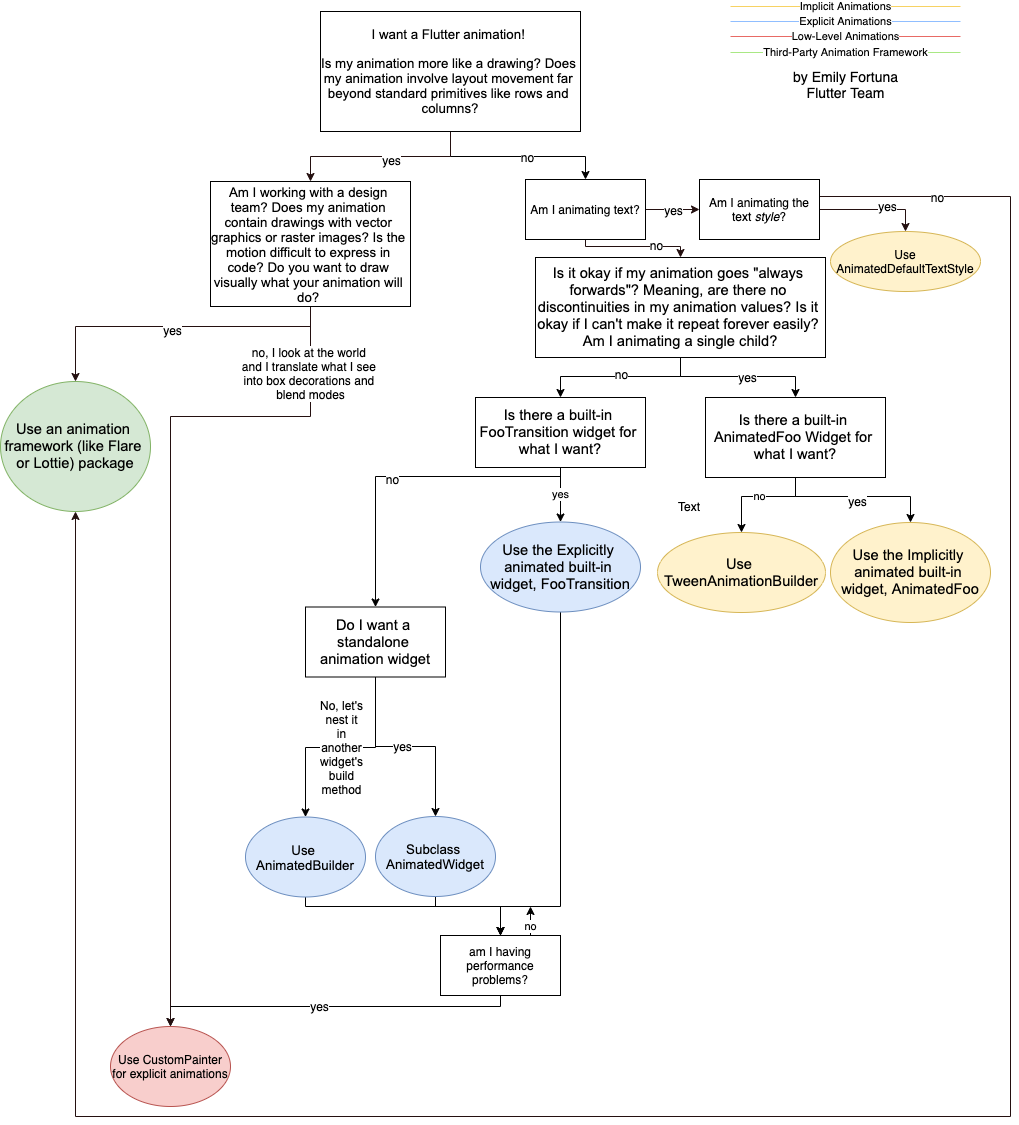
As shown in the video, the following
decision tree helps you decide what approach
to use when implementing a Flutter animation:
 ## Animation deep dive
For a deeper understanding of just how animations work in Flutter, watch
[Animation deep dive][].
(Also published as a [_companion article_][article6].)
## Implicit and explicit animations
### Pre-packaged implicit animations
If a pre-packaged implicit animation (the easiest animation
to implement) suits your needs, watch
[Animation basics with implicit animations][].
(Also published as a [_companion article_][article2].)
### Custom implicit animations
To create a custom implicit animation, watch
[Creating your own custom implicit animations with TweenAnimationBuilder][].
(Also published as a [_companion article_][article3].)
### Built-in explicit animations
To create an explicit animation (where you control the animation,
rather than letting the framework control it), perhaps
you can use one of the built-in explicit animations classes.
For more information, watch
[Making your first directional animations with
built-in explicit animations][].
(Also published as a [_companion article_][article4].)
### Explicit animations
If you need to build an explicit animation from scratch, watch
[Creating custom explicit animations with
AnimatedBuilder and AnimatedWidget][].
(Also published as a [_companion article_][article5].)
## Animation types
Generally, animations are either tween- or physics-based.
The following sections explain what these terms mean,
and point you to resources where you can learn more.
### Tween animation
Short for _in-betweening_. In a tween animation, the beginning
and ending points are defined, as well as a timeline, and a curve
that defines the timing and speed of the transition.
The framework calculates how to transition from the beginning point
to the end point.
* See the [Animations tutorial][], which uses tweens in the examples.
* Also see the API documentation for [`Tween`][], [`CurveTween`][], and
[`TweenSequence`][].
### Physics-based animation
In physics-based animation, motion is modeled to resemble real-world
behavior. When you toss a ball, for example, where and when it lands
depends on how fast it was tossed and how far it was from the ground.
Similarly, dropping a ball attached to a spring falls
(and bounces) differently than dropping a ball attached to a string.
* [Animate a widget using a physics simulation][]
## Animation deep dive
For a deeper understanding of just how animations work in Flutter, watch
[Animation deep dive][].
(Also published as a [_companion article_][article6].)
## Implicit and explicit animations
### Pre-packaged implicit animations
If a pre-packaged implicit animation (the easiest animation
to implement) suits your needs, watch
[Animation basics with implicit animations][].
(Also published as a [_companion article_][article2].)
### Custom implicit animations
To create a custom implicit animation, watch
[Creating your own custom implicit animations with TweenAnimationBuilder][].
(Also published as a [_companion article_][article3].)
### Built-in explicit animations
To create an explicit animation (where you control the animation,
rather than letting the framework control it), perhaps
you can use one of the built-in explicit animations classes.
For more information, watch
[Making your first directional animations with
built-in explicit animations][].
(Also published as a [_companion article_][article4].)
### Explicit animations
If you need to build an explicit animation from scratch, watch
[Creating custom explicit animations with
AnimatedBuilder and AnimatedWidget][].
(Also published as a [_companion article_][article5].)
## Animation types
Generally, animations are either tween- or physics-based.
The following sections explain what these terms mean,
and point you to resources where you can learn more.
### Tween animation
Short for _in-betweening_. In a tween animation, the beginning
and ending points are defined, as well as a timeline, and a curve
that defines the timing and speed of the transition.
The framework calculates how to transition from the beginning point
to the end point.
* See the [Animations tutorial][], which uses tweens in the examples.
* Also see the API documentation for [`Tween`][], [`CurveTween`][], and
[`TweenSequence`][].
### Physics-based animation
In physics-based animation, motion is modeled to resemble real-world
behavior. When you toss a ball, for example, where and when it lands
depends on how fast it was tossed and how far it was from the ground.
Similarly, dropping a ball attached to a spring falls
(and bounces) differently than dropping a ball attached to a string.
* [Animate a widget using a physics simulation][]
A recipe in the animations section of the Flutter cookbook.
* Also see the API documentation for
[`AnimationController.animateWith`][] and
[`SpringSimulation`][].
## Common animation patterns
Most UX or motion designers find that certain
animation patterns are used repeatedly when designing a UI.
This section lists some of the commonly
used animation patterns, and tells you where to learn more.
### Animated list or grid
This pattern involves animating the addition or removal of
elements from a list or grid.
* [`AnimatedList` example][]
This demo, from the [Sample app catalog][], shows how to
animate adding an element to a list, or removing a selected element.
The internal Dart list is synced as the user modifies the list using
the plus (+) and minus (-) buttons.
### Shared element transition
In this pattern, the user selects an element—often an
image—from the page, and the UI animates the selected element
to a new page with more detail. In Flutter, you can easily implement
shared element transitions between routes (pages)
using the `Hero` widget.
* [Hero animations][]
How to create two styles of Hero animations:
* The hero flies from one page to another while changing position
and size.
* The hero's boundary changes shape, from a circle to a square,
as its flies from one page to another.
* Also see the API documentation for the
[`Hero`][], [`Navigator`][], and [`PageRoute`][] classes.
### Staggered animation
Animations that are broken into smaller motions,
where some of the motion is delayed.
The smaller animations might be sequential,
or might partially or completely overlap.
* [Staggered Animations][]
## Essential animation concepts and classes
The animation system in Flutter is based on typed
[`Animation`][] objects. Widgets can either incorporate
these animations in their build functions directly by
reading their current value and listening to their state
changes or they can use the animations as the basis of
more elaborate animations that they pass along to
other widgets.
### Animation\
In Flutter, an `Animation` object knows nothing about what
is onscreen. An `Animation` is an abstract class that
understands its current value and its state (completed or dismissed).
One of the more commonly used animation types is `Animation`.
An `Animation` object sequentially generates
interpolated numbers between two values over a certain duration.
The output of an `Animation` object might be linear,
a curve, a step function, or any other mapping you can create.
Depending on how the `Animation` object is controlled,
it could run in reverse, or even switch directions in the
middle.
Animations can also interpolate types other than double, such as
`Animation` or `Animation`.
An `Animation` object has state. Its current value is
always available in the `.value` member.
An `Animation` object knows nothing about rendering or
`build()` functions.
### CurvedAnimation
A [`CurvedAnimation`][] defines the animation's progress
as a non-linear curve.
```dart
animation = CurvedAnimation(parent: controller, curve: Curves.easeIn);
```
`CurvedAnimation` and `AnimationController` (described in the next sections)
are both of type `Animation`, so you can pass them interchangeably.
The `CurvedAnimation` wraps the object it's modifying—you
don't subclass `AnimationController` to implement a curve.
You can use [`Curves`][] with `CurvedAnimation`. The `Curves` class defines
many commonly used curves, or you can create your own. For example:
```dart
import 'dart:math';
class ShakeCurve extends Curve {
@override
double transform(double t) => sin(t * pi * 2);
}
```
If you want to apply an animation curve to a `Tween`, consider using
[`CurveTween`][].
### AnimationController
[`AnimationController`][] is a special `Animation`
object that generates a new value whenever the hardware
is ready for a new frame. By default,
an `AnimationController` linearly produces the numbers
from 0.0 to 1.0 during a given duration.
For example, this code creates an `Animation` object,
but does not start it running:
```dart
controller = AnimationController(
duration: const Duration(seconds: 2),
vsync: this,
);
```
`AnimationController` derives from `Animation`, so it can be used
wherever an `Animation` object is needed. However, the `AnimationController`
has additional methods to control the animation. For example, you start
an animation with the `.forward()` method. The generation of numbers is
tied to the screen refresh, so typically 60 numbers are generated per
second. After each number is generated, each `Animation` object calls the
attached `Listener` objects. To create a custom display list for each
child, see [`RepaintBoundary`][].
When creating an `AnimationController`, you pass it a `vsync` argument.
The presence of `vsync` prevents offscreen animations from consuming
unnecessary resources.
You can use your stateful object as the vsync by adding
`SingleTickerProviderStateMixin` to the class definition.
You can see an example of this in [animate1][] on GitHub.
:::note
In some cases, a position might exceed the `AnimationController`'s
0.0-1.0 range. For example, the `fling()` function
allows you to provide velocity, force, and position
(using the Force object). The position can be anything and
so can be outside of the 0.0 to 1.0 range.
A `CurvedAnimation` can also exceed the 0.0 to 1.0 range,
even if the `AnimationController` doesn't.
Depending on the curve selected, the output of
the `CurvedAnimation` can have a wider range than the input.
For example, elastic curves such as `Curves.elasticIn`
significantly overshoots or undershoots the default range.
:::
### Tween
By default, the `AnimationController` object ranges from 0.0 to 1.0.
If you need a different range or a different data type, you can use a
[`Tween`][] to configure an animation to interpolate to a
different range or data type. For example, the
following `Tween` goes from -200.0 to 0.0:
```dart
tween = Tween(begin: -200, end: 0);
```
A `Tween` is a stateless object that takes only `begin` and `end`.
The sole job of a `Tween` is to define a mapping from an
input range to an output range. The input range is commonly
0.0 to 1.0, but that's not a requirement.
A `Tween` inherits from `Animatable`, not from `Animation`.
An `Animatable`, like `Animation`, doesn't have to output double.
For example, `ColorTween` specifies a progression between two colors.
```dart
colorTween = ColorTween(begin: Colors.transparent, end: Colors.black54);
```
A `Tween` object doesn't store any state. Instead, it provides the
[`evaluate(Animation animation)`][] method that uses the
`transform` function to map the current value of the animation
(between 0.0 and 1.0), to the actual animation value.
The current value of the `Animation` object can be found in the
`.value` method. The evaluate function also performs some housekeeping,
such as ensuring that begin and end are returned when the
animation values are 0.0 and 1.0, respectively.
#### Tween.animate
To use a `Tween` object, call `animate()` on the `Tween`,
passing in the controller object. For example,
the following code generates the
integer values from 0 to 255 over the course of 500 ms.
```dart
AnimationController controller = AnimationController(
duration: const Duration(milliseconds: 500),
vsync: this,
);
Animation alpha = IntTween(begin: 0, end: 255).animate(controller);
```
:::note
The `animate()` method returns an [`Animation`][],
not an [`Animatable`][].
:::
The following example shows a controller, a curve, and a `Tween`:
```dart
AnimationController controller = AnimationController(
duration: const Duration(milliseconds: 500),
vsync: this,
);
final Animation curve = CurvedAnimation(
parent: controller,
curve: Curves.easeOut,
);
Animation alpha = IntTween(begin: 0, end: 255).animate(curve);
```
### Animation notifications
An [`Animation`][] object can have `Listener`s and `StatusListener`s,
defined with `addListener()` and `addStatusListener()`.
A `Listener` is called whenever the value of the animation changes.
The most common behavior of a `Listener` is to call `setState()`
to cause a rebuild. A `StatusListener` is called when an animation begins,
ends, moves forward, or moves reverse, as defined by `AnimationStatus`.
## Codelabs, tutorials, and articles
The following resources are a good place to start learning
the Flutter animation framework. Each of these documents
shows how to write animation code.
* [Animations in Flutter codelab][]
Learn about implicit and explicit animations
while building a multiple-choice quiz game.
* [Animations tutorial][]
Explains the fundamental classes in the Flutter animation package
(controllers, `Animatable`, curves, listeners, builders),
as it guides you through a progression of tween animations using
different aspects of the animation APIs. This tutorial shows
how to create your own custom explicit animations.
* [Zero to One with Flutter, part 1][] and [part 2][]
Medium articles showing how to create an animated chart using tweening.
* [Casual games toolkit][]
A toolkit with game templates that contain examples of how to use Flutter
animations.
## Other resources
Learn more about Flutter animations at the following links:
* There are several [animations packages][] available on pub.dev that contain
pre-built animations for commonly used patterns, including:
`Container` transforms, shared axis transitions,
fade through transitions, and fade transitions.
* [Animation samples][] from the [Sample app catalog][].
* [Animation recipes][] from the Flutter cookbook.
* [Animation videos][] from the Flutter YouTube channel.
* [Animations: overview][]
A look at some of the major classes in the
animations library, and Flutter's animation architecture.
* [Animation and motion widgets][]
A catalog of some of the animation widgets
provided in the Flutter APIs.
* The [animation library][] in the [Flutter API documentation][]
The animation API for the Flutter framework. This link
takes you to a technical overview page for the library.
[animate1]: https://github.com/flutter/website/tree/main/examples/animation/animate1
[Animate a widget using a physics simulation]: /cookbook/animation/physics-simulation
[`Animatable`]: https://api.flutter.dev/flutter/animation/Animatable-class.html
[`AnimatedList` example]: https://github.com/flutter/samples/blob/main/animations
[`Animation`]: https://api.flutter.dev/flutter/animation/Animation-class.html
[Animation and motion widgets]: /ui/widgets/animation
[Animation basics with implicit animations]: https://www.youtube.com/watch?v=IVTjpW3W33s&list=PLjxrf2q8roU2v6UqYlt_KPaXlnjbYySua&index=1
[Animation deep dive]: https://www.youtube.com/watch?v=PbcILiN8rbo&list=PLjxrf2q8roU2v6UqYlt_KPaXlnjbYySua&index=5
[animation library]: https://api.flutter.dev/flutter/animation/animation-library.html
[Animation recipes]: /cookbook/animation
[Animation samples]: https://github.com/flutter/samples/tree/main/animations#animation-samples
[Animation videos]: https://www.youtube.com/@flutterdev/search?query=animation
[Animations in Flutter done right]: https://www.youtube.com/watch?v=wnARLByOtKA&t=3s
[Animations: overview]: /ui/animations/overview
[animations packages]: https://pub.dev/packages?q=topic%3Aanimation
[Animations tutorial]: /ui/animations/tutorial
[`AnimationController`]: https://api.flutter.dev/flutter/animation/AnimationController-class.html
[`AnimationController.animateWith`]: https://api.flutter.dev/flutter/animation/AnimationController/animateWith.html
[article1]: https://blog.flutter.dev/how-to-choose-which-flutter-animation-widget-is-right-for-you-79ecfb7e72b5
[article2]: https://blog.flutter.dev/flutter-animation-basics-with-implicit-animations-95db481c5916
[article3]: https://blog.flutter.dev/custom-implicit-animations-in-flutter-with-tweenanimationbuilder-c76540b47185
[article4]: https://blog.flutter.dev/directional-animations-with-built-in-explicit-animations-3e7c5e6fbbd7
[article5]: https://blog.flutter.dev/when-should-i-useanimatedbuilder-or-animatedwidget-57ecae0959e8
[article6]: https://blog.flutter.dev/animation-deep-dive-39d3ffea111f
[Casual games toolkit]: /resources/games-toolkit/
[Creating your own custom implicit animations with TweenAnimationBuilder]: https://www.youtube.com/watch?v=6KiPEqzJIKQ&feature=youtu.be
[Creating custom explicit animations with AnimatedBuilder and AnimatedWidget]: https://www.youtube.com/watch?v=fneC7t4R_B0&list=PLjxrf2q8roU2v6UqYlt_KPaXlnjbYySua&index=4
[`Curves`]: https://api.flutter.dev/flutter/animation/Curves-class.html
[`CurvedAnimation`]: https://api.flutter.dev/flutter/animation/CurvedAnimation-class.html
[`CurveTween`]: https://api.flutter.dev/flutter/animation/CurveTween-class.html
[`evaluate(Animation animation)`]: https://api.flutter.dev/flutter/animation/Animation/value.html
[Flutter API documentation]: https://api.flutter.dev
[`Hero`]: https://api.flutter.dev/flutter/widgets/Hero-class.html
[Hero animations]: /ui/animations/hero-animations
[How to choose which Flutter Animation Widget is right for you?]: https://www.youtube.com/watch?v=GXIJJkq_H8g
[Animations in Flutter codelab]: https://codelabs.developers.google.com/advanced-flutter-animations
[Making your first directional animations with built-in explicit animations]: https://www.youtube.com/watch?v=CunyH6unILQ&list=PLjxrf2q8roU2v6UqYlt_KPaXlnjbYySua&index=3
[Material widgets]: /ui/widgets/material
[`Navigator`]: https://api.flutter.dev/flutter/widgets/Navigator-class.html
[`PageRoute`]: https://api.flutter.dev/flutter/widgets/PageRoute-class.html
[part 2]: https://medium.com/dartlang/zero-to-one-with-flutter-part-two-5aa2f06655cb
[`RepaintBoundary`]: https://api.flutter.dev/flutter/widgets/RepaintBoundary-class.html
[Sample app catalog]: https://github.com/flutter/samples
[`SpringSimulation`]: https://api.flutter.dev/flutter/physics/SpringSimulation-class.html
[Staggered Animations]: /ui/animations/staggered-animations
[`Tween`]: https://api.flutter.dev/flutter/animation/Tween-class.html
[`TweenSequence`]: https://api.flutter.dev/flutter/animation/TweenSequence-class.html
[Zero to One with Flutter, part 1]: https://medium.com/dartlang/zero-to-one-with-flutter-43b13fd7b354