# Hot reload
> Speed up development using Flutter's hot reload feature.
Flutter's hot reload feature helps you quickly and
easily experiment, build UIs, add features, and fix bugs.
Hot reload works by injecting updated source code files
into the [Dart runtime][].
After the Dart runtime updates classes with the new versions of fields and functions,
the Flutter framework automatically rebuilds the widget tree,
allowing you to quickly view the effects of your changes.
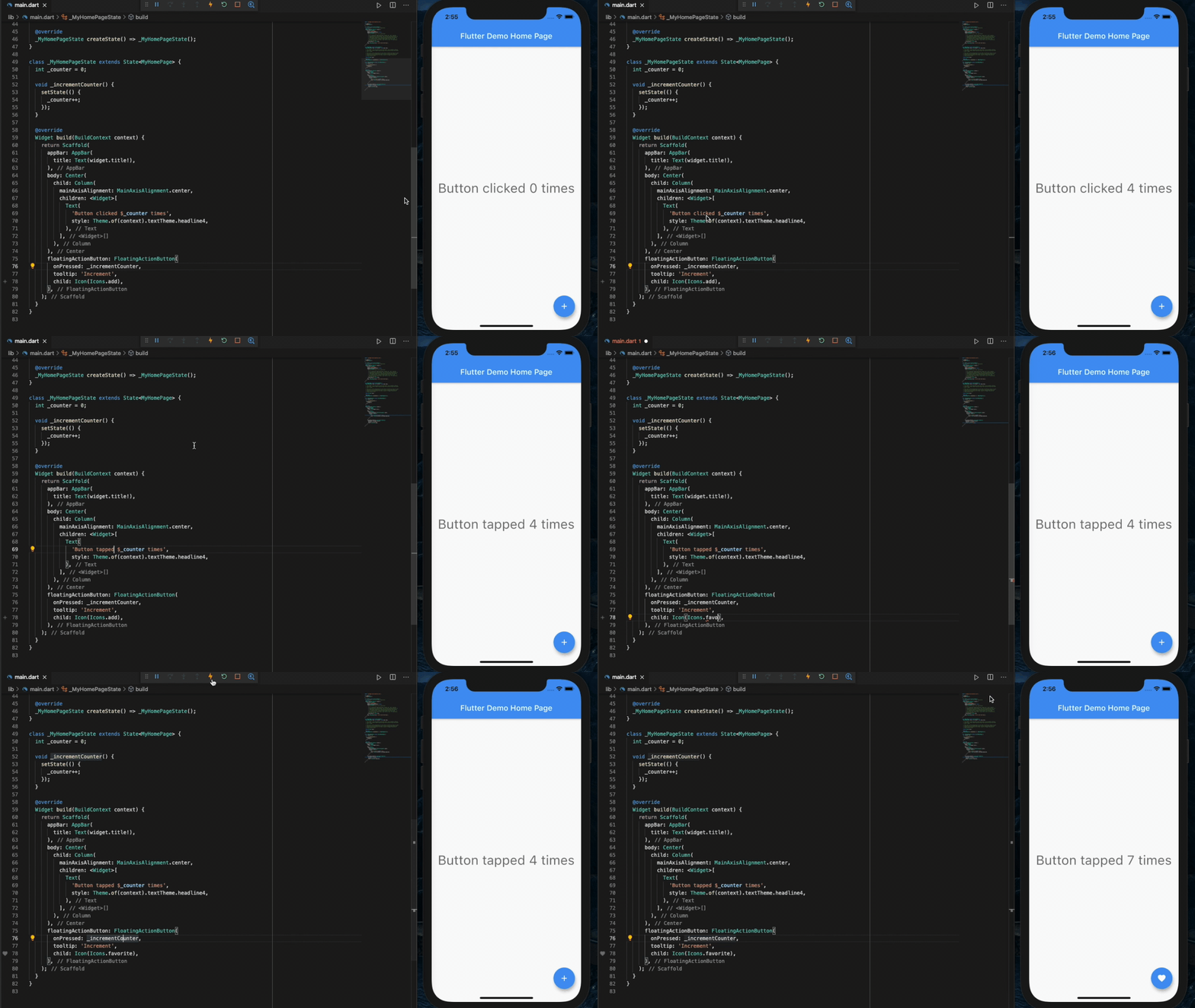{:width="100%"}
A demo of hot reload in DartPad
## How to perform a hot reload
If you are using an AI coding assistant like [Google Antigravity](/ai/antigravity),
you can use Agent mode to automatically hot reload your running application
as soon as you prompt the agent to apply changes.
For details, see [Agentic Hot Reload](/ai/antigravity#agentic-hot-reload).
To hot reload a Flutter app manually:
1. Run the app from a supported [Flutter editor][] or a terminal window.
Either a physical or virtual device can be the target.
**Only Flutter apps in debug mode can be hot reloaded or hot restarted.**
1. Modify one of the Dart files in your project.
Most types of code changes can be hot reloaded;
for a list of changes that require a hot restart,
see [Special cases](#special-cases).
1. If you're working in an IDE/editor that supports Flutter's IDE tools
and hot reload on save is enabled,
select **Save All** (`cmd-s`/`ctrl-s`),
or click the hot reload button on the toolbar.
:::tip To enable hot reload on save
From your preferred IDE,
enable autosave and hot reloads on save.
**VS Code**
Add the following to your `.vscode/settings.json` file:
```json
"files.autoSave": "afterDelay",
"dart.flutterHotReloadOnSave": "all",
```
**Android Studio and IntelliJ**
* Open `Settings > Tools > Actions on Save` and select
`Configure autosave options`.
- Check the option to `Save files if the IDE is idle for X seconds`.
- **Recommended:** Set a small delay duration. For example, 2 seconds.
* Open `Settings > Languages & Frameworks > Flutter`.
- Check the option to `Perform hot reload on save`.
:::
If you're running the app at the command line using `flutter run`,
enter `r` in the terminal window.
After a successful hot reload operation,
you'll see a message in the console similar to:
```console
Performing hot reload...
Reloaded 1 of 448 libraries in 978ms.
```
The app updates to reflect your change,
and the current state of the app is preserved.
Your app continues to execute from where it was prior
to run the hot reload command.
The code updates and execution continues.
:::secondary
**What is the difference between hot reload, hot restart,
and full restart?**
* **Hot reload** loads code changes into the VM or the browser,
and re-builds the widget tree, preserving the app state;
it doesn't rerun `main()` or `initState()`.
(`⌘\` in IntelliJ and Android Studio, `⌃F5` in VSCode)
* **Hot restart** loads code changes into the VM or the browser,
and restarts the Flutter app, losing the app state.
On the web, this can restart the app without a full page refresh.
(`⇧⌘\` in IntelliJ and Android Studio, `⇧⌘F5` in VSCode)
* **Full restart** restarts the iOS, Android, or web app.
This takes longer because it also recompiles the
Java / Kotlin / Objective-C / Swift / JavaScript code.
On the web, it also restarts the Dart Development Compiler.
There is no specific keyboard shortcut for this;
you need to stop and start the run configuration.
Flutter web now supports hot restart and [hot reload][].
:::
[hot reload]: /platform-integration/web/building#hot-reload-web
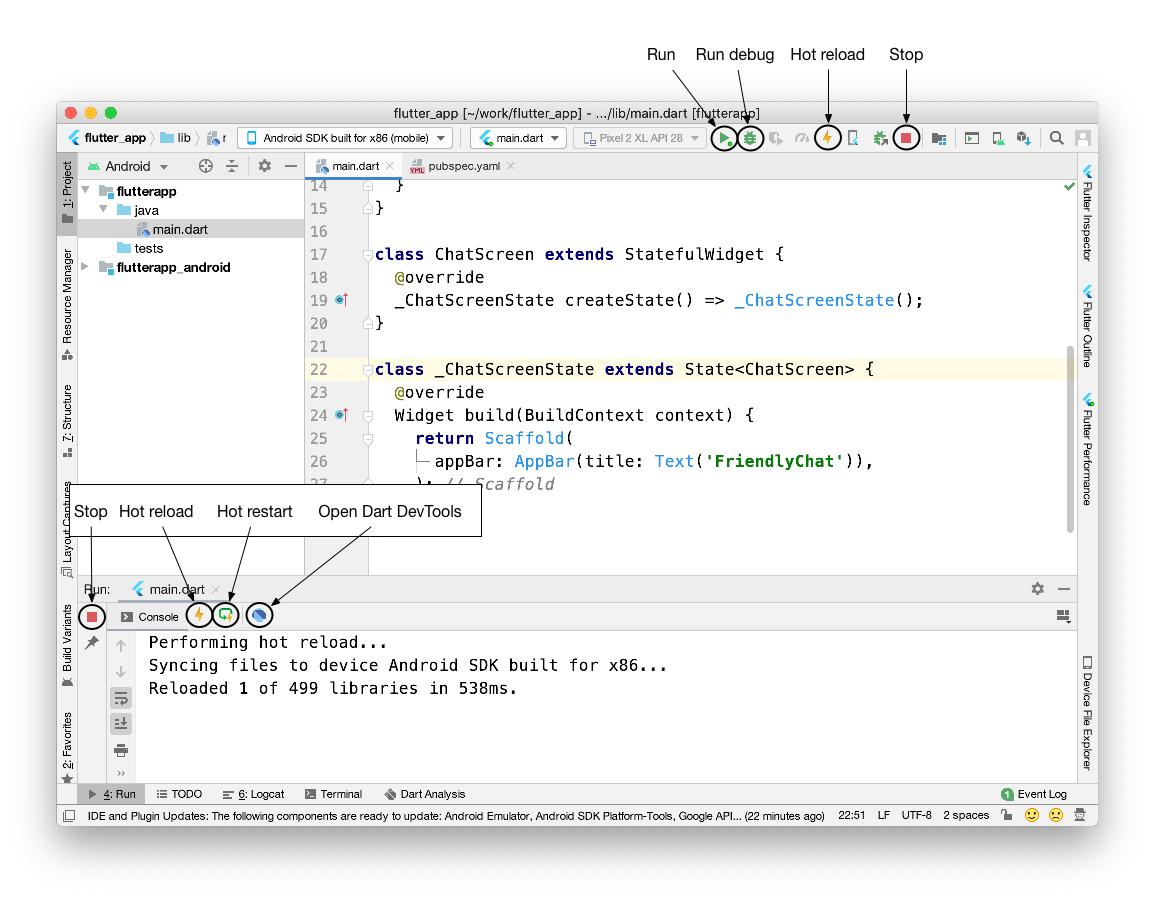{:width="100%"}
Controls for run, run debug, hot reload, and hot restart in Android Studio
A code change has a visible effect only if the modified
Dart code is run again after the change. Specifically,
a hot reload causes all the existing widgets to rebuild.
Only code involved in the rebuilding of the widgets
is automatically re-executed. The `main()` and `initState()`
functions, for example, are not run again.
## Special cases
The next sections describe specific scenarios that involve
hot reload. In some cases, small changes to the Dart code
enable you to continue using hot reload for your app.
In other cases, a hot restart, or a full restart is needed.
### An app is killed
Hot reload can break when the app is killed.
For example, if the app was in the background for too long.
### Compilation errors
When a code change introduces a compilation error,
hot reload generates an error message similar to:
```plaintext
Hot reload was rejected:
'/path/to/project/lib/main.dart': warning: line 16 pos 38: unbalanced '{' opens here
Widget build(BuildContext context) {
^
'/path/to/project/lib/main.dart': error: line 33 pos 5: unbalanced ')'
);
^
```
In this situation, simply correct the errors on the
specified lines of Dart code to keep using hot reload.
### CupertinoTabView's builder
Hot reload won't apply changes made to
a `builder` of a `CupertinoTabView`.
For more information, see [Issue 43574][].
### Enumerated types
Hot reload doesn't work when enumerated types are
changed to regular classes or regular classes are
changed to enumerated types.
For example:
Before the change:
```dart
enum Color { red, green, blue }
```
After the change:
```dart
class Color {
Color(this.i, this.j);
final int i;
final int j;
}
```
### Generic types
Hot reload won't work when generic type declarations
are modified. For example, the following won't work:
Before the change:
```dart
class A {
T? i;
}
```
After the change:
```dart
class A {
T? i;
V? v;
}
```
### Native code
If you've changed native code (such as Kotlin, Java, Swift,
or Objective-C), you must perform a full restart (stop and
restart the app) to see the changes take effect.
### Previous state is combined with new code
Flutter's stateful hot reload preserves the state of your app.
This approach enables you to view the effect of the most
recent change only, without throwing away the current state.
For example, if your app requires a user to log in,
you can modify and hot reload a page several levels down in
the navigation hierarchy, without re-entering your login credentials.
State is kept, which is usually the desired behavior.
If code changes affect the state of your app (or its dependencies),
the data your app has to work with might not be fully consistent
with the data it would have if it executed from scratch.
The result might be different behavior after a hot reload
versus a hot restart.
### Recent code change is included but app state is excluded
In Dart, [static fields are lazily initialized][static-variables].
This means that the first time you run a Flutter app and a
static field is read, it's set to whatever value its
initializer was evaluated to.
Global variables and static fields are treated as state,
and are therefore not reinitialized during hot reload.
If you change initializers of global variables and static fields,
a hot restart or restart the state where the initializers are hold
is necessary to see the changes.
For example, consider the following code:
```dart
final sampleTable = [
Table(
children: const [
TableRow(children: [Text('T1')]),
],
),
Table(
children: const [
TableRow(children: [Text('T2')]),
],
),
Table(
children: const [
TableRow(children: [Text('T3')]),
],
),
Table(
children: const [
TableRow(children: [Text('T4')]),
],
),
];
```
After running the app, you make the following change:
```dart
final sampleTable = [
Table(
children: const [
TableRow(children: [Text('T1')]),
],
),
Table(
children: const [
TableRow(children: [Text('T2')]),
],
),
Table(
children: const [
TableRow(children: [Text('T3')]),
],
),
Table(
children: const [
TableRow(
children: [Text('T10')], // modified
),
],
),
];
```
You hot reload, but the change is not reflected.
Conversely, in the following example:
```dart
const foo = 1;
final bar = foo;
void onClick() {
print(foo);
print(bar);
}
```
Running the app for the first time prints `1` and `1`.
Then, you make the following change:
```dart
const foo = 2; // modified
final bar = foo;
void onClick() {
print(foo);
print(bar);
}
```
While changes to `const` field values are always hot reloaded,
the static field initializer is not rerun. Conceptually,
`const` fields are treated like aliases instead of state.
The Dart VM detects initializer changes and flags when a set
of changes needs a hot restart to take effect.
The flagging mechanism is triggered for
most of the initialization work in the above example,
but not for cases like the following:
```dart
final bar = foo;
```
To update `foo` and view the change after hot reload,
consider redefining the field as `const` or using a getter to
return the value, rather than using `final`.
For example, either of the following solutions work:
```dart
const foo = 1;
const bar = foo; // Convert foo to a const...
void onClick() {
print(foo);
print(bar);
}
```
```dart
const foo = 1;
int get bar => foo; // ...or provide a getter.
void onClick() {
print(foo);
print(bar);
}
```
For more information, read about the [differences
between the `const` and `final` keywords][const-new] in Dart.
### Recent UI change is excluded
Even when a hot reload operation appears successful and generates no
exceptions, some code changes might not be visible in the refreshed UI.
This behavior is common after changes to the app's `main()` or
`initState()` methods.
As a general rule, if the modified code is downstream of the root
widget's `build()` method, then hot reload behaves as expected.
However, if the modified code won't be re-executed as a result
of rebuilding the widget tree, then you won't
see its effects after hot reload.
For example, consider the following code:
```dart
import 'package:flutter/material.dart';
void main() {
runApp(MyApp());
}
class MyApp extends StatelessWidget {
const MyApp({super.key});
@override
Widget build(BuildContext context) {
return GestureDetector(onTap: () => print('tapped'));
}
}
```
After running this app, change the code as follows:
```dart
import 'package:flutter/widgets.dart';
void main() {
runApp(const Center(child: Text('Hello', textDirection: TextDirection.ltr)));
}
```
With a hot restart, the program starts from the beginning,
executes the new version of `main()`,
and builds a widget tree that displays the text `Hello`.
However, if you hot reload the app after this change,
`main()` and `initState()` are not re-executed,
and the widget tree is rebuilt with the unchanged instance
of `MyApp` as the root widget.
This results in no visible change after hot reload.
## How it works
When hot reload is invoked, the host machine looks
at the edited code since the last compilation.
The following libraries are recompiled:
* Any libraries with changed code
* The application's main library
* The libraries from the main library leading
to affected libraries
The source code from those libraries is compiled into
[kernel files][] and sent to the mobile device's Dart VM.
The Dart VM re-loads all libraries from the new kernel file.
So far no code is re-executed.
The hot reload mechanism then causes the Flutter framework
to trigger a rebuild/re-layout/repaint of all existing
widgets and render objects.
[static-variables]: https://dart.dev/language/classes#static-variables
[const-new]: https://dart.dev/language/variables#final-and-const
[Dart runtime]: https://dart.dev/overview#platform
[Flutter editor]: /tools/editors
[Issue 43574]: https://github.com/flutter/flutter/issues/43574
[kernel files]: https://github.com/dart-lang/sdk/tree/main/pkg/kernel