# Migrating from flutter_driver
> Learn how to migrate existing flutter_driver tests to integration_test.
:::important
These breaking change docs are accurate, as of the release
under which they are published. Over time, the
workarounds described here might become inaccurate.
We don't, in general, keep these breaking change docs up
to date as of each release.
The [breaking change index file](/release/breaking-changes)
lists the docs created for each release.
:::
This page describes how to migrate an existing project using
`flutter_driver` to the `integration_test` package,
in order to run integration tests.
Tests with `integration_test` use the same methods that are
used in [widget testing][].
For an introduction to the `integration_test` package,
check out the [Integration testing][] guide.
## Starter example project
The project in this guide is a small example desktop application with this
functionality:
* On the left, there's a list of plants that the user can scroll,
tap and select.
* On the right, there's a details screen that displays the plant name
and species.
* On app start, when no plant is selected, a text asking the user to select
a plant is displayed
* The list of plants is loaded from a local JSON file located in the
`/assets` folder.
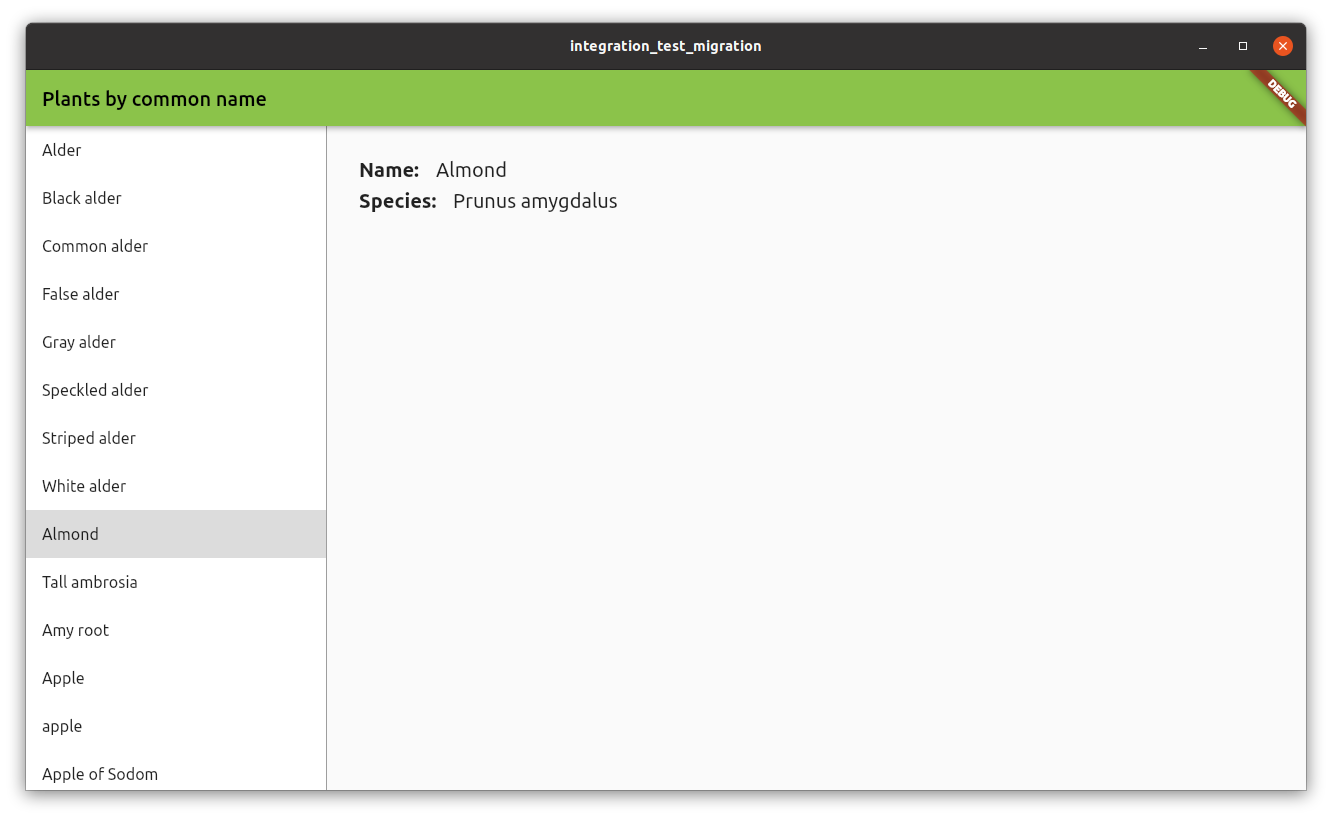 You can find the full code example in the [Example Project][] folder.
## Existing tests
The project contains the three `flutter_driver` tests
performing the following checks:
* Verifying the initial status of the app.
* Selecting the first item on the list of plants.
* Scrolling and selecting the last item on the list of plants.
The tests are contained in the `test_driver` folder,
inside the `main_test.dart` file.
In this folder there's also a file named `main.dart`,
which contains a call to the method `enableFlutterDriverExtension()`.
This file won't be necessary anymore when using `integration_test`.
## Setup
To start using the `integration_test` package,
add the `integration_test` to
your `pubspec.yaml` file if you haven't yet:
```yaml
dev_dependencies:
integration_test:
sdk: flutter
```
Next, in your project, create a new directory
`integration_test/`, create your tests files there
with the format: `_test.dart`.
## Test migration
This section contains different examples on how to migrate existing
`flutter_driver` tests to `integration_test` tests.
### Example: Verifying a widget is displayed
When the app starts the screen on the right displays
a text asking the user to select one of the plants on the list.
This test verifies that the text is displayed.
**flutter_driver**
In `flutter_driver`, the test uses `waitFor`,
which waits until the `finder` can locate the widget.
The test fail if the widget can't be found.
```dart
test(
'do not select any item, verify please select text is displayed',
() async {
// Wait for 'please select' text is displayed
await driver.waitFor(find.text('Please select a plant from the list.'));
},
);
```
**integration_test**
In `integration_test` you have to perform two steps:
1. First load the main app widget using
the `tester.pumpWidget` method.
2. Then, use `expect` with the matcher `findsOneWidget` to verify
that the widget is displayed.
```dart
testWidgets(
'do not select any item, verify please select text is displayed',
(tester) async {
// load the PlantsApp widget
await tester.pumpWidget(const PlantsApp());
// wait for data to load
await tester.pumpAndSettle();
// Find widget with 'please select'
final finder = find.text('Please select a plant from the list.');
// Check if widget is displayed
expect(finder, findsOneWidget);
},
);
```
### Example: Tap actions
This test performs a tap action on the first item on the list,
which is a `ListTile` with the text "Alder".
After the tap, the test waits for the details to appear.
In this case, it waits for the widget with the text "Alnus" to
be displayed.
Also , the test verifies that the text
"Please select a plant from the list."
is no longer displayed.
**flutter_driver**
In `flutter_driver`, use the `driver.tap` method to perform
a tap over a widget using a finder.
To verify that a widget is not displayed,
use the `waitForAbsent` method.
```dart
test('tap on the first item (Alder), verify selected', () async {
// find the item by text
final item = find.text('Alder');
// Wait for the list item to appear.
await driver.waitFor(item);
// Emulate a tap on the tile item.
await driver.tap(item);
// Wait for species name to be displayed
await driver.waitFor(find.text('Alnus'));
// 'please select' text should not be displayed
await driver.waitForAbsent(
find.text('Please select a plant from the list.'),
);
});
```
**integration_test**
In `integration_test`, use `tester.tap` to perform the tap actions.
After the tap action, you must call to `tester.pumpAndSettle` to wait
until the action has finished, and all the UI changes have happened.
To verify that a widget is not displayed, use the same `expect`
function with the `findsNothing` matcher.
```dart
testWidgets('tap on the first item (Alder), verify selected', (tester) async {
await tester.pumpWidget(const PlantsApp());
// wait for data to load
await tester.pumpAndSettle();
// find the item by text
final item = find.text('Alder');
// assert item is found
expect(item, findsOneWidget);
// Emulate a tap on the tile item.
await tester.tap(item);
await tester.pumpAndSettle();
// Species name should be displayed
expect(find.text('Alnus'), findsOneWidget);
// 'please select' text should not be displayed
expect(find.text('Please select a plant from the list.'), findsNothing);
});
```
### Example: Scrolling
This test is similar to the previous test,
but it scrolls down and taps the last item instead.
**flutter_driver**
To scroll down with `flutter_driver`,
use the `driver.scroll` method.
You must provide the widget to perform the scrolling action,
as well as a duration for the scroll.
You also have to provide the total offset for the scrolling action.
```dart
test('scroll, tap on the last item (Zedoary), verify selected', () async {
// find the list of plants, by Key
final listFinder = find.byValueKey('listOfPlants');
// Scroll to the last position of the list
// a -100,000 pixels is enough to reach the bottom of the list
await driver.scroll(
listFinder,
0,
-100000,
const Duration(milliseconds: 500),
);
// find the item by text
final item = find.text('Zedoary');
// Wait for the list item to appear.
await driver.waitFor(item);
// Emulate a tap on the tile item.
await driver.tap(item);
// Wait for species name to be displayed
await driver.waitFor(find.text('Curcuma zedoaria'));
// 'please select' text should not be displayed
await driver.waitForAbsent(
find.text('Please select a plant from the list.'),
);
});
```
**integration_test**
With `integration_test`, can use the method `tester.scrollUntilVisible`.
Instead of providing the widget to scroll,
provide the item that you're searching for.
In this case, you're searching for the
item with the text "Zedoary",
which is the last item on the list.
The method searches for any `Scrollable` widget
and performs the scrolling action using the given offset.
The action repeats until the item is visible.
```dart
testWidgets('scroll, tap on the last item (Zedoary), verify selected', (
tester,
) async {
await tester.pumpWidget(const PlantsApp());
// wait for data to load
await tester.pumpAndSettle();
// find the item by text
final item = find.text('Zedoary');
// finds Scrollable widget and scrolls until item is visible
// a 100,000 pixels is enough to reach the bottom of the list
await tester.scrollUntilVisible(item, 100000);
// assert item is found
expect(item, findsOneWidget);
// Emulate a tap on the tile item.
await tester.tap(item);
await tester.pumpAndSettle();
// Wait for species name to be displayed
expect(find.text('Curcuma zedoaria'), findsOneWidget);
// 'please select' text should not be displayed
expect(find.text('Please select a plant from the list.'), findsNothing);
});
```
[Integration testing]: /testing/integration-tests
[widget testing]: /testing/overview#widget-tests
[Example Project]: https://github.com/flutter/website/tree/main/examples/integration_test_migration
You can find the full code example in the [Example Project][] folder.
## Existing tests
The project contains the three `flutter_driver` tests
performing the following checks:
* Verifying the initial status of the app.
* Selecting the first item on the list of plants.
* Scrolling and selecting the last item on the list of plants.
The tests are contained in the `test_driver` folder,
inside the `main_test.dart` file.
In this folder there's also a file named `main.dart`,
which contains a call to the method `enableFlutterDriverExtension()`.
This file won't be necessary anymore when using `integration_test`.
## Setup
To start using the `integration_test` package,
add the `integration_test` to
your `pubspec.yaml` file if you haven't yet:
```yaml
dev_dependencies:
integration_test:
sdk: flutter
```
Next, in your project, create a new directory
`integration_test/`, create your tests files there
with the format: `_test.dart`.
## Test migration
This section contains different examples on how to migrate existing
`flutter_driver` tests to `integration_test` tests.
### Example: Verifying a widget is displayed
When the app starts the screen on the right displays
a text asking the user to select one of the plants on the list.
This test verifies that the text is displayed.
**flutter_driver**
In `flutter_driver`, the test uses `waitFor`,
which waits until the `finder` can locate the widget.
The test fail if the widget can't be found.
```dart
test(
'do not select any item, verify please select text is displayed',
() async {
// Wait for 'please select' text is displayed
await driver.waitFor(find.text('Please select a plant from the list.'));
},
);
```
**integration_test**
In `integration_test` you have to perform two steps:
1. First load the main app widget using
the `tester.pumpWidget` method.
2. Then, use `expect` with the matcher `findsOneWidget` to verify
that the widget is displayed.
```dart
testWidgets(
'do not select any item, verify please select text is displayed',
(tester) async {
// load the PlantsApp widget
await tester.pumpWidget(const PlantsApp());
// wait for data to load
await tester.pumpAndSettle();
// Find widget with 'please select'
final finder = find.text('Please select a plant from the list.');
// Check if widget is displayed
expect(finder, findsOneWidget);
},
);
```
### Example: Tap actions
This test performs a tap action on the first item on the list,
which is a `ListTile` with the text "Alder".
After the tap, the test waits for the details to appear.
In this case, it waits for the widget with the text "Alnus" to
be displayed.
Also , the test verifies that the text
"Please select a plant from the list."
is no longer displayed.
**flutter_driver**
In `flutter_driver`, use the `driver.tap` method to perform
a tap over a widget using a finder.
To verify that a widget is not displayed,
use the `waitForAbsent` method.
```dart
test('tap on the first item (Alder), verify selected', () async {
// find the item by text
final item = find.text('Alder');
// Wait for the list item to appear.
await driver.waitFor(item);
// Emulate a tap on the tile item.
await driver.tap(item);
// Wait for species name to be displayed
await driver.waitFor(find.text('Alnus'));
// 'please select' text should not be displayed
await driver.waitForAbsent(
find.text('Please select a plant from the list.'),
);
});
```
**integration_test**
In `integration_test`, use `tester.tap` to perform the tap actions.
After the tap action, you must call to `tester.pumpAndSettle` to wait
until the action has finished, and all the UI changes have happened.
To verify that a widget is not displayed, use the same `expect`
function with the `findsNothing` matcher.
```dart
testWidgets('tap on the first item (Alder), verify selected', (tester) async {
await tester.pumpWidget(const PlantsApp());
// wait for data to load
await tester.pumpAndSettle();
// find the item by text
final item = find.text('Alder');
// assert item is found
expect(item, findsOneWidget);
// Emulate a tap on the tile item.
await tester.tap(item);
await tester.pumpAndSettle();
// Species name should be displayed
expect(find.text('Alnus'), findsOneWidget);
// 'please select' text should not be displayed
expect(find.text('Please select a plant from the list.'), findsNothing);
});
```
### Example: Scrolling
This test is similar to the previous test,
but it scrolls down and taps the last item instead.
**flutter_driver**
To scroll down with `flutter_driver`,
use the `driver.scroll` method.
You must provide the widget to perform the scrolling action,
as well as a duration for the scroll.
You also have to provide the total offset for the scrolling action.
```dart
test('scroll, tap on the last item (Zedoary), verify selected', () async {
// find the list of plants, by Key
final listFinder = find.byValueKey('listOfPlants');
// Scroll to the last position of the list
// a -100,000 pixels is enough to reach the bottom of the list
await driver.scroll(
listFinder,
0,
-100000,
const Duration(milliseconds: 500),
);
// find the item by text
final item = find.text('Zedoary');
// Wait for the list item to appear.
await driver.waitFor(item);
// Emulate a tap on the tile item.
await driver.tap(item);
// Wait for species name to be displayed
await driver.waitFor(find.text('Curcuma zedoaria'));
// 'please select' text should not be displayed
await driver.waitForAbsent(
find.text('Please select a plant from the list.'),
);
});
```
**integration_test**
With `integration_test`, can use the method `tester.scrollUntilVisible`.
Instead of providing the widget to scroll,
provide the item that you're searching for.
In this case, you're searching for the
item with the text "Zedoary",
which is the last item on the list.
The method searches for any `Scrollable` widget
and performs the scrolling action using the given offset.
The action repeats until the item is visible.
```dart
testWidgets('scroll, tap on the last item (Zedoary), verify selected', (
tester,
) async {
await tester.pumpWidget(const PlantsApp());
// wait for data to load
await tester.pumpAndSettle();
// find the item by text
final item = find.text('Zedoary');
// finds Scrollable widget and scrolls until item is visible
// a 100,000 pixels is enough to reach the bottom of the list
await tester.scrollUntilVisible(item, 100000);
// assert item is found
expect(item, findsOneWidget);
// Emulate a tap on the tile item.
await tester.tap(item);
await tester.pumpAndSettle();
// Wait for species name to be displayed
expect(find.text('Curcuma zedoaria'), findsOneWidget);
// 'please select' text should not be displayed
expect(find.text('Please select a plant from the list.'), findsNothing);
});
```
[Integration testing]: /testing/integration-tests
[widget testing]: /testing/overview#widget-tests
[Example Project]: https://github.com/flutter/website/tree/main/examples/integration_test_migration