# Adding a splash screen to your Android app
> Learn how to add a splash screen to your Android app.
 ## Overview
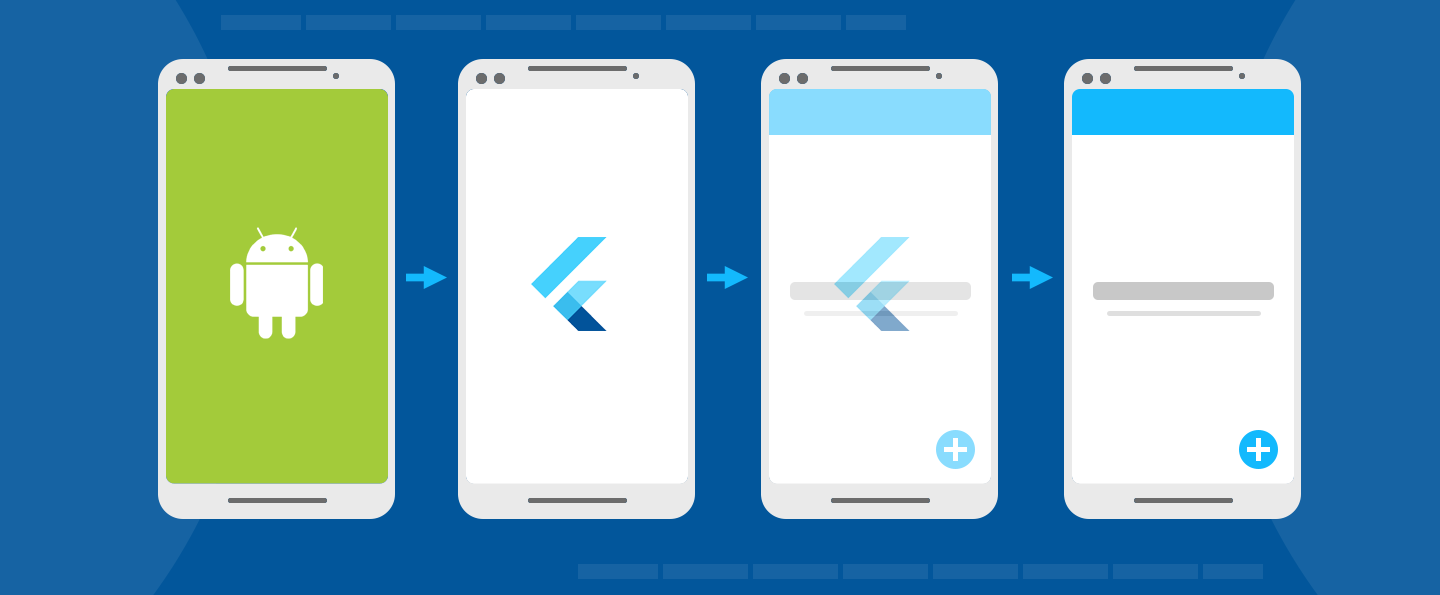
A splash screens (also known as a launch screen) provides
a simple initial experience while your Android app loads.
It sets the stage for your application,
while allowing time for the app engine
to load and your app to initialize.
You have a couple options for implementing a splash screen:
1. You can use one of the packages available on [pub.dev][].
2. You can implement it manually, as shown in the
[splash screen sample app][]. The rest of this page
assumes the manual approach.
[pub.dev]: https://pub.dev/packages?q=splash+screen
[splash screen sample app]: https://github.com/flutter/samples/tree/main/android_splash_screen
## Initializing the app
Every Android app requires initialization time while the
operating system sets up the app's process.
Android provides the concept of a [launch screen][] to
display a `Drawable` while the app is initializing.
:::note
For apps that embed one or more Flutter screens within an
existing Android app, consider
[pre-warming a `FlutterEngine`][] and reusing the
same engine throughout your app to minimize wait
time associated with initialization of the Flutter engine.
:::
A `Drawable` is an Android graphic.
To learn how to add a `Drawable` to your
Flutter project in Android Studio,
check out [Import drawables into your project][drawables][]
in the Android developer documentation.
The default Flutter project template includes a definition
of a launch theme and a launch background. You can customize
this by editing `styles.xml`, where you can define a theme
whose `windowBackground` is set to the
`Drawable` that should be displayed as the launch screen.
```xml
```
In addition, `styles.xml` defines a _normal theme_
to be applied to `FlutterActivity` after the launch
screen is gone. The normal theme background only shows
for a very brief moment after the splash screen disappears,
and during orientation change and `Activity` restoration.
Therefore, it's recommended that the normal theme use a
solid background color that looks similar to the primary
background color of the Flutter UI.
```xml
```
[drawables]: https://developer.android.com/studio/write/resource-manager#import
## Set up the FlutterActivity in AndroidManifest.xml
In `AndroidManifest.xml`, set the `theme` of
`FlutterActivity` to the launch theme. Then,
add a metadata element to the desired `FlutterActivity`
to instruct Flutter to switch from the launch theme
to the normal theme at the appropriate time.
```xml
```
The Android app now displays the desired launch screen
while the app initializes.
## SplashScreen API
Android 12 introduced the [`SplashScreen`][] API.
Use the `SplashScreen` API in your `styles.xml`file.
For example:
```xml
```
:::note
If your Android app supports releases earlier than Android 12
_and_ post-Android 12 releases, consider using
two different resources in your `styles.xml` file.
Also, make sure that your background image is in line with
the icon guidelines. For more information,
visit [Android Splash Screens][].
:::
[Android Splash Screens]: https://developer.android.com/develop/ui/views/launch/splash-screen
[`SplashScreen`]: https://developer.android.com/reference/android/window/SplashScreen
Some apps might want to continue showing the last frame of
the Android launch screen in Flutter. For example,
this preserves the illusion of a single frame
while additional loading continues in Dart.
To achieve this, the following
Android APIs might be helpful:
```kotlin title="MainActivity.kt"
import android.os.Build
import android.os.Bundle
import androidx.core.view.WindowCompat
import io.flutter.embedding.android.FlutterActivity
class MainActivity : FlutterActivity() {
override fun onCreate(savedInstanceState: Bundle?) {
// Aligns the Flutter view vertically with the window.
WindowCompat.setDecorFitsSystemWindows(getWindow(), false)
if (Build.VERSION.SDK_INT >= Build.VERSION_CODES.S) {
// Disable the Android splash screen fade out animation to avoid
// a flicker before the similar frame is drawn in Flutter.
splashScreen.setOnExitAnimationListener { splashScreenView -> splashScreenView.remove() }
}
super.onCreate(savedInstanceState)
}
}
```
```java title="MainActivity.java"
import android.os.Build;
import android.os.Bundle;
import android.window.SplashScreenView;
import androidx.core.view.WindowCompat;
import io.flutter.embedding.android.FlutterActivity;
public class MainActivity extends FlutterActivity {
@Override
protected void onCreate(Bundle savedInstanceState) {
// Aligns the Flutter view vertically with the window.
WindowCompat.setDecorFitsSystemWindows(getWindow(), false);
if (Build.VERSION.SDK_INT >= Build.VERSION_CODES.S) {
// Disable the Android splash screen fade out animation to avoid
// a flicker before the similar frame is drawn in Flutter.
getSplashScreen()
.setOnExitAnimationListener(
(SplashScreenView splashScreenView) -> {
splashScreenView.remove();
});
}
super.onCreate(savedInstanceState);
}
}
```
Then, you can reimplement the first frame in Flutter
that shows elements of your Android launch screen in
the same positions on screen.
For an example of this, check out the
[splash screen sample app][].
[launch screen]: https://developer.android.com/topic/performance/vitals/launch-time#themed
[pre-warming a `FlutterEngine`]: /add-to-app/android/add-flutter-fragment#using-a-pre-warmed-flutterengine
## Overview
A splash screens (also known as a launch screen) provides
a simple initial experience while your Android app loads.
It sets the stage for your application,
while allowing time for the app engine
to load and your app to initialize.
You have a couple options for implementing a splash screen:
1. You can use one of the packages available on [pub.dev][].
2. You can implement it manually, as shown in the
[splash screen sample app][]. The rest of this page
assumes the manual approach.
[pub.dev]: https://pub.dev/packages?q=splash+screen
[splash screen sample app]: https://github.com/flutter/samples/tree/main/android_splash_screen
## Initializing the app
Every Android app requires initialization time while the
operating system sets up the app's process.
Android provides the concept of a [launch screen][] to
display a `Drawable` while the app is initializing.
:::note
For apps that embed one or more Flutter screens within an
existing Android app, consider
[pre-warming a `FlutterEngine`][] and reusing the
same engine throughout your app to minimize wait
time associated with initialization of the Flutter engine.
:::
A `Drawable` is an Android graphic.
To learn how to add a `Drawable` to your
Flutter project in Android Studio,
check out [Import drawables into your project][drawables][]
in the Android developer documentation.
The default Flutter project template includes a definition
of a launch theme and a launch background. You can customize
this by editing `styles.xml`, where you can define a theme
whose `windowBackground` is set to the
`Drawable` that should be displayed as the launch screen.
```xml
```
In addition, `styles.xml` defines a _normal theme_
to be applied to `FlutterActivity` after the launch
screen is gone. The normal theme background only shows
for a very brief moment after the splash screen disappears,
and during orientation change and `Activity` restoration.
Therefore, it's recommended that the normal theme use a
solid background color that looks similar to the primary
background color of the Flutter UI.
```xml
```
[drawables]: https://developer.android.com/studio/write/resource-manager#import
## Set up the FlutterActivity in AndroidManifest.xml
In `AndroidManifest.xml`, set the `theme` of
`FlutterActivity` to the launch theme. Then,
add a metadata element to the desired `FlutterActivity`
to instruct Flutter to switch from the launch theme
to the normal theme at the appropriate time.
```xml
```
The Android app now displays the desired launch screen
while the app initializes.
## SplashScreen API
Android 12 introduced the [`SplashScreen`][] API.
Use the `SplashScreen` API in your `styles.xml`file.
For example:
```xml
```
:::note
If your Android app supports releases earlier than Android 12
_and_ post-Android 12 releases, consider using
two different resources in your `styles.xml` file.
Also, make sure that your background image is in line with
the icon guidelines. For more information,
visit [Android Splash Screens][].
:::
[Android Splash Screens]: https://developer.android.com/develop/ui/views/launch/splash-screen
[`SplashScreen`]: https://developer.android.com/reference/android/window/SplashScreen
Some apps might want to continue showing the last frame of
the Android launch screen in Flutter. For example,
this preserves the illusion of a single frame
while additional loading continues in Dart.
To achieve this, the following
Android APIs might be helpful:
```kotlin title="MainActivity.kt"
import android.os.Build
import android.os.Bundle
import androidx.core.view.WindowCompat
import io.flutter.embedding.android.FlutterActivity
class MainActivity : FlutterActivity() {
override fun onCreate(savedInstanceState: Bundle?) {
// Aligns the Flutter view vertically with the window.
WindowCompat.setDecorFitsSystemWindows(getWindow(), false)
if (Build.VERSION.SDK_INT >= Build.VERSION_CODES.S) {
// Disable the Android splash screen fade out animation to avoid
// a flicker before the similar frame is drawn in Flutter.
splashScreen.setOnExitAnimationListener { splashScreenView -> splashScreenView.remove() }
}
super.onCreate(savedInstanceState)
}
}
```
```java title="MainActivity.java"
import android.os.Build;
import android.os.Bundle;
import android.window.SplashScreenView;
import androidx.core.view.WindowCompat;
import io.flutter.embedding.android.FlutterActivity;
public class MainActivity extends FlutterActivity {
@Override
protected void onCreate(Bundle savedInstanceState) {
// Aligns the Flutter view vertically with the window.
WindowCompat.setDecorFitsSystemWindows(getWindow(), false);
if (Build.VERSION.SDK_INT >= Build.VERSION_CODES.S) {
// Disable the Android splash screen fade out animation to avoid
// a flicker before the similar frame is drawn in Flutter.
getSplashScreen()
.setOnExitAnimationListener(
(SplashScreenView splashScreenView) -> {
splashScreenView.remove();
});
}
super.onCreate(savedInstanceState);
}
}
```
Then, you can reimplement the first frame in Flutter
that shows elements of your Android launch screen in
the same positions on screen.
For an example of this, check out the
[splash screen sample app][].
[launch screen]: https://developer.android.com/topic/performance/vitals/launch-time#themed
[pre-warming a `FlutterEngine`]: /add-to-app/android/add-flutter-fragment#using-a-pre-warmed-flutterengine