# Stateful widgets
> Learn about StatefulWidgets and rebuilding Flutter UI.
Learn when widgets need to be stateful and how to trigger UI updates with setState.
title: What you'll accomplish
items:
- title: Learn when widgets need to be stateful
icon: change_circle
- title: Convert a StatelessWidget to a StatefulWidget
icon: swap_horiz
- title: Trigger UI updates with setState
icon: refresh
---
### Introduction
So far, your app displays a grid and an input field,
but the grid doesn't yet update to reflect the user's guesses.
When this app is complete, each tile in the next unfilled row should
update after each submitted user guess by:
- Displaying the correct letter.
- Changing color to reflect whether the letter is correct (green),
is in the word but at an incorrect position (yellow), or
doesn't appear in the word at all (grey).
To handle this dynamic behavior, you need to convert `GamePage` from a
`StatelessWidget` to a [`StatefulWidget`][].
[`StatefulWidget`]: https://api.flutter.dev/flutter/widgets/StatefulWidget-class.html
### Why stateful widgets?
When a widget's appearance or data needs to change during its lifetime,
you need a `StatefulWidget` and a companion `State` object.
While the `StatefulWidget` itself is still immutable (its properties
can't change after creation), the `State` object is long-lived,
can hold mutable data, and can be rebuilt when that data changes,
causing the UI to update.
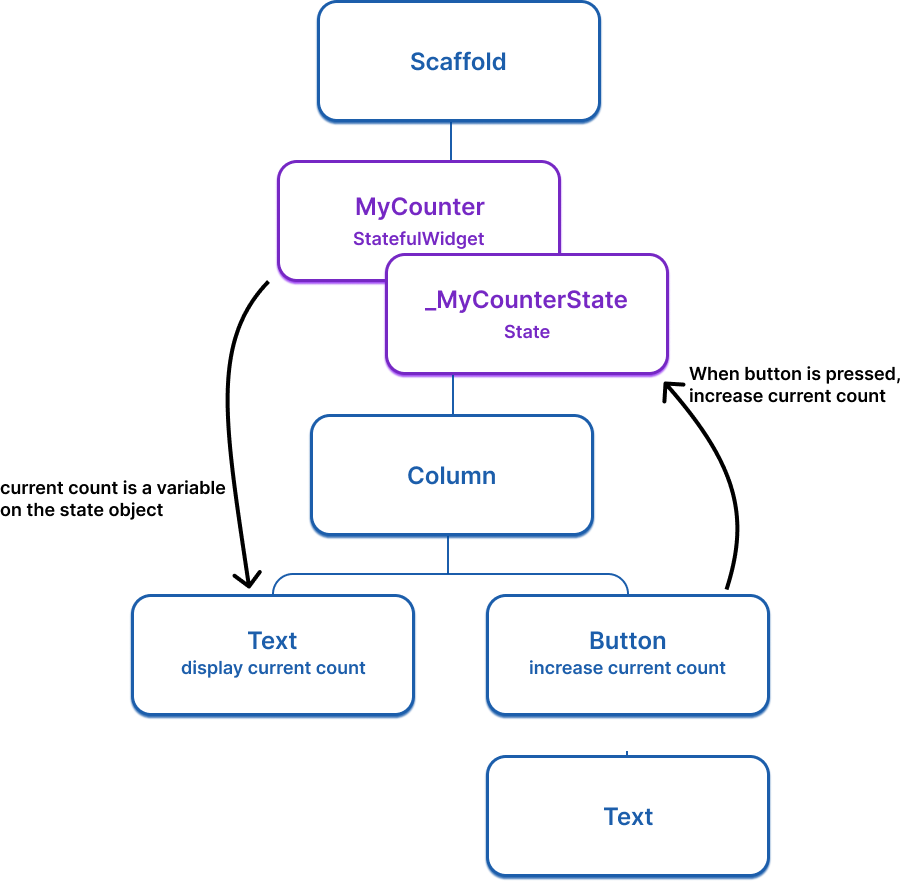
For example, the following widget tree imagines a simple app
that uses a stateful widget with a counter that
increases when the button is pressed.
 Here is the basic `StatefulWidget` structure (doesn't do anything yet):
```dart
class ExampleWidget extends StatefulWidget {
ExampleWidget({super.key});
@override
State createState() => _ExampleWidgetState();
}
class _ExampleWidgetState extends State {
@override
Widget build(BuildContext context) {
return Container();
}
}
```
### Convert `GamePage` to a stateful widget
To convert the `GamePage` (or any other) widget from
a stateless widget to a stateful widget, do the following steps:
1. Change `GamePage` to extend `StatefulWidget` instead of `StatelessWidget`.
1. Create a new class named `_GamePageState`, that extends `State`.
This new class will hold the mutable state and the `build` method.
Move the `build` method and all properties *instantiated on the widget*
from `GamePage` to the state object.
1. Implement the `createState()` method in `GamePage`, which
returns an instance of `_GamePageState`.
:::tip Quick assists
You don't have to manually do this work, as the Flutter plugins for
VS Code and IntelliJ provide ["quick assists"][] that can
do this conversion for you.
:::
Your modified code should look like this:
```dart
class GamePage extends StatefulWidget {
GamePage({super.key});
@override
State createState() => _GamePageState();
}
class _GamePageState extends State {
final Game _game = Game();
@override
Widget build(BuildContext context) {
return Padding(
padding: const EdgeInsets.all(8.0),
child: Column(
children: [
for (var guess in _game.guesses)
Row(
mainAxisAlignment: MainAxisAlignment.center,
children: [
for (var letter in guess)
Padding(
padding: const EdgeInsets.symmetric(horizontal: 2.5, vertical: 2.5),
child: Tile(letter.char, letter.type),
)
],
),
GuessInput(
onSubmitGuess: (_) {
// TODO, handle guess
print(guess); // Temporary
},
),
],
),
);
}
}
```
["quick assists"]: /tools/android-studio#assists-quick-fixes
### Updating the UI with `setState`
Whenever you mutate a `State` object,
you must call [`setState`][] to signal the framework to
update the user interface and call the `build` method again.
In this app, when a user makes a guess, the word they guessed is
saved on the `Game` object, which is a property on the `GamePage` class,
and therefore is state that might change and require the UI to update.
When this state is mutated, the grid should be
re-drawn to show the user's guess.
To implement this, update the callback function passed to `GuessInput`.
The function needs to call `setState` and, within `setState`,
it needs to execute the logic to determine whether the users guess was correct.
:::note
The game logic is abstracted away into the `Game` object,
and outside the scope of this tutorial.
:::
Update your code:
```dart
class GamePage extends StatefulWidget {
GamePage({super.key});
@override
State createState() => _GamePageState();
}
class _GamePageState extends State {
final Game _game = Game();
@override
Widget build(BuildContext context) {
return Padding(
padding: const EdgeInsets.all(8.0),
child: Column(
children: [
for (var guess in _game.guesses)
Row(
mainAxisAlignment: MainAxisAlignment.center,
children: [
for (var letter in guess)
Padding(
padding: const EdgeInsets.symmetric(horizontal: 2.5, vertical: 2.5),
child: Tile(letter.char, letter.type),
)
],
),
GuessInput(
onSubmitGuess: (String guess) {
setState(() { // NEW
_game.guess(guess);
});
},
),
],
),
);
}
}
```
Now, when you type a legal guess into the `TextInput` and submit it,
the application will reflect the user's guess.
If you were to call `_game.guess(guess)` *without* a calling `setState`,
the internal game data would change, but Flutter wouldn't know it
needs to repaint the screen, and the user wouldn't see any updates.
[`setState`]: https://api.flutter.dev/flutter/widgets/State/setState.html
### Review
title: What you accomplished
subtitle: Here's a summary of what you built and learned in this lesson.
completed: true
items:
- title: Learned when widgets need to be stateful
icon: change_circle
details: >-
When a widget's appearance or data needs to change during its lifetime,
you need a `StatefulWidget`. The widget itself stays immutable, but
its companion `State` object holds mutable data and triggers rebuilds.
- title: Converted GamePage to a StatefulWidget
icon: swap_horiz
details: >-
You refactored `GamePage` to be stateful by
creating a companion `_GamePageState` class, moving the
`build` method and mutable properties to it, and
implementing `createState()`.
Your IDE's support for quick assists can automate this conversion.
- title: Made your app respond to user input with setState
icon: refresh
details: >-
Calling `setState` tells Flutter to rebuild the UI of a widget.
When a user submits a guess, you call `setState` to update the game state,
and the grid automatically reflects the new data.
Your app is now truly interactive!
### Test yourself
- question: When should you use a StatefulWidget instead of a StatelessWidget?
options:
- text: When the widget needs to make HTTP requests.
correct: false
explanation: HTTP requests can be made from either, but state changes require StatefulWidget.
- text: When the widget's appearance or data needs to change during its lifetime.
correct: true
explanation: StatefulWidget is needed when the UI must update in response to data changes over time.
- text: When the widget has more than three child widgets.
correct: false
explanation: The number of children doesn't determine whether a widget is stateful.
- text: When the widget is at the root of the widget tree.
correct: false
explanation: Root widgets can be stateless; statefulness depends on whether data changes during the widget's lifetime.
- question: What happens if you change data in a State object without calling setState?
options:
- text: The app will crash with an error.
correct: false
explanation: The app won't crash, but the UI won't update.
- text: The data changes internally, but Flutter won't rebuild the UI to reflect the change.
correct: true
explanation: Without calling setState, Flutter doesn't know it needs to repaint, so the user won't see updates.
- text: Flutter automatically detects the change and rebuilds the UI.
correct: false
explanation: Flutter requires setState to know when to rebuild; it doesn't auto-detect changes.
- text: The widget is removed from the widget tree.
correct: false
explanation: The widget remains; it just won't visually update without setState.
Here is the basic `StatefulWidget` structure (doesn't do anything yet):
```dart
class ExampleWidget extends StatefulWidget {
ExampleWidget({super.key});
@override
State createState() => _ExampleWidgetState();
}
class _ExampleWidgetState extends State {
@override
Widget build(BuildContext context) {
return Container();
}
}
```
### Convert `GamePage` to a stateful widget
To convert the `GamePage` (or any other) widget from
a stateless widget to a stateful widget, do the following steps:
1. Change `GamePage` to extend `StatefulWidget` instead of `StatelessWidget`.
1. Create a new class named `_GamePageState`, that extends `State`.
This new class will hold the mutable state and the `build` method.
Move the `build` method and all properties *instantiated on the widget*
from `GamePage` to the state object.
1. Implement the `createState()` method in `GamePage`, which
returns an instance of `_GamePageState`.
:::tip Quick assists
You don't have to manually do this work, as the Flutter plugins for
VS Code and IntelliJ provide ["quick assists"][] that can
do this conversion for you.
:::
Your modified code should look like this:
```dart
class GamePage extends StatefulWidget {
GamePage({super.key});
@override
State createState() => _GamePageState();
}
class _GamePageState extends State {
final Game _game = Game();
@override
Widget build(BuildContext context) {
return Padding(
padding: const EdgeInsets.all(8.0),
child: Column(
children: [
for (var guess in _game.guesses)
Row(
mainAxisAlignment: MainAxisAlignment.center,
children: [
for (var letter in guess)
Padding(
padding: const EdgeInsets.symmetric(horizontal: 2.5, vertical: 2.5),
child: Tile(letter.char, letter.type),
)
],
),
GuessInput(
onSubmitGuess: (_) {
// TODO, handle guess
print(guess); // Temporary
},
),
],
),
);
}
}
```
["quick assists"]: /tools/android-studio#assists-quick-fixes
### Updating the UI with `setState`
Whenever you mutate a `State` object,
you must call [`setState`][] to signal the framework to
update the user interface and call the `build` method again.
In this app, when a user makes a guess, the word they guessed is
saved on the `Game` object, which is a property on the `GamePage` class,
and therefore is state that might change and require the UI to update.
When this state is mutated, the grid should be
re-drawn to show the user's guess.
To implement this, update the callback function passed to `GuessInput`.
The function needs to call `setState` and, within `setState`,
it needs to execute the logic to determine whether the users guess was correct.
:::note
The game logic is abstracted away into the `Game` object,
and outside the scope of this tutorial.
:::
Update your code:
```dart
class GamePage extends StatefulWidget {
GamePage({super.key});
@override
State createState() => _GamePageState();
}
class _GamePageState extends State {
final Game _game = Game();
@override
Widget build(BuildContext context) {
return Padding(
padding: const EdgeInsets.all(8.0),
child: Column(
children: [
for (var guess in _game.guesses)
Row(
mainAxisAlignment: MainAxisAlignment.center,
children: [
for (var letter in guess)
Padding(
padding: const EdgeInsets.symmetric(horizontal: 2.5, vertical: 2.5),
child: Tile(letter.char, letter.type),
)
],
),
GuessInput(
onSubmitGuess: (String guess) {
setState(() { // NEW
_game.guess(guess);
});
},
),
],
),
);
}
}
```
Now, when you type a legal guess into the `TextInput` and submit it,
the application will reflect the user's guess.
If you were to call `_game.guess(guess)` *without* a calling `setState`,
the internal game data would change, but Flutter wouldn't know it
needs to repaint the screen, and the user wouldn't see any updates.
[`setState`]: https://api.flutter.dev/flutter/widgets/State/setState.html
### Review
title: What you accomplished
subtitle: Here's a summary of what you built and learned in this lesson.
completed: true
items:
- title: Learned when widgets need to be stateful
icon: change_circle
details: >-
When a widget's appearance or data needs to change during its lifetime,
you need a `StatefulWidget`. The widget itself stays immutable, but
its companion `State` object holds mutable data and triggers rebuilds.
- title: Converted GamePage to a StatefulWidget
icon: swap_horiz
details: >-
You refactored `GamePage` to be stateful by
creating a companion `_GamePageState` class, moving the
`build` method and mutable properties to it, and
implementing `createState()`.
Your IDE's support for quick assists can automate this conversion.
- title: Made your app respond to user input with setState
icon: refresh
details: >-
Calling `setState` tells Flutter to rebuild the UI of a widget.
When a user submits a guess, you call `setState` to update the game state,
and the grid automatically reflects the new data.
Your app is now truly interactive!
### Test yourself
- question: When should you use a StatefulWidget instead of a StatelessWidget?
options:
- text: When the widget needs to make HTTP requests.
correct: false
explanation: HTTP requests can be made from either, but state changes require StatefulWidget.
- text: When the widget's appearance or data needs to change during its lifetime.
correct: true
explanation: StatefulWidget is needed when the UI must update in response to data changes over time.
- text: When the widget has more than three child widgets.
correct: false
explanation: The number of children doesn't determine whether a widget is stateful.
- text: When the widget is at the root of the widget tree.
correct: false
explanation: Root widgets can be stateless; statefulness depends on whether data changes during the widget's lifetime.
- question: What happens if you change data in a State object without calling setState?
options:
- text: The app will crash with an error.
correct: false
explanation: The app won't crash, but the UI won't update.
- text: The data changes internally, but Flutter won't rebuild the UI to reflect the change.
correct: true
explanation: Without calling setState, Flutter doesn't know it needs to repaint, so the user won't see updates.
- text: Flutter automatically detects the change and rebuilds the UI.
correct: false
explanation: Flutter requires setState to know when to rebuild; it doesn't auto-detect changes.
- text: The widget is removed from the widget tree.
correct: false
explanation: The widget remains; it just won't visually update without setState.