# Add multiplayer support using Firestore
> How to use use Firebase Cloud Firestore to implement multiplayer in your game.
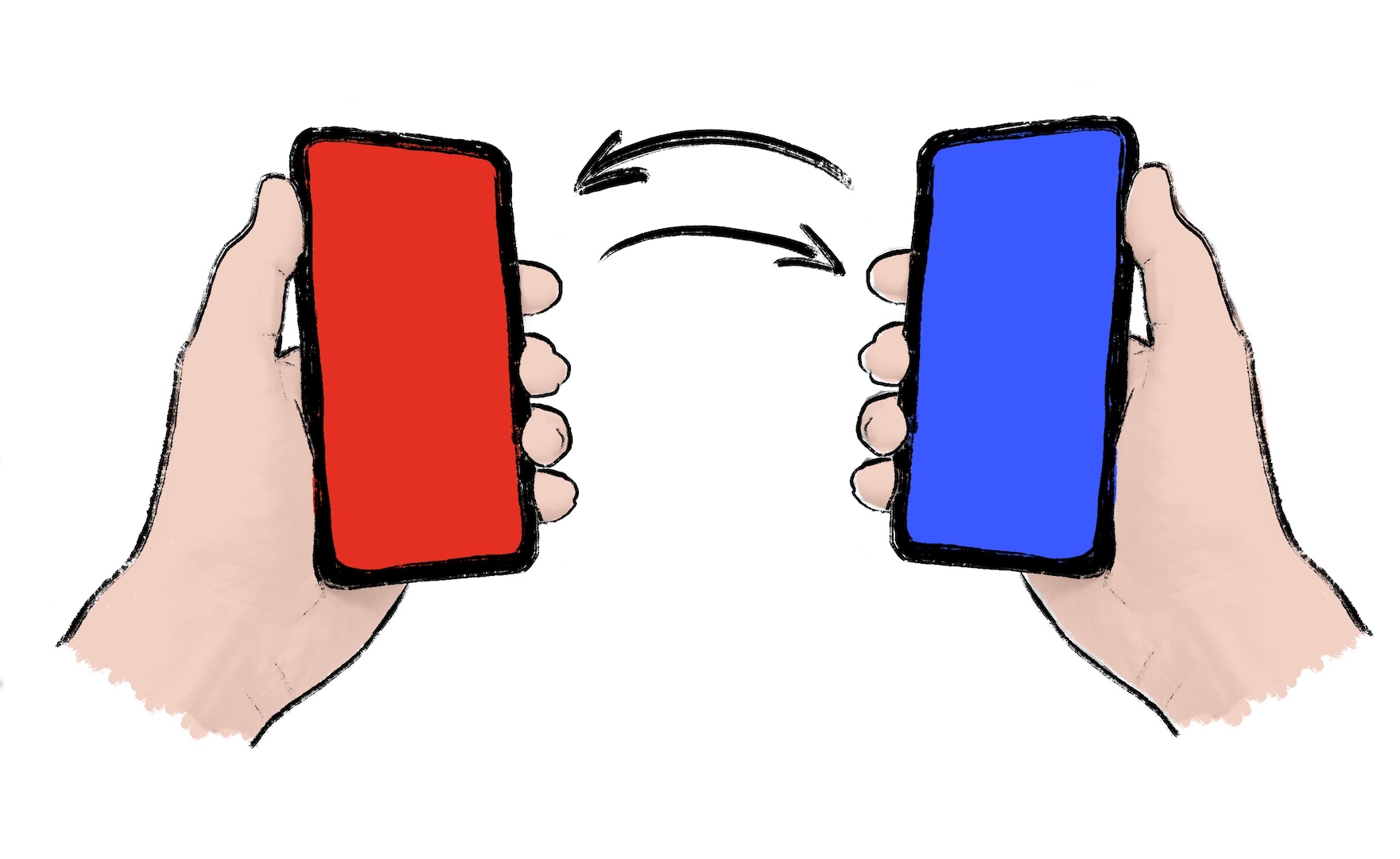
Multiplayer games need a way to synchronize game states between players.
Broadly speaking, two types of multiplayer games exist:
1. **High tick rate**.
These games need to synchronize game states many times per second
with low latency.
These would include action games, sports games, fighting games.
2. **Low tick rate**.
These games only need to synchronize game states occasionally
with latency having less impact.
These would include card games, strategy games, puzzle games.
This resembles the differentiation between real-time versus turn-based
games, though the analogy falls short.
For example, real-time strategy games run—as the name suggests—in
real-time, but that doesn't correlate to a high tick rate.
These games can simulate much of what happens
in between player interactions on local machines.
Therefore, they don't need to synchronize game states that often.
{:.site-illustration}
If you can choose low tick rates as a developer, you should.
Low tick lowers latency requirements and server costs.
Sometimes, a game requires high tick rates of synchronization.
For those cases, solutions such as Firestore *don't make a good fit*.
Pick a dedicated multiplayer server solution such as [Nakama][].
Nakama has a [Dart package][].
If you expect that your game requires a low tick rate of synchronization,
continue reading.
This recipe demonstrates how to use the
[`cloud_firestore` package][]
to implement multiplayer capabilities in your game.
This recipe doesn't require a server.
It uses two or more clients sharing game state using Cloud Firestore.
[`cloud_firestore` package]: https://pub.dev/packages/cloud_firestore
[Dart package]: https://pub.dev/packages/nakama
[Nakama]: https://heroiclabs.com/nakama/
## 1. Prepare your game for multiplayer
Write your game code to allow changing the game state
in response to both local events and remote events.
A local event could be a player action or some game logic.
A remote event could be a world update coming from the server.
{:.site-mobile-screenshot .site-illustration}
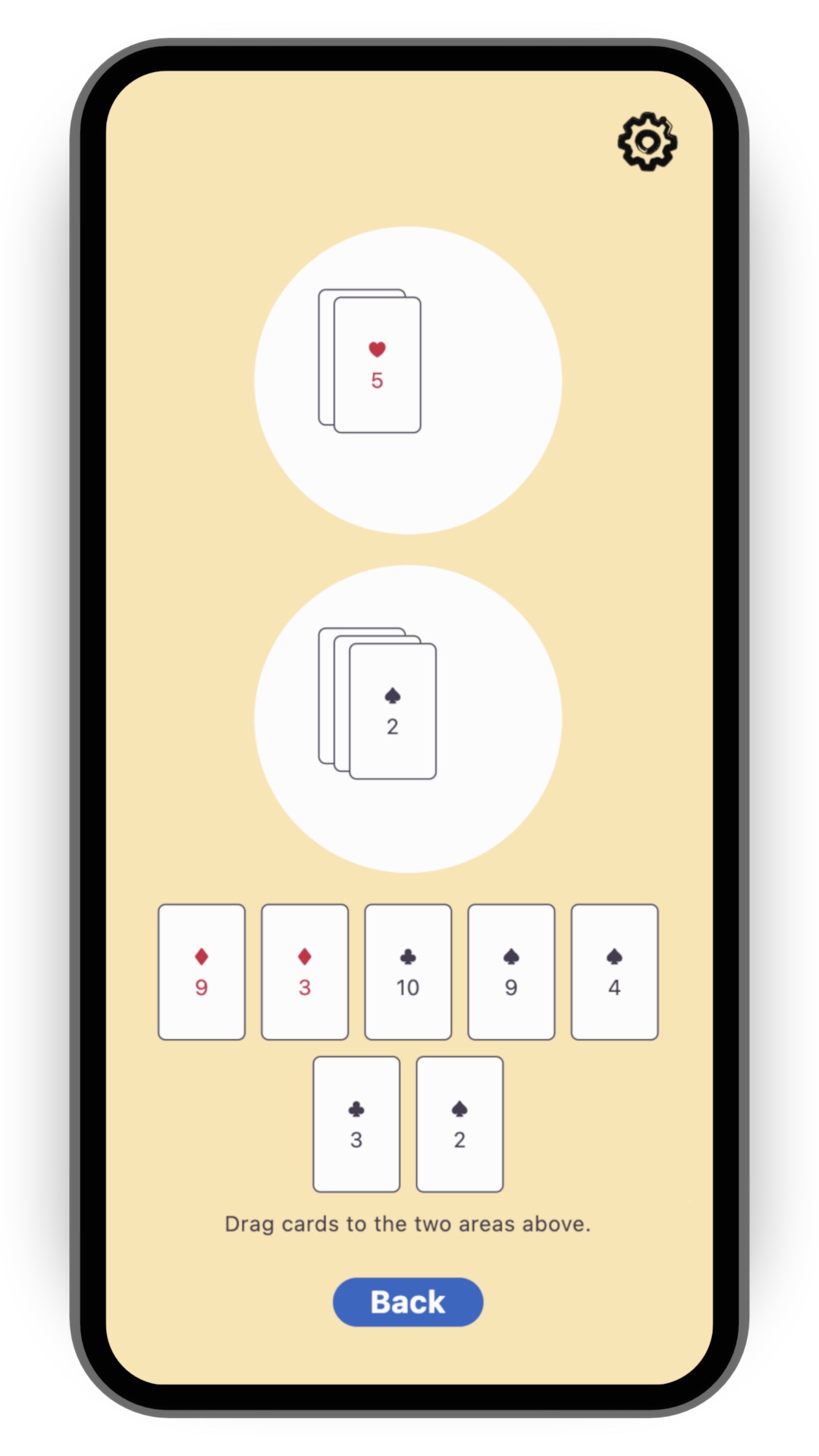
To simplify this cookbook recipe, start with
the [`card`][] template that you'll find
in the [`flutter/games` repository][].
Run the following command to clone that repository:
```console
git clone https://github.com/flutter/games.git
```
Open the project in `templates/card`.
:::note
You can ignore this step and follow the recipe with your own game
project. Adapt the code at appropriate places.
:::
[`card`]: https://github.com/flutter/games/tree/main/templates/card#readme
[`flutter/games` repository]: https://github.com/flutter/games
## 2. Install Firestore
[Cloud Firestore][] is a horizontally scaling,
NoSQL document database in the cloud.
It includes built-in live synchronization.
This is perfect for our needs.
It keeps the game state updated in the cloud database,
so every player sees the same state.
If you want a quick, 15-minute primer on Cloud Firestore,
check out the following video:
To add Firestore to your Flutter project,
follow the first two steps of the
[Get started with Cloud Firestore][] guide:
* [Create a Cloud Firestore database][]
* [Set up your development environment][]
The desired outcomes include:
* A Firestore database ready in the cloud, in **Test mode**
* A generated `firebase_options.dart` file
* The appropriate plugins added to your `pubspec.yaml`
You *don't* need to write any Dart code in this step.
As soon as you understand the step of writing
Dart code in that guide, return to this recipe.
[Cloud Firestore]: https://cloud.google.com/firestore/
[Create a Cloud Firestore database]: https://firebase.google.com/docs/firestore/quickstart#create
[Get started with Cloud Firestore]: https://firebase.google.com/docs/firestore/quickstart
[Set up your development environment]: https://firebase.google.com/docs/firestore/quickstart#set_up_your_development_environment
## 3. Initialize Firestore
1. Open `lib/main.dart` and import the plugins,
as well as the `firebase_options.dart` file
that was generated by `flutterfire configure` in the previous step.
```dart
import 'package:cloud_firestore/cloud_firestore.dart';
import 'package:firebase_core/firebase_core.dart';
import 'firebase_options.dart';
```
2. Add the following code just above the call to `runApp()`
in `lib/main.dart`:
```dart
WidgetsFlutterBinding.ensureInitialized();
await Firebase.initializeApp(options: DefaultFirebaseOptions.currentPlatform);
```
This ensures that Firebase is initialized on game startup.
3. Add the Firestore instance to the app.
That way, any widget can access this instance.
Widgets can also react to the instance missing, if needed.
To do this with the `card` template, you can use
the `provider` package
(which is already installed as a dependency).
Replace the boilerplate `runApp(MyApp())` with the following:
```dart
runApp(Provider.value(value: FirebaseFirestore.instance, child: MyApp()));
```
Put the provider above `MyApp`, not inside it.
This enables you to test the app without Firebase.
:::note
In case you are *not* working with the `card` template,
you must either [install the `provider` package][]
or use your own method of accessing the `FirebaseFirestore`
instance from various parts of your codebase.
:::
[install the `provider` package]: https://pub.dev/packages/provider/install
## 4. Create a Firestore controller class
Though you can talk to Firestore directly,
you should write a dedicated controller class
to make the code more readable and maintainable.
How you implement the controller depends on your game
and on the exact design of your multiplayer experience.
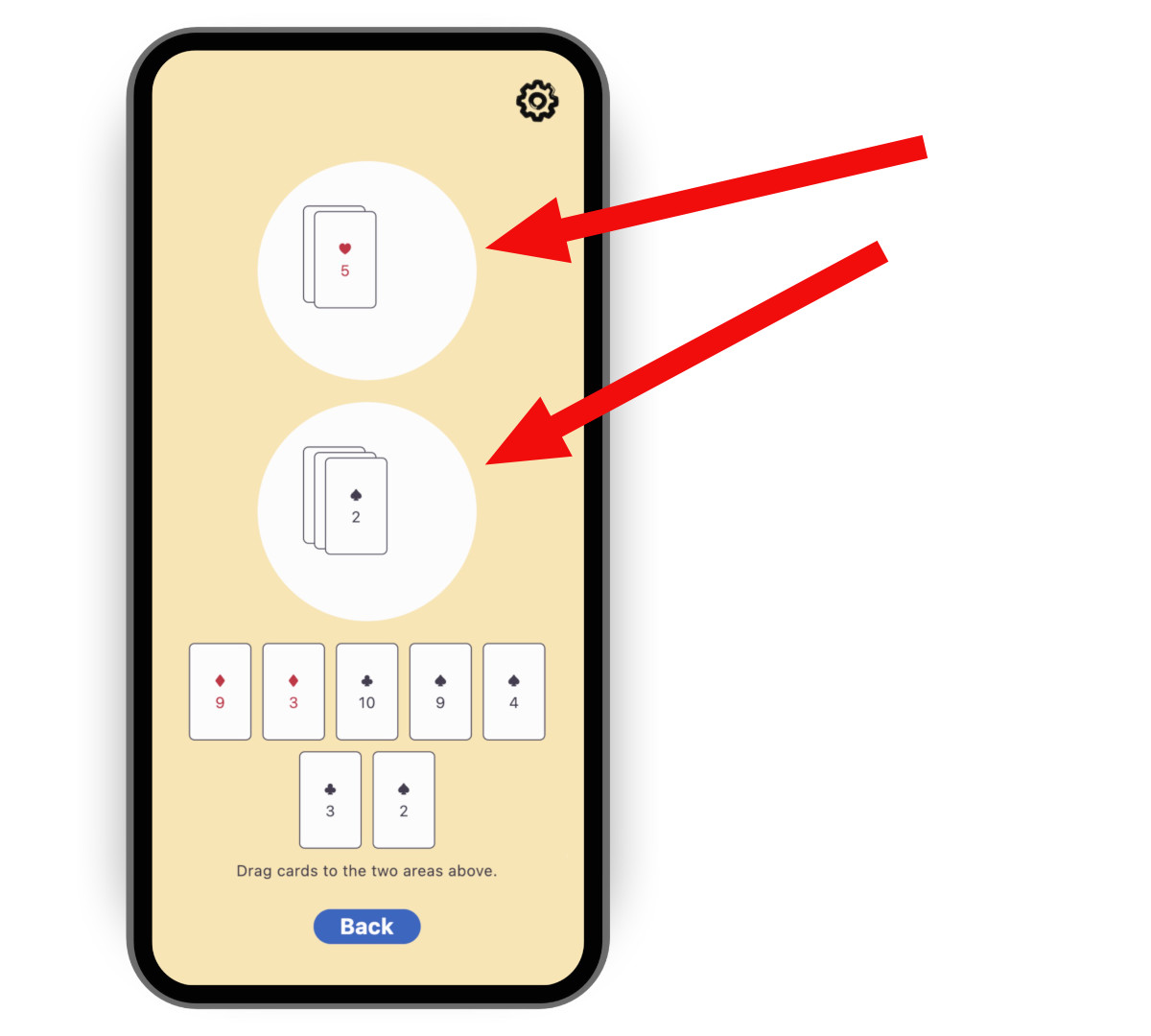
For the case of the `card` template,
you could synchronize the contents of the two circular playing areas.
It's not enough for a full multiplayer experience,
but it's a good start.
{:.site-mobile-screenshot .site-illustration}
To create a controller, copy,
then paste the following code into a new file called
`lib/multiplayer/firestore_controller.dart`.
```dart
import 'dart:async';
import 'package:cloud_firestore/cloud_firestore.dart';
import 'package:flutter/foundation.dart';
import 'package:logging/logging.dart';
import '../game_internals/board_state.dart';
import '../game_internals/playing_area.dart';
import '../game_internals/playing_card.dart';
class FirestoreController {
static final _log = Logger('FirestoreController');
final FirebaseFirestore instance;
final BoardState boardState;
/// For now, there is only one match. But in order to be ready
/// for match-making, put it in a Firestore collection called matches.
late final DocumentReference> _matchRef = instance
.collection('matches')
.doc('match_1');
late final DocumentReference> _areaOneRef = _matchRef
.collection('areas')
.doc('area_one')
.withConverter>(
fromFirestore: _cardsFromFirestore,
toFirestore: _cardsToFirestore,
);
late final DocumentReference> _areaTwoRef = _matchRef
.collection('areas')
.doc('area_two')
.withConverter>(
fromFirestore: _cardsFromFirestore,
toFirestore: _cardsToFirestore,
);
late final StreamSubscription _areaOneFirestoreSubscription;
late final StreamSubscription _areaTwoFirestoreSubscription;
late final StreamSubscription _areaOneLocalSubscription;
late final StreamSubscription _areaTwoLocalSubscription;
FirestoreController({required this.instance, required this.boardState}) {
// Subscribe to the remote changes (from Firestore).
_areaOneFirestoreSubscription = _areaOneRef.snapshots().listen((snapshot) {
_updateLocalFromFirestore(boardState.areaOne, snapshot);
});
_areaTwoFirestoreSubscription = _areaTwoRef.snapshots().listen((snapshot) {
_updateLocalFromFirestore(boardState.areaTwo, snapshot);
});
// Subscribe to the local changes in game state.
_areaOneLocalSubscription = boardState.areaOne.playerChanges.listen((_) {
_updateFirestoreFromLocalAreaOne();
});
_areaTwoLocalSubscription = boardState.areaTwo.playerChanges.listen((_) {
_updateFirestoreFromLocalAreaTwo();
});
_log.fine('Initialized');
}
void dispose() {
_areaOneFirestoreSubscription.cancel();
_areaTwoFirestoreSubscription.cancel();
_areaOneLocalSubscription.cancel();
_areaTwoLocalSubscription.cancel();
_log.fine('Disposed');
}
/// Takes the raw JSON snapshot coming from Firestore and attempts to
/// convert it into a list of [PlayingCard]s.
List _cardsFromFirestore(
DocumentSnapshot> snapshot,
SnapshotOptions? options,
) {
final data = snapshot.data()?['cards'] as List?;
if (data == null) {
_log.info('No data found on Firestore, returning empty list');
return [];
}
try {
return data
.cast>()
.map(PlayingCard.fromJson)
.toList();
} catch (e) {
throw FirebaseControllerException(
'Failed to parse data from Firestore: $e',
);
}
}
/// Takes a list of [PlayingCard]s and converts it into a JSON object
/// that can be saved into Firestore.
Map _cardsToFirestore(
List cards,
SetOptions? options,
) {
return {'cards': cards.map((c) => c.toJson()).toList()};
}
/// Updates Firestore with the local state of [area].
Future _updateFirestoreFromLocal(
PlayingArea area,
DocumentReference> ref,
) async {
try {
_log.fine('Updating Firestore with local data (${area.cards}) ...');
await ref.set(area.cards);
_log.fine('... done updating.');
} catch (e) {
throw FirebaseControllerException(
'Failed to update Firestore with local data (${area.cards}): $e',
);
}
}
/// Sends the local state of `boardState.areaOne` to Firestore.
void _updateFirestoreFromLocalAreaOne() {
_updateFirestoreFromLocal(boardState.areaOne, _areaOneRef);
}
/// Sends the local state of `boardState.areaTwo` to Firestore.
void _updateFirestoreFromLocalAreaTwo() {
_updateFirestoreFromLocal(boardState.areaTwo, _areaTwoRef);
}
/// Updates the local state of [area] with the data from Firestore.
void _updateLocalFromFirestore(
PlayingArea area,
DocumentSnapshot> snapshot,
) {
_log.fine('Received new data from Firestore (${snapshot.data()})');
final cards = snapshot.data() ?? [];
if (listEquals(cards, area.cards)) {
_log.fine('No change');
} else {
_log.fine('Updating local data with Firestore data ($cards)');
area.replaceWith(cards);
}
}
}
class FirebaseControllerException implements Exception {
final String message;
FirebaseControllerException(this.message);
@override
String toString() => 'FirebaseControllerException: $message';
}
```
Notice the following features of this code:
* The controller's constructor takes a `BoardState`.
This enables the controller to manipulate the local state of the game.
* The controller subscribes to both local changes to update Firestore
and to remote changes to update the local state and UI.
* The fields `_areaOneRef` and `_areaTwoRef` are
Firebase document references.
They describe where the data for each area resides,
and how to convert between the local Dart objects (`List`)
and remote JSON objects (`Map`).
The Firestore API lets us subscribe to these references
with `.snapshots()`, and write to them with `.set()`.
## 5. Use the Firestore controller
1. Open the file responsible for starting the play session:
`lib/play_session/play_session_screen.dart` in the case of the
`card` template.
You instantiate the Firestore controller from this file.
2. Import Firebase and the controller:
```dart
import 'package:cloud_firestore/cloud_firestore.dart';
import '../multiplayer/firestore_controller.dart';
```
3. Add a nullable field to the `_PlaySessionScreenState` class
to contain a controller instance:
```dart
FirestoreController? _firestoreController;
```
4. In the `initState()` method of the same class,
add code that tries to read the FirebaseFirestore instance
and, if successful, constructs the controller.
You added the `FirebaseFirestore` instance to `main.dart`
in the *Initialize Firestore* step.
```dart
final firestore = context.read();
if (firestore == null) {
_log.warning(
"Firestore instance wasn't provided. "
'Running without _firestoreController.',
);
} else {
_firestoreController = FirestoreController(
instance: firestore,
boardState: _boardState,
);
}
```
5. Dispose of the controller using the `dispose()` method
of the same class.
```dart
_firestoreController?.dispose();
```
## 6. Test the game
1. Run the game on two separate devices
or in 2 different windows on the same device.
2. Watch how adding a card to an area on one device
makes it appear on the other one.
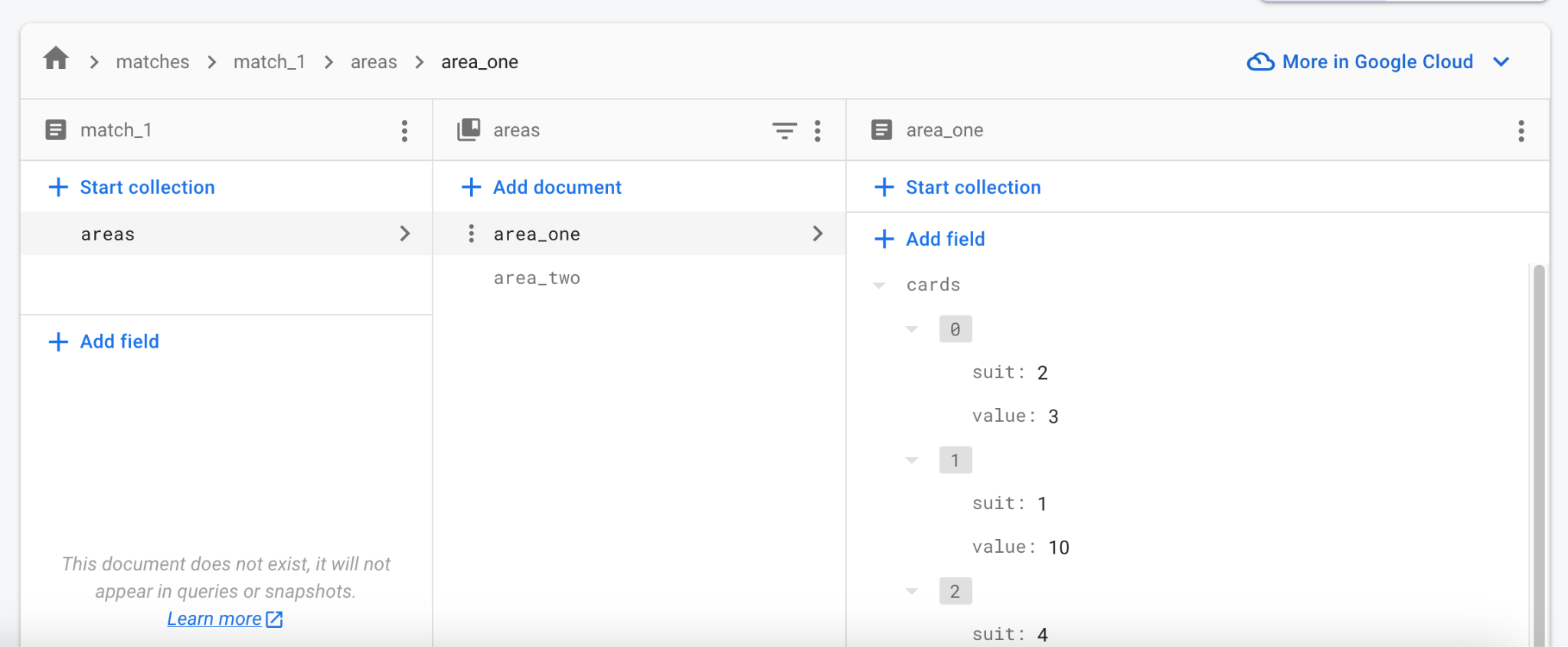
3. Open the [Firebase web console][]
and navigate to your project's Firestore Database.
4. Watch how it updates the data in real time.
You can even edit the data in the console
and see all running clients update.
[Firebase web console]: https://console.firebase.google.com/
### Troubleshooting
The most common issues you might encounter when testing
Firebase integration include the following:
* **The game crashes when trying to reach Firebase.**
* Firebase integration hasn't been properly set up.
Revisit *Step 2* and make sure to run `flutterfire configure`
as part of that step.
* **The game doesn't communicate with Firebase on macOS.**
* By default, macOS apps don't have internet access.
Enable [internet entitlement][] first.
[internet entitlement]: /data-and-backend/networking#macos
## 7. Next steps
At this point, the game has near-instant and
dependable synchronization of state across clients.
It lacks actual game rules:
what cards can be played when, and with what results.
This depends on the game itself and is left to you to try.
{:.site-illustration}
At this point, the shared state of the match only includes
the two playing areas and the cards within them.
You can save other data into `_matchRef`, too,
like who the players are and whose turn it is.
If you're unsure where to start,
follow [a Firestore codelab or two][]
to familiarize yourself with the API.
At first, a single match should suffice
for testing your multiplayer game with colleagues and friends.
As you approach the release date,
think about authentication and match-making.
Thankfully, Firebase provides a
[built-in way to authenticate users][]
and the Firestore database structure can handle multiple matches.
Instead of a single `match_1`,
you can populate the matches collection with as many records as needed.
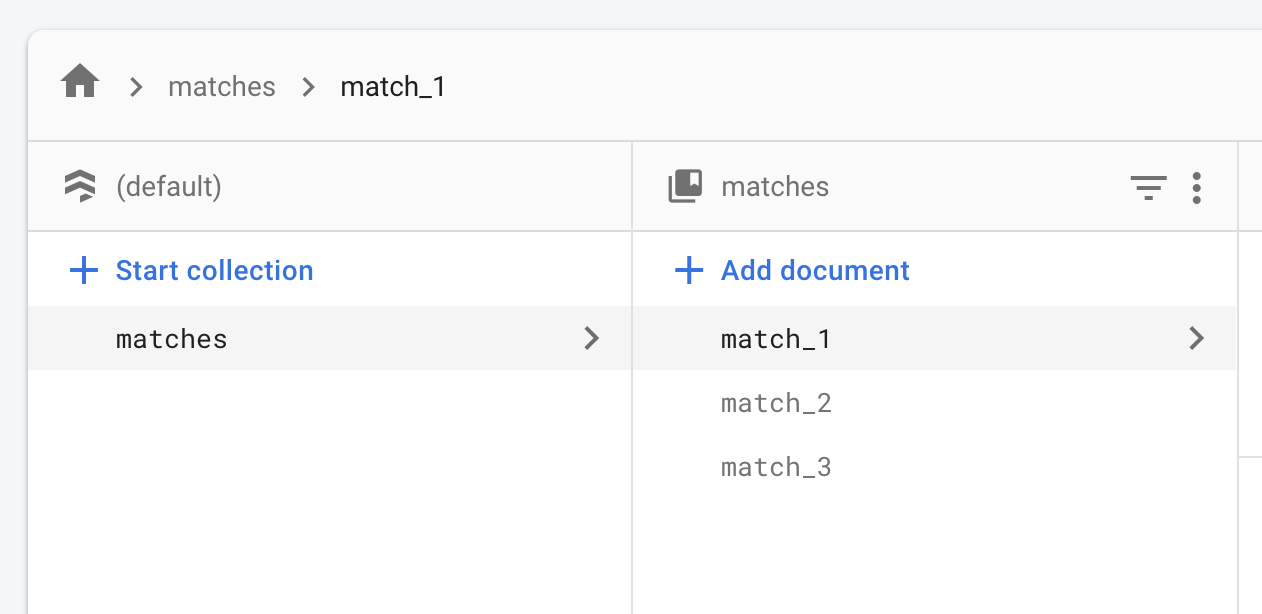
An online match can start in a "waiting" state,
with only the first player present.
Other players can see the "waiting" matches in some kind of lobby.
Once enough players join a match, it becomes "active".
Once again, the exact implementation depends on
the kind of online experience you want.
The basics remain the same:
a large collection of documents,
each representing one active or potential match.
[a Firestore codelab or two]: https://codelabs.developers.google.com/?product=flutter&text=firestore
[built-in way to authenticate users]: https://firebase.google.com/docs/auth/flutter/start