# Use themes to share colors and font styles
> How to share colors and font styles throughout an app using Themes.
:::note
This recipe uses Flutter's support for [Material 3][] and
the [google_fonts][] package.
:::
[Material 3]: /ui/design/material
[google_fonts]: https://pub.dev/packages/google_fonts
To share colors and font styles throughout an app, use themes.
You can define app-wide themes.
You can extend a theme to change a theme style for one component.
Each theme defines the colors, type style, and other parameters
applicable for the type of Material component.
Flutter applies styling in the following order:
1. Styles applied to the specific widget.
1. Themes that override the immediate parent theme.
1. Main theme for the entire app.
After you define a `Theme`, use it within your own widgets.
Flutter's Material widgets use your theme to set the background
colors and font styles for app bars, buttons, checkboxes, and more.
## Create an app theme
To share a `Theme` across your entire app, set the `theme` property
to your `MaterialApp` constructor.
This property takes a [`ThemeData`][] instance.
If you don't specify a theme in the constructor,
Flutter creates a default theme for you.
```dart
MaterialApp(
title: appName,
theme: ThemeData(
// Define the default brightness and colors.
colorScheme: ColorScheme.fromSeed(
seedColor: Colors.purple,
// ···
brightness: Brightness.dark,
),
// Define the default `TextTheme`. Use this to specify the default
// text styling for headlines, titles, bodies of text, and more.
textTheme: TextTheme(
displayLarge: const TextStyle(
fontSize: 72,
fontWeight: FontWeight.bold,
),
// ···
titleLarge: GoogleFonts.oswald(
fontSize: 30,
fontStyle: FontStyle.italic,
),
bodyMedium: GoogleFonts.merriweather(),
displaySmall: GoogleFonts.pacifico(),
),
),
home: const MyHomePage(title: appName),
);
```
Most instances of `ThemeData` set values for the following two properties. These properties affect the entire app.
1. [`colorScheme`][] defines the colors.
1. [`textTheme`][] defines text styling.
[`colorScheme`]: https://api.flutter.dev/flutter/material/ThemeData/colorScheme.html
[`textTheme`]: https://api.flutter.dev/flutter/material/ThemeData/textTheme.html
To learn what colors, fonts, and other properties, you can define,
check out the [`ThemeData`][] documentation.
## Apply a theme
To apply your new theme, use the `Theme.of(context)` method
when specifying a widget's styling properties.
These can include, but are not limited to, `style` and `color`.
The `Theme.of(context)` method looks up the widget tree and retrieves
the nearest `Theme` in the tree.
If you have a standalone `Theme`, that's applied.
If not, Flutter applies the app's theme.
In the following example, the `Container` constructor uses this technique to set its `color`.
```dart
Container(
padding: const EdgeInsets.symmetric(horizontal: 12, vertical: 12),
color: Theme.of(context).colorScheme.primary,
child: Text(
'Text with a background color',
// ···
style: Theme.of(context).textTheme.bodyMedium!.copyWith(
color: Theme.of(context).colorScheme.onPrimary,
),
),
),
```
## Override a theme
To override the overall theme in part of an app,
wrap that section of the app in a `Theme` widget.
You can override a theme in two ways:
1. Create a unique `ThemeData` instance.
2. Extend the parent theme.
### Set a unique `ThemeData` instance
If you want a component of your app to ignore the overall theme,
create a `ThemeData` instance.
Pass that instance to the `Theme` widget.
```dart
Theme(
// Create a unique theme with `ThemeData`.
data: ThemeData(colorScheme: ColorScheme.fromSeed(seedColor: Colors.pink)),
child: FloatingActionButton(onPressed: () {}, child: const Icon(Icons.add)),
);
```
### Extend the parent theme
Instead of overriding everything, consider extending the parent theme.
To extend a theme, use the [`copyWith()`][] method.
```dart
Theme(
// Find and extend the parent theme using `copyWith`.
// To learn more, check out the section on `Theme.of`.
data: Theme.of(
context,
).copyWith(colorScheme: ColorScheme.fromSeed(seedColor: Colors.pink)),
child: const FloatingActionButton(onPressed: null, child: Icon(Icons.add)),
);
```
## Watch a video on `Theme`
To learn more, watch this short Widget of the Week video on the `Theme` widget:
## Try an interactive example
```dartpad title="Flutter themes hands-on example in DartPad" run="true"
import 'package:flutter/material.dart';
// Include the Google Fonts package to provide more text format options
// https://pub.dev/packages/google_fonts
import 'package:google_fonts/google_fonts.dart';
void main() {
runApp(const MyApp());
}
class MyApp extends StatelessWidget {
const MyApp({super.key});
@override
Widget build(BuildContext context) {
const appName = 'Custom Themes';
return MaterialApp(
title: appName,
theme: ThemeData(
// Define the default brightness and colors.
colorScheme: ColorScheme.fromSeed(
seedColor: Colors.purple,
// TRY THIS: Change to "Brightness.light"
// and see that all colors change
// to better contrast a light background.
brightness: Brightness.dark,
),
// Define the default `TextTheme`. Use this to specify the default
// text styling for headlines, titles, bodies of text, and more.
textTheme: TextTheme(
displayLarge: const TextStyle(
fontSize: 72,
fontWeight: FontWeight.bold,
),
// TRY THIS: Change one of the GoogleFonts
// to "lato", "poppins", or "lora".
// The title uses "titleLarge"
// and the middle text uses "bodyMedium".
titleLarge: GoogleFonts.oswald(
fontSize: 30,
fontStyle: FontStyle.italic,
),
bodyMedium: GoogleFonts.merriweather(),
displaySmall: GoogleFonts.pacifico(),
),
),
home: const MyHomePage(title: appName),
);
}
}
class MyHomePage extends StatelessWidget {
final String title;
const MyHomePage({super.key, required this.title});
@override
Widget build(BuildContext context) {
return Scaffold(
appBar: AppBar(
title: Text(
title,
style: Theme.of(context).textTheme.titleLarge!.copyWith(
color: Theme.of(context).colorScheme.onSecondary,
),
),
backgroundColor: Theme.of(context).colorScheme.secondary,
),
body: Center(
child: Container(
padding: const EdgeInsets.symmetric(horizontal: 12, vertical: 12),
color: Theme.of(context).colorScheme.primary,
child: Text(
'Text with a background color',
// TRY THIS: Change the Text value
// or change the Theme.of(context).textTheme
// to "displayLarge" or "displaySmall".
style: Theme.of(context).textTheme.bodyMedium!.copyWith(
color: Theme.of(context).colorScheme.onPrimary,
),
),
),
),
floatingActionButton: Theme(
data: Theme.of(context).copyWith(
// TRY THIS: Change the seedColor to "Colors.red" or
// "Colors.blue".
colorScheme: ColorScheme.fromSeed(
seedColor: Colors.pink,
brightness: Brightness.dark,
),
),
child: FloatingActionButton(
onPressed: () {},
child: const Icon(Icons.add),
),
),
);
}
}
```
[`copyWith()`]: https://api.flutter.dev/flutter/material/ThemeData/copyWith.html
[`ThemeData`]: https://api.flutter.dev/flutter/material/ThemeData-class.html
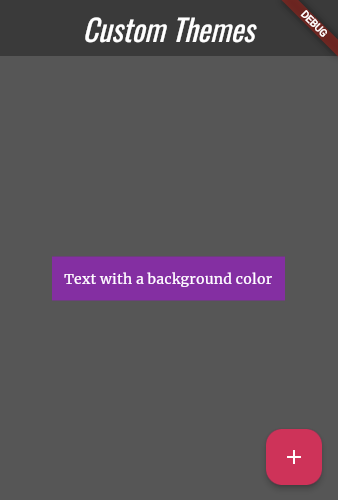 [`copyWith()`]: https://api.flutter.dev/flutter/material/ThemeData/copyWith.html
[`ThemeData`]: https://api.flutter.dev/flutter/material/ThemeData-class.html
[`copyWith()`]: https://api.flutter.dev/flutter/material/ThemeData/copyWith.html
[`ThemeData`]: https://api.flutter.dev/flutter/material/ThemeData-class.html